

reMarkable Custom Templates: The Complete Guide
reMarkable's software update added custom template support, so you can import your own page layouts instead of relying only on the built-in options. Key2Success Tiles are pre-built templates, daily schedules, Cornell notes, habit trackers, SWOT sheets, and more, that install directly onto a reMarkable 2, Paper Pro, or Paper Pro Move.
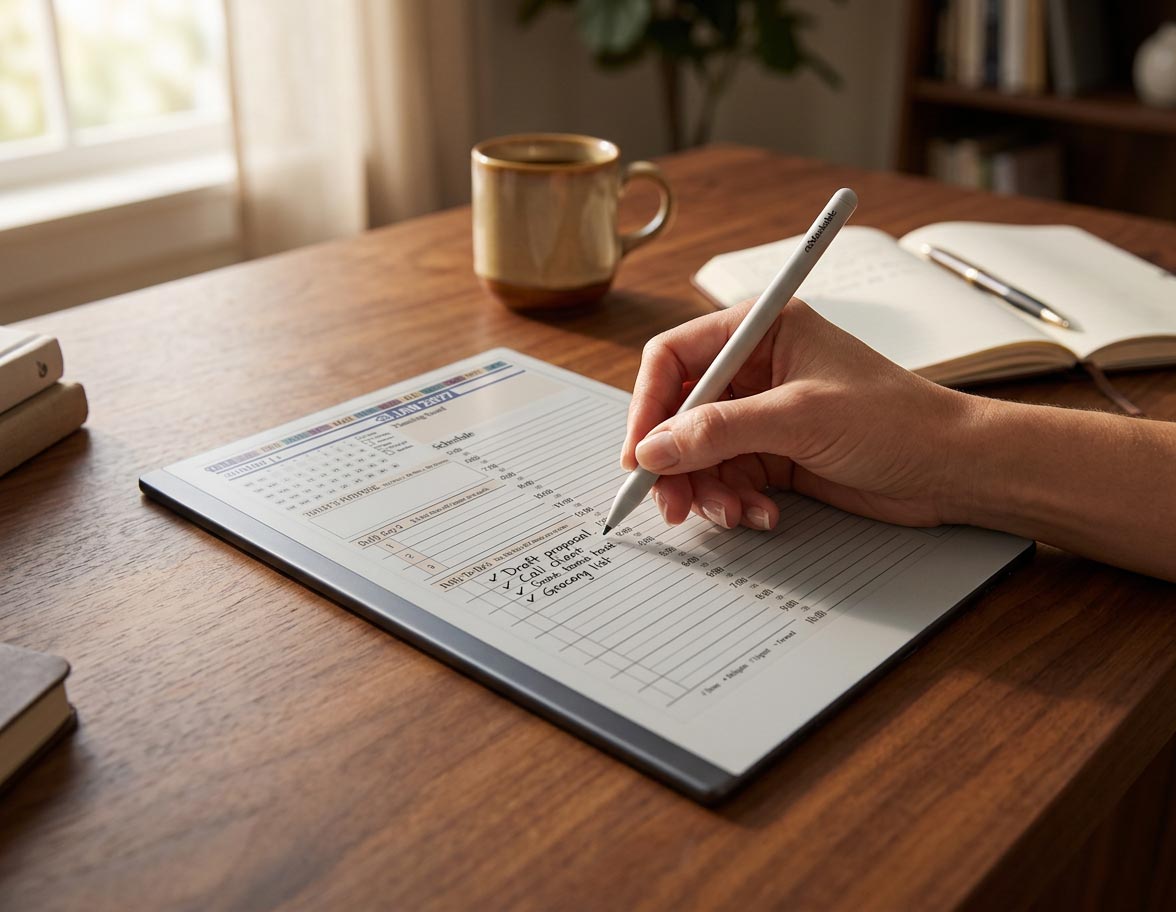
For years, the biggest reMarkable complaint had nothing to do with the hardware. The screen felt like paper, the battery lasted for days, and the pen was as close to real ink as an e-ink device gets. The problem was the template library. You got a handful of built-in layouts, and that was the ceiling. If you wanted a Cornell notes page, a habit tracker, or a layout built around how you actually plan your week, you were out of luck.
reMarkable's custom template update changed that, and Key2Success Tiles turn the feature into an actual planning system instead of a novelty setting buried in a menu. This guide covers what changed, how to set it up, and how to pick the right tiles instead of downloading all of them and never opening half.
What Custom Templates Actually Do
Custom templates let you import your own page designs and use them exactly like reMarkable's built-in ones. Once a template is added to your library, it shows up as an option any time you create a new page, in any notebook, on any current reMarkable device. You are not stuck with whatever reMarkable decided to ship. You can build, or download, a layout that matches your actual workflow.
That is the real difference between a note-taking device and a planning system. A blank page works fine for jotting something down. A structured page, built for a specific kind of thinking, does part of the work before you even pick up the pen.
Why This Update Matters More Than It Sounds
Here is the thing most coverage of this update missed: reMarkable's hardware was never the limiting factor. The screen, the pen feel, the battery life, all of that was already good. What held the device back was software rigidity. A tablet that only offers five page layouts is an expensive notebook with extra steps.
Custom templates remove that ceiling. Once you can bring in your own tiles, a reMarkable becomes whatever planning system you actually need. Daily schedules. Life balance wheels. SWOT sheets. Sermon notes. Expense trackers. None of that was realistic before, short of printing PDFs and manually flipping to a fixed layout every time.
After Six Years on reMarkable
I have run a reMarkable daily for six years now, currently a Paper Pro at my desk, a Paper Pure as a backup, and the Move for on-the-go note-taking. What got me most about the custom template update wasn't the feature itself. It was that I could finally add my own elements to my daily pages, things like call tracking and habit logs, instead of working around whatever layout reMarkable happened to ship that year.
The bigger jump came with a more recent update. You can now copy and paste tiles directly into a notebook without building a separate layer for each one first. That sounds like a small technical detail. It isn't. Layer management was the one step that made most people give up on custom templates before they ever got a system running. Removing it is the difference between a feature power users tolerate and one regular people actually use.
What Key2Success Tiles Are
Key2Success Tiles are individual planning page templates, each built around a specific kind of thinking. Instead of buying one fixed planner and living inside its layout for a year, you pick tiles the way you would pick tools for a toolbox. Take what you need. Skip what you don't.
The library covers daily schedule tiles laid out by hour, Cornell note tiles with the cue column built in, habit tracker tiles, life balance wheel tiles, SWOT analysis tiles, expense tracker tiles, and sermon note tiles for anyone taking structured notes during a service or talk. New tiles get added over time in the Key2Success Tiles shop.
Across the Key2Success community, daily tiles, project tiles, and meeting tiles are the most common starting point. A lot of people also add the essential tiles, which give you a clean set of extra note pages without redesigning an entire notebook from scratch.
Personally, the two tiles I keep in permanent rotation are the life balance wheel and the SWOT sheet. Daily tiles handle the day-to-day noise. Those two are what I use for the slower, higher-stakes thinking, a monthly check on whether work, health, and everything else are actually getting attention, or a real SWOT pass before a business decision instead of a gut call.
How to Add Custom Templates to reMarkable
The short version: download the tile files, import them through the reMarkable desktop app, and they show up in your template picker the next time you create a page. Make sure your device is on the latest firmware first. Custom templates only work on updated software, and an out-of-date sync is the most common reason the option doesn't appear.
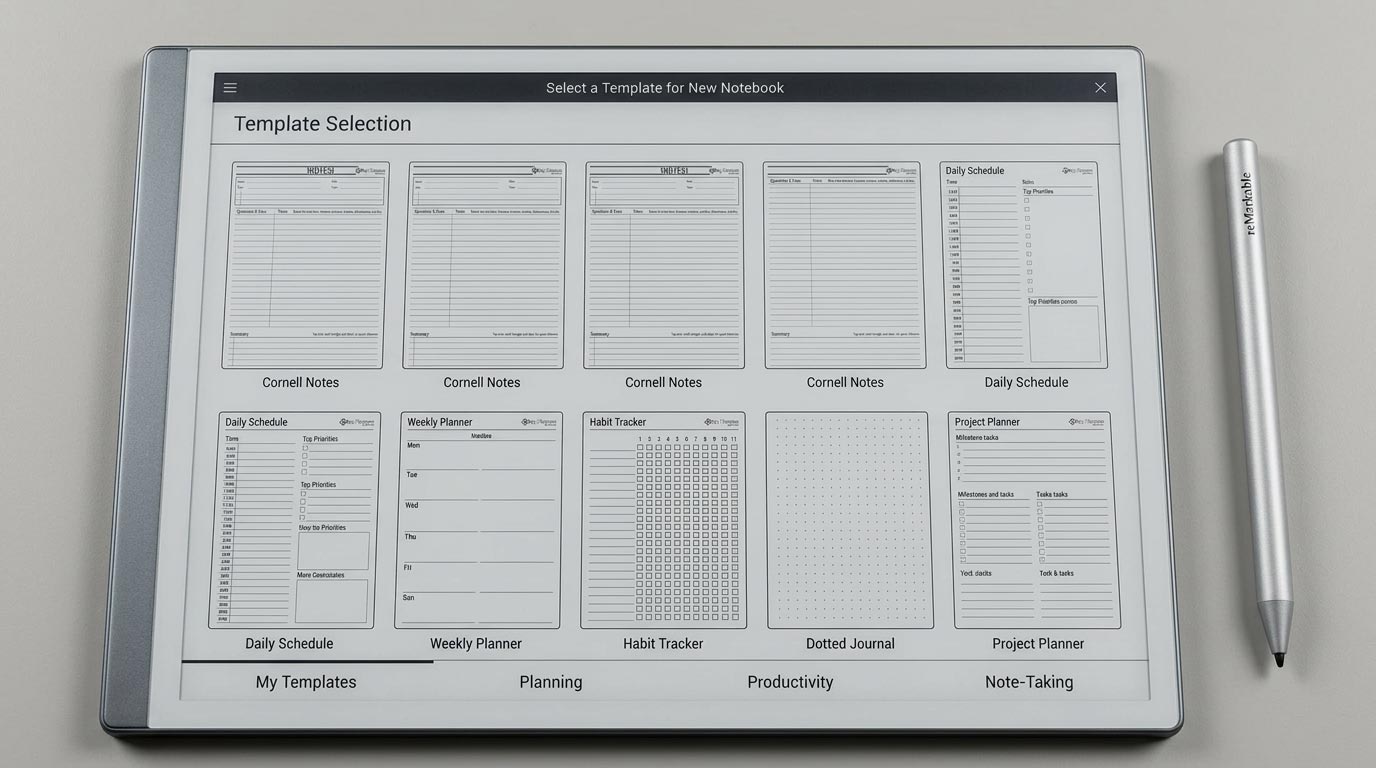
The reMarkable template picker with several Key2Success tiles installed.
There are a few device-specific quirks depending on whether you're on a reMarkable 2, a Paper Pro, or a Paper Pro Move, plus the copy-paste shortcut mentioned above that skips the old layer-building step entirely. Full step-by-step walkthrough here.
Custom Templates vs. Built-In Templates
Built-in templates are fine for basic notes, but they weren't built around any specific planning method and you can't add to the library. Custom templates flip that. You decide what a "template" means for your system, and the library keeps growing as you add tiles.
Built-in templates still win on speed. No downloading, no importing, no sync wait, so they're the better choice for a quick throwaway note. For anything that's part of an actual system, daily planning, project tracking, a recurring weekly review, a custom tile does more of the thinking for you. Full comparison here.
Choosing the Right Tiles for Your Planning Style
The temptation once you can add unlimited templates is to add all of them. Don't. A system with fifteen tile types gets used for about a week before it collapses under its own weight.
Start with one core page
A daily schedule tile is not optional if you're planning by hour or priority. It's the page you'll open every morning, so set it up first, not fifth.
Add a weekly or project overview
Daily pages are great in the moment and useless for the bigger picture. A weekly or project tile gives a task somewhere to land when it doesn't fit today.
Layer in one reflection tile
Pick one: a habit tracker if you're building or breaking a specific behavior, or a life balance wheel if the goal is broader. This is the tile most people skip, and it's the one that actually changes behavior instead of just recording it. More on habit tracking with custom templates.
Add specialty tiles when the situation actually comes up
SWOT sheets, expense trackers, sermon notes. Useful, but situational. Add them the week you need them, not because they're available. Full breakdown of the best starter tiles.
Which reMarkable Device Handles This Best
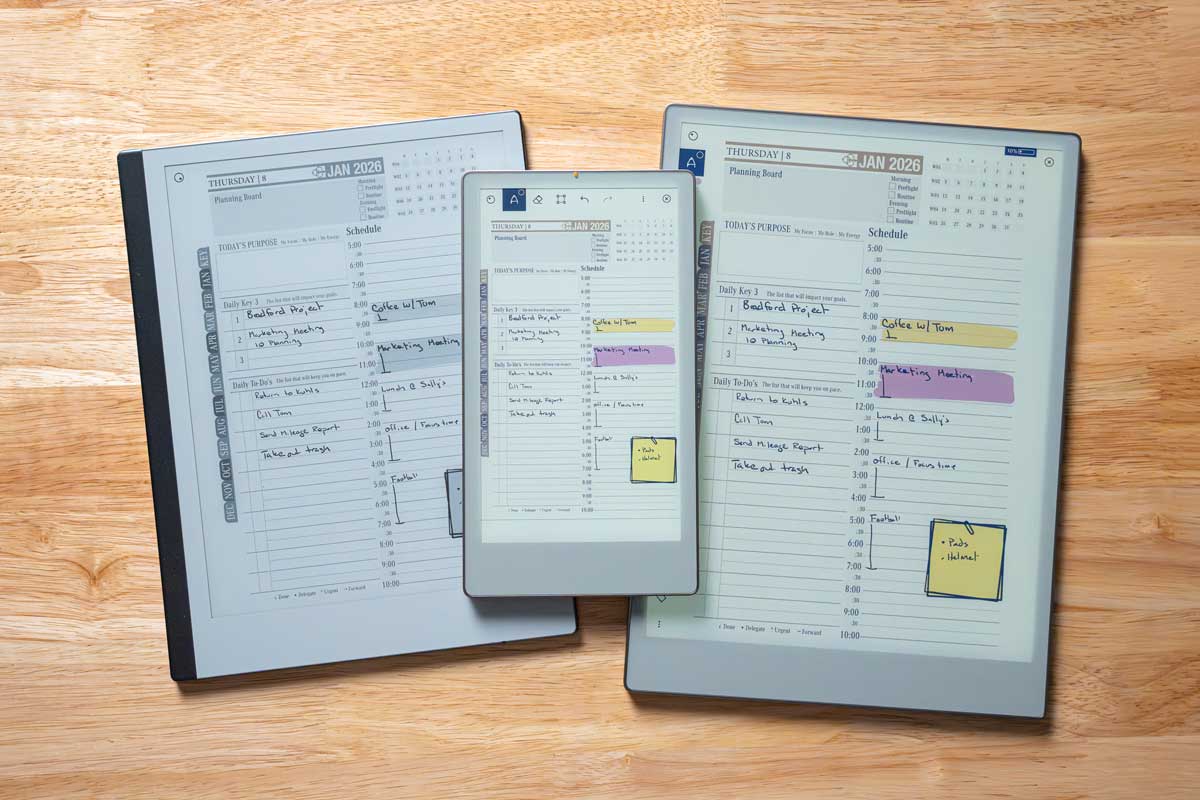
The current reMarkable lineup, side by side.
Custom templates work across the current lineup, but screen size and resolution change how a tile actually feels to use. Running a Paper Pro, a Paper Pure, and a Move side by side, the extra screen real estate on the Paper Pro makes a densely designed tile (a full daily schedule with a side column, for example) noticeably easier to use than the same tile on a smaller screen. The Move earns its keep for quick capture on the go, not for a tile-heavy daily system. Full device-by-device comparison.
Getting Started
If you're new to this, watch the full setup on video first, then download a small starter set of tiles rather than the entire library. See how two or three feel for a week before building out the rest. A planning system that's overbuilt on day one usually gets abandoned by week three.
See the complete walkthrough, including what the tiles look like on the actual e-ink screen: reMarkable Custom Templates: Key2Success Tiles Now Available.
Where to Get Set Up
- Key2Success Tile Library The full set of tiles referenced throughout this guide, including new releases.
- reMarkable Digital Planners Shop Full Key2Success planner editions built for reMarkable, if you'd rather start from a complete system.
- eTiles for reMarkable Individual digital tile packs sized specifically for reMarkable's custom template format.
- reMarkable Paper Pro Digital Planners If you're deciding on hardware first, this covers Paper Pro-specific planning setups.
Frequently Asked Questions
Does reMarkable support custom templates now?
Yes. A reMarkable software update added support for custom templates, letting users import their own page layouts. This is what allows third-party tile systems like Key2Success to add custom pages directly to the reMarkable template library.
What are Key2Success Tiles for reMarkable?
Key2Success Tiles are individual planning page templates you add to a reMarkable as custom templates. The library includes daily schedule pages, Cornell note layouts, habit trackers, SWOT sheets, life balance wheels, expense trackers, and sermon note pages.
How do you add Key2Success Tiles to reMarkable?
Download the tile files from the Key2Success Tiles shop, then import them through the reMarkable desktop app or the reMarkable cloud. Once added, the tiles appear in your template picker on any notebook page.
Do you need to build layers to use custom templates?
Not anymore. Earlier versions of the feature required setting up a separate layer for each custom template. A recent reMarkable update lets you copy and paste a tile directly into a notebook page instead, which removes the step that used to trip up most first-time users.
Which reMarkable device works best with custom templates?
All current reMarkable devices support custom templates, but the Paper Pro's larger screen gives densely designed tiles more room to work with. The reMarkable 2 handles text-based tiles fine, and the Move is better suited to quick capture than a full tile-based daily system.
Common Questions About Custom Templates
Is custom template support free?
Yes, the feature is part of reMarkable's standard software and does not require a Connect subscription.
Do custom templates work on the original reMarkable 1?
Support depends on firmware version; reMarkable 2, Paper Pro, Paper Pure, and Paper Pro Move are the primary supported devices for current tile sets.
What file format do Key2Success Tiles use?
Tiles are provided as PNG or PDF files sized to match reMarkable's screen resolution.
Can I use a custom template in an existing notebook?
Yes, you can apply a custom template to any new page inside an existing notebook without starting a new file.
How many custom templates can I install at once?
There's no fixed limit from reMarkable, though storage space and template-picker clutter are the practical constraints.
Do tiles sync across multiple reMarkable devices?
Custom templates need to be imported separately on each device through the desktop app; they don't automatically sync like notebook content does.
Can I mix different tiles in the same notebook?
Yes, a single notebook can hold a daily schedule page, a Cornell notes page, and a habit tracker page side by side.
Will a custom template look different on a Paper Pro versus a reMarkable 2?
Layout stays consistent, but the larger Paper Pro screen gives dense tiles more visible working space.
Do I need Developer Mode to add custom templates?
No, standard custom template import through the desktop app does not require Developer Mode.
Can I remove a custom template after adding it?
Yes, custom templates can be deleted from the template settings in the desktop app.
Build Your Starter Tile Kit
- Update your reMarkable to the latest firmware before importing anything.
- Download three tiles to start: a daily schedule tile, a weekly or project tile, and one reflection tile (habit tracker or life balance wheel).
- Import all three through the reMarkable desktop app and confirm they appear in your template picker.
- Run the three-tile system for one full week before adding anything else.
- Add a specialty tile (SWOT, expense tracker, sermon notes) only once you hit a situation that actually calls for it.
Get the Full Key2Success Tile Library
Every tile mentioned in this guide, plus new releases, lives in the Key2Success Tiles shop.
Browse Key2Success TilesThe Takeaway
reMarkable didn't invent tile-based planning. GoodNotes and OneNote users have built custom-template systems for years. What reMarkable actually did was catch up, and the copy-paste update matters more than the original template launch did, because it removed the one technical barrier, manual layer creation, that kept most people from bothering in the first place.
If you tried custom templates on reMarkable a year or two ago and gave up, it's worth trying again. The feature you quit on isn't the same one that exists now.


