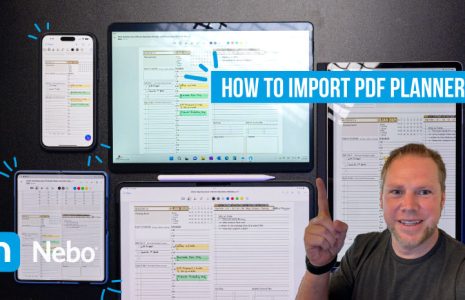
How to Import the Key2Success Planner PDF into Your Onyx BOOX Device
Using the Key2Success Planner on your Onyx BOOX e-ink device is a great way to stay productive and paperless. Whether you’re using a Note Air, Tab Ultra, or another BOOX model, importing your digital planner is quick and easy. Below, we outline the top three methods for transferring the PDF planner to your device: USB, Wi-Fi, and Web—plus several other advanced options supported by BOOX.
🔌 Method 1: USB File Transfer (Offline & Reliable)
The simplest method is using a USB cable.
- Connect your BOOX device to your computer using a USB-C cable.
- Your BOOX will appear as an external drive.
- Drag and drop the Key2Success Planner PDF into the
Documentsfolder or a custom folder you’ve created. - Eject the device and open the NeoReader app or your favorite PDF annotation tool on BOOX.
- Locate and open the planner to begin using it.
💡 Tip: Most BOOX devices support USB OTG, so you can also transfer the file from a USB drive or SD card using an adapter.
📶 Method 2: Wi-Fi Transfer with BooxDrop (Fast & Wireless)
BooxDrop is a built-in app that allows seamless file transfers over your local network.

- On your BOOX, swipe down to open the Control Center and tap BooxDrop.
- A unique local IP address or QR code will appear.
- On your computer or smartphone (connected to the same Wi-Fi), open a browser and go to the URL shown.
- Drag and drop the Key2Success Planner PDF into the browser window.
- The file will instantly upload to your BOOX’s internal storage.
🔒 Secure: Transfers happen within your local Wi-Fi network for privacy.
🌐 Method 3: send2boox Web or App (Cloud-Connected)
If you’re away from your local Wi-Fi or prefer a cloud-enabled workflow, use send2boox:
Option A: Website
- Visit www.send2boox.com and sign in with your BOOX account.
- Upload the Key2Success Planner PDF.
- On your BOOX, make sure the sync service is enabled in settings under Push Services.
- Your planner will appear in your BOOX library once synced.
Option B: Desktop App or Chrome Extension
Install the send2boox desktop app or Chrome extension for drag-and-drop convenience and easy syncing.
📱 Bonus: Transfer from Your Mobile Device
Using the BOOX Assistant App (available on iOS and Android), you can wirelessly push the planner to your BOOX.
- Open the BOOX Assistant App.
- Scan the QR code shown on your BOOX under Transfer Files > BOOX Assistant.
- Tap Upload Files, select the planner, and it will sync to your device.
💡 Other Advanced Options
- Bluetooth & Nearby Share: Great for Android-to-BOOX transfers.
- Third-Party Cloud Apps: BOOX supports Google Drive, Dropbox, OneDrive, and more via Google Play Store.
- Email to Device: If configured, you can email the planner PDF to your BOOX and open it directly from your inbox.
Final Tips
- Ensure your BOOX firmware is up to date for best performance.
- Use NeoReader or OneNote (if supported) for annotation and planning.
- Organize your planner in a dedicated folder for easy access.
Ready to Get Started?
Download your Key2Success Planner PDF, choose your preferred transfer method, and unlock a streamlined planning experience on your BOOX device.