Importing PDFs into Noteshelf: A Comprehensive Guide
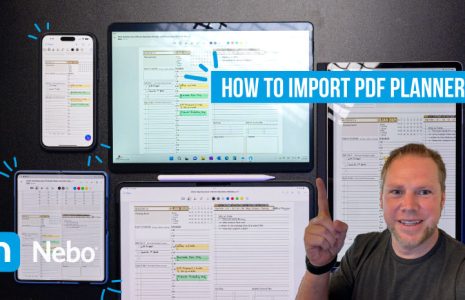
This guide provides a detailed overview of the process for importing PDF files into the Noteshelf app, ensuring users can effectively utilize their digital planners. By following the outlined steps, users will be equipped to enhance their note-taking and annotation experience within the app.
Understanding the nuances of importing PDFs is crucial for maximizing the functionality of Noteshelf. This guide will cover both iOS and Android platforms, making it a valuable resource for all users looking to streamline their digital planning process.
Step-by-Step Instructions for iOS Users
For iOS users, importing a PDF into Noteshelf is a straightforward process that involves a few simple taps. Start by opening the Noteshelf app, then navigate to the ‘+’ (Add) menu, and select ‘Import Document’ to choose your desired PDF from your files app or third-party applications.
Once the document is opened in Noteshelf, users can immediately begin annotating, highlighting, and marking up their PDF. It's important to ensure that the file remains unchanged before import to avoid any potential issues with compatibility or functionality.
Step-by-Step Instructions for Android Users
Android users can also enjoy seamless PDF imports into Noteshelf by following a similar process. Begin by launching the Noteshelf app and tapping on the ‘+’ (Add) button, then select ‘Import Document’ to locate and select the PDF file you wish to import.
After the PDF is successfully imported, users can utilize various tools within Noteshelf to annotate and interact with their document. This capability allows for a personalized and engaging experience when working with digital planners on Android devices.
Common Issues and Troubleshooting Tips
While importing PDFs into Noteshelf is generally a smooth process, users may encounter some common issues. For instance, if the PDF does not appear in the import options, ensure that the file is saved in a compatible format and that it is accessible from the selected source.
In addition, users should avoid making changes to the PDF file after it has been imported, as this can lead to unexpected behavior in the Noteshelf app. If issues persist, consulting the app's support resources or community forums can provide helpful solutions.
Resources for Further Learning
To enhance your experience with Noteshelf and digital planning, a variety of resources are available online. These include video tutorials, user forums, and articles that delve deeper into the app's features and functionalities.
Exploring these resources can provide valuable insights and tips on maximizing the use of Noteshelf for annotation and markup, ultimately leading to a more efficient and effective digital planning experience.