
GoodNotes on iPhone Duo: Digital Planning in Your Pocket
GoodNotes works on iPhone Duo with a redesigned two-level toolbar, Apple Pencil handwriting, and fast sync to your iPad. Open it unfolded, write in your planner, then drop Calendar beside it in split screen. Check off a task on the Duo and it updates on the iPad.
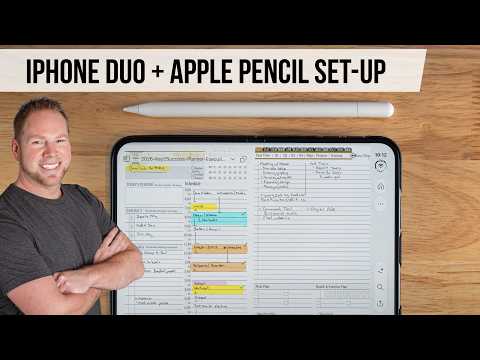
GoodNotes recently updated its app for iPhone Duo, and it changes how a digital planner works on a phone. In this video I run the Key2Success Planner in GoodNotes Pro on the unfolded Duo and walk through the new two-level toolbar, the pen and eraser settings I use, and how everything syncs with my iPad.
I filmed this in November 2026 on my own iPhone Duo with the 2026 Key2Success Planner open. My routine is simple: I plan the day on the iPad, then pull out the Duo between meetings to mark off what I finished. A calendar tells you where to be. A planner is where you decide what matters. I show that sync live, then put GoodNotes next to Calendar in split screen and ask Siri to copy my planner appointments into my calendar. That Siri step comes with iOS 27.
By the end you will know which toolbar settings to turn on, how to link two apps so they open together, and whether the Duo can carry your daily planning when the iPad stays home. Plan on the iPad, finish on the phone. I am also watching to see which other apps follow GoodNotes with Duo updates.
This video is part of my Key2Success iOS 27 AI Planning Hub, where I collect everything on planning with the iPhone Duo.
Picking a handwriting app? GoodNotes vs OneNote vs Apple Notes on iPhone Duo compares the three. For the Pencil side, watch Apple Pencil on iPhone Duo. The Siri calendar sync walkthrough goes deeper on the Siri step.
You can get the app from GoodNotes. I use the Pro level.
Chapters
- 0:00 GoodNotes on iPhone Duo: What We're Covering
- 0:49 Why Sync Your Digital Planner Across iPhone and iPad
- 1:44 How to Get GoodNotes and Use It Unfolded
- 2:04 The New Two-Level GoodNotes Toolbar
- 2:40 Pen, Scribble to Erase, and Snap to Grid Settings
- 3:44 GoodNotes Eraser Types: Precision, Standard, Stroke
- 4:33 Select Tool: Move Unfinished Tasks to the Next Day
- 4:51 Typing Inside a Digital Planner
- 5:24 GoodNotes Sync Test: iPhone Duo to iPad
- 6:41 Split Screen: GoodNotes and Calendar Side by Side
- 7:23 Siri Copies Your Planner Appointments to Calendar
- 8:16 How to Link Two Apps in Split Screen
- 9:05 Key2Success Planner Editions and Pricing
- 9:43 Next Video and Verdict on GoodNotes for iPhone Duo
- 10:26 Your Questions About iPhone Duo
Video Transcript
In the last video, I covered the introduction of the Apple Pencil to the iPhone. The iPhone Duo is the first Apple phone that has Apple Pencil support. And not only can you write in the inside of the screen, but you can also write on the outside of the screen. In that video, I touched on a different set of applications like Apple Notes, OneNote, and GoodNotes, and how you can use different note taking apps to capture thoughts and ideas.
Today, I'm going to dive a little deeper into that and I'm going to show you GoodNotes. GoodNotes recently revamp the app and release the new update for iPhone Duo users. This app really unlocks a lot of features that really make the writing experience so much more enjoyable. It also gives you the potential to have the ability to synchronize your notes across all your devices using GoodNotes.
And that not only allows you to capture good ideas plan initiatives, but it also allows you to mark off the things that you've done for so long. I would go to my iPad, I would write out my plan for the day, and then I have to go ahead, go through my day and come back to my planner, either at the end of the day or between different meetings, and mark all the things that I've completed here.
I can easily pull out my phone. Open it up.
Go right into GoodNotes, and choose to mark off something that I've completed and that will sync right into my iPad. That is awesome. So let's go through this a little bit, and let's talk about how you can use GoodNotes in a lot of different ways, and how these tools work, and how you can work from not only the unfolded look.
But also the folded look. So let's dive into it.
The first thing you need to know about GoodNotes is an application that you can download on the App Store. There is some different fees and programs to it. I'm a pro user and I find that that works out really good for me. So if you see anything in here and you like it, that is the level that I'm subscribing to.
So I'm going to go ahead and unfold the iPhone and go ahead and open up GoodNotes.
So what they did is they made this kind of two layer bar. They used the right side of the screen to get back to your home button. So you can easily go back to where your home button is. You can navigate to the different pages. And then they also had some of the commonly used settings that you've been using in GoodNotes that were always across the top.
You also have the ability to kind of go in here and bring down your share menu. You can also go ahead and copy. You can do different things that you would do. Your sidebar is also over here which pulls up, you know, the individual pages so that if you want to jump from one page to the next. But ultimately what they did down here is they added this little reading and writing button.
And when you go ahead and tap on it, it displays this toolbar for you. And with this toolbar is going to have is the ability for you to go into your pen tool. You can click on your pen and you can see the different pen choices you have. You have the ability to adjust your settings. One that I highly recommend that you look at is going into writing settings.
Neither have spelling turned on or go into pen settings and have hold and draw and have hold and draw turned on because that's going to allow you to snap to grid. And there's also that scribble to erase tool, which I really think is awesome. What that allows me to do, if I just come in here and I tap on a screen, I'm going to put.
Hello. I can go ahead and just scribble over top of that and I'll erase it. That saves me from having to go back and jump down into the next tool, which is eraser. But the eraser button has a couple of different options where you have a precision eraser, a standard eraser, and a stroke eraser. I've covered this before in other videos, but simply think of the stroke eraser.
If I go ahead and I make one line, if I touch with the stroke, it deletes the entire line. Bring that back. If I change to a standard eraser, it'll kind of like erase around it. If I do the precision eraser, it kind of is more pixel by pixel. And you can see like here how it just slightly made an erase versus here.
It turned it off and it made a rounded corner. So if you're really looking for detail that precision eraser is nice. I find the stroke eraser is best because it allows me to go ahead and delete a whole stroke. And that seems to be where if I had an issue or problem where it ended the select tool. This allows me to go ahead and select text.
I can go ahead and move it. A lot of common times I need to go ahead and I need to copy text, and then I need to go ahead and jump to my next day and then drop that text on that particular day.
And paste that text in there, because I didn't complete that task. I also have the ability to type in the system, and I can do so like such.
And for those that maybe want to get involved in this, even on their current iPhone, maybe they don't have the dual yet. You can still type inside the planning system and this will still sync across your other devices itself.
And there is a handful of other tools that you're going to see that have built out. These tools are all very common and have been for a while now when it comes to using GoodNotes, but being able to use GoodNotes and have those notes sync across my devices is absolutely cool.
So I'm just going to show you how fast that actually is. So I want to bring my iPad in the picture here.
I'm going to go to my Apple Pencil. I'm going to go ahead and choose highlighter. And I'm going to go ahead and highlight take out trash. I'll call fast. That showed up. I'm going to go ahead and use the eraser tool.
And I'm going to erase and sure enough erases it. And I'm going to mark that. It's done.
And it's done over here as well. So the synchronization between these two devices is huge. And when you look at like this is the iPad 11. You know, there is considerably more real estate, but I'm still able to access and pinch and zoom and get relatively the same size of what I'm used to when it comes to writing.
And I can do that in an open hand state. I'm going to say I need to return.
And go ahead and put that in our quick thought or idea, and it pulls right in to the iPad as well. But what about if you're just kind of in an iPhone Duo only mode? One of the features that I really love about this, if I go ahead and slightly pull up, I can bring this over here and put it in one of these two corners here.
I'm going to go ahead and put it right there. And then I have the option to open up an app. I'm going to put my calendar. So now I can see I'm on.
of November here. And this is my 5th of November calendar in iCal. One thing that is so common about people when it comes to digital planning, they want to say, hey, I want to make sure all of my appointments kind of synchronize across my planner as well as my scheduler. And for me, planning is where you take the ownership of your schedule and you put in things that matter most to you.
A scheduler like iCal is just reminding you of places that you need to be in giving you notifications. Does it help you actually plan what you want to achieve? But what I have is ability to do this now.
Hey Siri, can you look at my schedule for today? Inside a GoodNotes and can you copy over all of my appointments and plans that I have into my calendar app?
And what do you see in real time taking place here? It is literally in real time, looking at my schedule and pulling it inside of iCal.
I've added to your appointments from GoodNotes to your calendar for today. That is unbelievable. And that is one of the additions of iOS 27. So now not only do we have the ability to have a synchronize our daily plans that we're owning, we're able to pull those right in to our iCal calendar or any other calendar that we choose to.
Now, the other feature that's really cool about the side by side is I can actually tap in these two little dots here.
And when I tap it turns gray. Now what this does, it links the two. So if I open up this app it pulls up this app. If I open up the calendar it pulls up this app. Anytime I want to unknown them I just tap again, tap to join, tap to unjoin.
And then if I want to make this full screen again I can just drag that over like And there is so many more features that you can do inside a good note. So maybe you're just learning about the iPhone Duo for the first time and want to explore the whole writing experience. And you see that GoodNotes as an awesome opportunity for you to be able to synchronize those notes across your devices. This video right up here is going to give you a deep dive in to GoodNotes, so you can fully see it for what it is.
Also, if you're interested in a planner and you want to get better at scheduling and have higher productivity and really take the full benefit of this device in the system that we have behind being more productive.
In the link. In the description, you're going to find a link right to our website where you can learn about our planning system.
There's four different editions personal, professional, business and executive. They meet you at where you are at in your life and it starts at $29. So very easy investment on annualized basis for you to make the most. And right now, if you go ahead and get it for 2027, you're getting 2026 for free. So that's a winning deal. So go ahead check that out.
I'm also in the upcoming video which I'll link at the end of this one. I'm going to give you a deep dive into our GoodNotes planner for 2027. So you can see how to use it and how to begin your planning for the coming year. Make sure those New Year's resolutions that you have for yourself don't end in February, but you see the results and achievements by the 1st of May, because that's what this is all about, right?
So verdict I'm absolutely excited to see where this goes to the first generation device and seeing all the different apps come to market. Really going to give GoodNotes, applaud for going ahead and making this update. I'm sure there's going to be plenty of updates as people start to use this device and get more of it in your hands.
My question to you is, what do you think of it? What do you think of GoodNotes? What do you think of using the iPhone Duo? What do you think of the writing experience? Go ahead and hit the comments. If you got questions about this or you want to see more demos because you're waiting on your device to delivered and you have it on order.
Ask those questions. I'd be happy to throw out a short or a video showing those things as well. Do me a favor if you've learned just one thing like the video. Share it with a friend and subscribe if you like this type of content. Lord willing, I'll see you in the next video.
Frequently Asked Questions
Does GoodNotes work on iPhone Duo?
Yes. GoodNotes recently updated its app for iPhone Duo users. Branden Bodendorfer shows a two-level toolbar, a page sidebar, and a reading and writing button that opens the pen tools on the unfolded screen, with the Key2Success Planner running in GoodNotes Pro.
Does GoodNotes sync between iPhone Duo and iPad?
Yes. In the demo, a highlight, an erase, and a checked-off task on the iPhone Duo showed up on an 11-inch iPad quickly. A quick thought typed on the Duo also landed on the iPad page. Your planner pages stay current on both devices.
How do you use GoodNotes with Calendar in split screen on iPhone Duo?
With the Duo unfolded and GoodNotes open, slightly pull up the app and drop it into one of the two corners. Then open Calendar for the other side. Your planner stays on screen while you check dates and appointments.
How do you link two apps together in split screen on iPhone Duo?
Tap the two small dots between the apps. They turn gray, which links the pair so opening one app opens the other. Tap again to unlink. To make one app full screen again, drag the divider over.
Can Siri copy GoodNotes planner appointments into Apple Calendar?
In the video, with GoodNotes and Calendar side by side, Branden asks Siri to look at today's schedule in GoodNotes and copy the appointments into the calendar app. Siri adds them while he watches. He notes this is one of the additions in iOS 27.
Which GoodNotes pen settings are worth turning on for planning?
Branden recommends two. Turn on hold and draw in pen settings, which lets shapes and lines snap to the grid. Use Scribble to erase, which lets you scribble over a word to remove it without switching to the eraser tool.
Which GoodNotes eraser should I use?
GoodNotes offers a precision eraser, a standard eraser, and a stroke eraser. The precision eraser works pixel by pixel, the standard eraser erases around the line, and the stroke eraser deletes a whole stroke at once. Branden prefers the stroke eraser for planning.
Can you type in a GoodNotes planner on a regular iPhone?
Yes. You can type inside the planning system on a current iPhone, even without the Duo, and the typing syncs across your other devices. The Duo adds the unfolded screen and Apple Pencil handwriting.
Is the iPhone Duo or the iPad better for planning in GoodNotes?
The 11-inch iPad has considerably more screen space. On the iPhone Duo you can pinch and zoom to get a writing size close to what you are used to. Branden's routine uses both: plan the day on the iPad, then check off tasks on the Duo.
What does the Key2Success Planner cost, and which edition fits?
There are four editions: Personal, Professional, Business, and Executive, starting at $29 a year. They fit different stages of work and life. In the video, Branden says that buying the 2027 planner includes 2026 free, so check the Key2Success Planner site for the current offer.
Set Up GoodNotes on Your iPhone Duo
- Update GoodNotes, then open your planner with the Duo unfolded.
- Tap the reading and writing button at the bottom to bring up the pen toolbar.
- Open pen settings and turn on hold and draw for snap to grid and Scribble to erase.
- Switch to the stroke eraser so one pass removes a whole line.
- Drop GoodNotes in a corner and open Calendar beside it, then tap the two dots to link the pair.
- Check off one task on the Duo and confirm it shows up on your iPad.
Put a full year of planning in your pocket
Four editions, Personal through Executive, starting at $29. Built to run in GoodNotes on your iPad and your iPhone Duo.
Explore the Key2Success Planner