best onyx boox templates
Articles Feb 20
By Bodendorfer 0 Comments

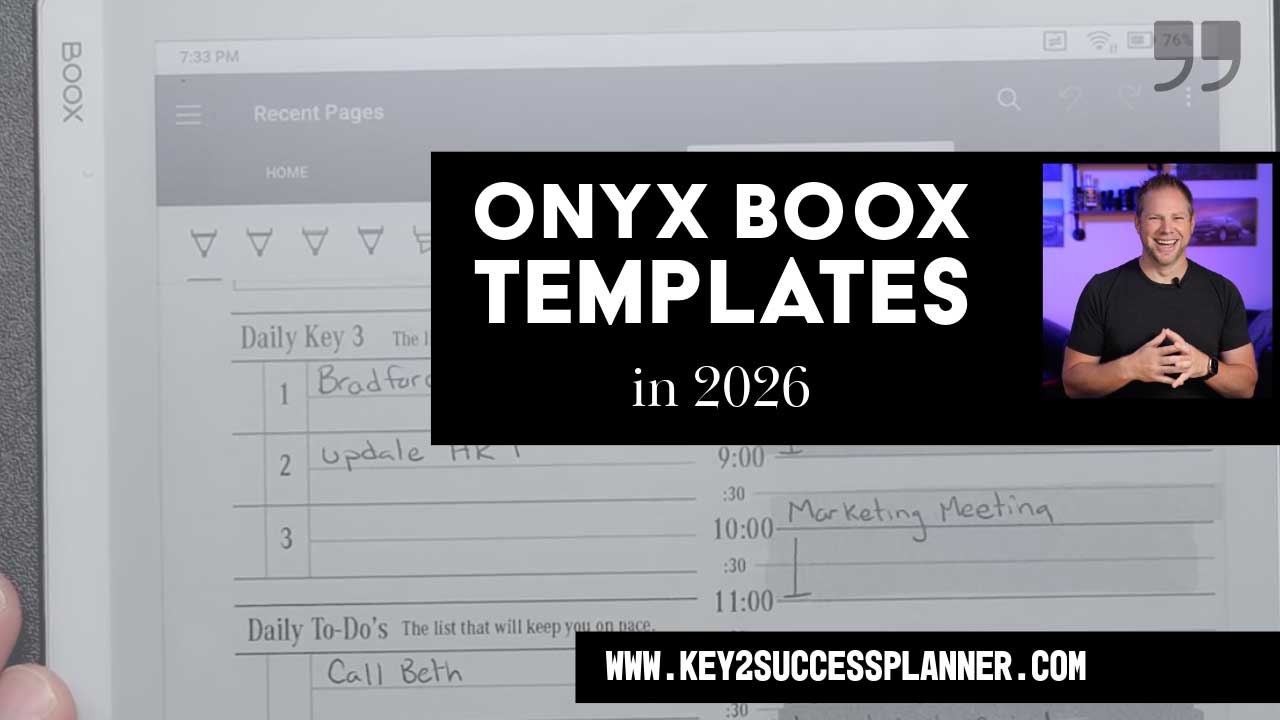
The Best Onyx BOOX Templates (2026 Guide)

Onyx BOOX tablets have quickly become a favorite among productivity enthusiasts, students, and professionals who want the focus of paper with the power of Android. Devices like the BOOX Note Air series, Tab Ultra, and Nova Air combine a paper-like writing experience with app flexibility, making them ideal for digital planning.

If you’re searching for the best planner for BOOX Note Air or trying to perfect your Onyx BOOX digital planner setup, this guide will walk you through everything you need to know, including the top template features to look for and how to get the most out of your device.


Why Onyx BOOX Is Perfect for Digital Planning

Unlike many e-ink tablets, BOOX devices run a full Android operating system with Google Play support. That means you can use native note apps, cloud tools, and productivity software all on one distraction-free screen.

  • Paper-like writing with minimal eye strain
  • Long battery life compared to tablets
  • Open ecosystem (PDF planners, apps, cloud sync)
  • Stylus support with precise handwriting input
  • Split-screen multitasking on many models

What Makes a Great BOOX Planner Template?

Not all digital planners are optimized for e-ink devices. The best templates for BOOX are designed specifically for low-glare screens, stylus input, and PDF navigation.
Promotional banner for Key2Success planner offering discounts and a money-back guarantee, emphasizing digital planning benefits and a call to action for users on Samsung devices.

1) Hyperlinked Navigation

A high-quality BOOX planner should function like a digital dashboard. Hyperlinks allow you to jump instantly between months, weeks, daily pages, and sections without endless scrolling.

2) Clean, Minimal Design

E-ink displays work best with high contrast and uncluttered layouts. Overly decorative planners can reduce readability and slow navigation. Minimal designs also help handwriting stand out clearly.

3) Device-Optimized Page Sizes

Templates built specifically for BOOX screen ratios (such as the Note Air’s 10.3″ display) provide a more natural writing experience and avoid awkward zooming.

4) Customizable Sections

The best planners allow flexibility for different lifestyles. Look for templates that include:

  • Goal planning pages
  • Habit trackers
  • Project planning layouts
  • Notes sections
  • Undated options


Best Planner Styles for BOOX Users

Daily Productivity Planners

Ideal for busy professionals and students, daily planners break your schedule into focused blocks.

  • Time blocking
  • Task prioritization
  • Appointment tracking
  • Deep work planning

These are often considered the best planners for BOOX Note Air users who rely on structured days.

Weekly Overview Planners

Weekly layouts balance structure with flexibility. You can see your entire week at a glance while still having space for notes.

  • Work-life balance planning
  • Project tracking
  • Academic schedules
  • Family organization

Many BOOX users prefer weekly spreads because they reduce page switching.

Goal and Habit Planners

If personal development is your focus, planners centered on goals and habits are powerful tools.

  • Monthly goal pages
  • Habit tracking grids
  • Progress reviews
  • Reflection sections

All-in-One Life Planners

Comprehensive planners combine daily, weekly, and monthly views with extra sections for projects, finances, wellness, and more. These are ideal for users who want one central system instead of multiple notebooks.

How to Set Up a Digital Planner on Onyx BOOX

Step 1: Import Your Planner PDF

You can upload templates through USB transfer, cloud services (Google Drive, Dropbox), email downloads, or BOOXDrop wireless transfer. Once imported, open the file in the native Notes or NeoReader app for full stylus support.

Step 2: Optimize Writing Settings

For the best handwriting experience, adjust pen thickness and smoothing, choose a pen type that matches your writing style, disable unnecessary refresh animations, and use high-contrast ink colors.

Step 3: Use Layers and Annotations

BOOX allows annotations on PDFs, which means your planner remains reusable. You can write directly on pages, highlight important items, add shapes or stamps, and insert additional note pages.

Step 4: Sync for Backup

Cloud syncing ensures your planner is safe and accessible across devices. Popular options include Google Drive, OneDrive, Dropbox, and third-party note apps.

Onyx BOOX Productivity Tips for Planner Users

Use Split Screen for Reference

Open your planner on one side and a document, email, or task list on the other. This is perfect for project planning or meeting notes.

Create Custom Templates

Many BOOX devices allow reusable templates inside the Notes app. You can duplicate pages or build personalized planning systems.

Minimize Distractions

Unlike phones or traditional tablets, BOOX devices encourage deep focus. Disable unnecessary apps and notifications to maintain a calm workspace.

Combine Apps with PDF Planners

Some users prefer hybrid systems: a planner PDF for scheduling, OneNote for long notes, and task apps for reminders. Because BOOX runs Android, you can tailor your workflow to your exact needs.

Want a BOOX-Optimized Planner Template?

If you want a planner that’s designed for BOOX devices and built for real-world productivity, explore Key2Success Planner templates and find a layout that matches your workflow.

Shop Key2Success BOOX Templates

Promotional banner for Key2Success planner offering discounts and a money-back guarantee, emphasizing digital planning benefits and a call to action for users on Samsung devices.

Leave a Comment