Why Digital Planners Don’t Auto-Sync with Calendars
Most digital planners are built for handwritten input and PDF annotation, using platforms like Goodnotes, OneNote, or PDF viewers. These tools aren’t calendar platforms — they’re built to support creative thinking, goal-setting, and task management.

Meanwhile, Google Calendar, Apple Calendar, and Outlook are scheduling tools. They work with structured, typed data and specific time blocks, not freeform planning or annotations.
Some apps claim “integration,” but it’s often just a shortcut or task launcher — not true two-way sync.
Scheduling vs Planning: Why Both Matter
Scheduling and planning are not the same.
Scheduling (with tools like Google Calendar) is all about logistics:
- Setting appointments
- Booking meetings
- Receiving reminders
Planning is about purpose:
- Setting goals
- Prioritizing tasks
- Reflecting on daily wins
- Mapping out your vision
A digital planner allows you to move beyond surviving your calendar — and start thriving through intentional focus.
How to Actually Sync a Digital Planner with Google or Apple Calendar
While there’s no true auto-sync, there are 3 simple and effective ways to create a visual bridge between your digital planner and your online calendar.
1. Use a Digital Assistant (Like Siri or Google Assistant)
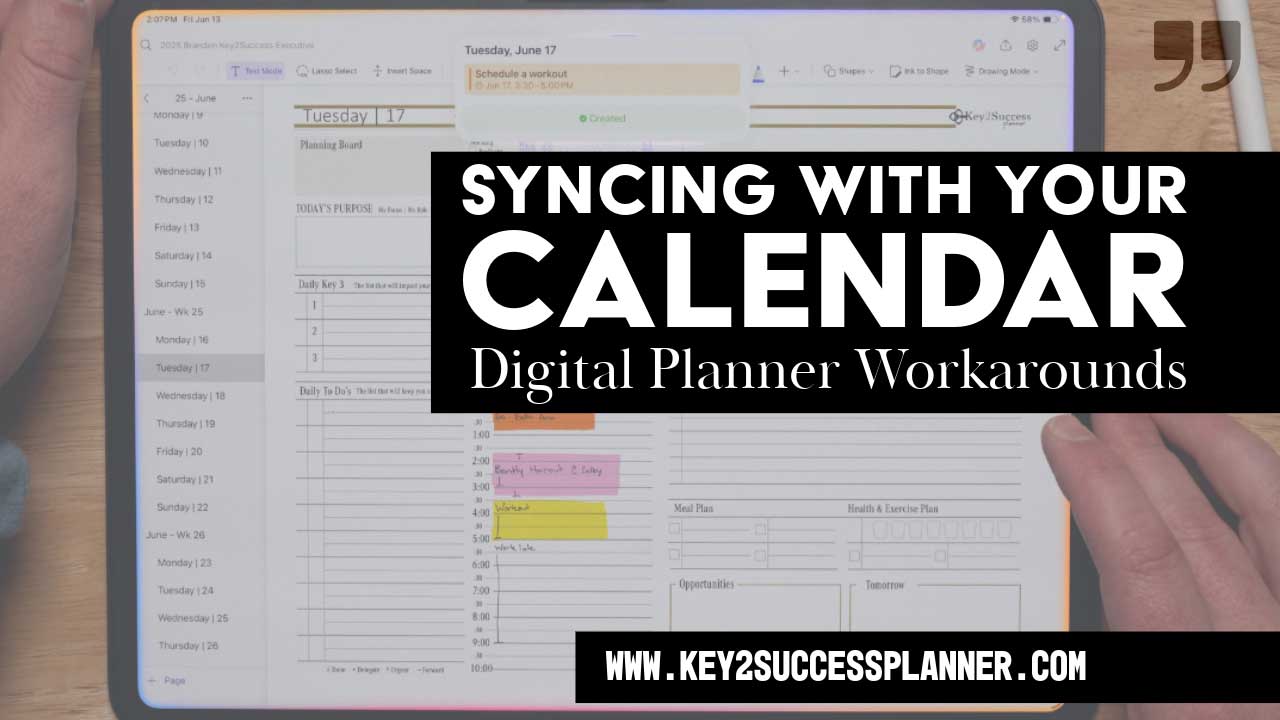
While in your digital planner app (Goodnotes, OneNote, etc.), simply activate your assistant and say:
“Hey Siri, schedule a workout on June 17th from 3:30 to 5:00 PM.”
Without ever leaving your planner, the event will be added to your Apple or Google Calendar.
- Works on iOS, Android, and some Windows devices
- Hands-free, quick, and simple
- Perfect for adding events while planning
2. Split-Screen Manual Sync
Use your iPad or tablet’s split-screen feature to open both your calendar and your digital planner side-by-side.
Then manually:
- Review scheduled events
- Add them to your planner (or vice versa)
- Re-prioritize and plan accordingly
Tip: Do this each morning or at the start of each week for optimal clarity.
3. Take a Screenshot of Your Calendar and Paste It Into Your Planner
This clever trick lets you import your daily or weekly schedule directly into your planner:
- Open your calendar view.
- Take a screenshot of the day or week.
- Paste it into your digital planner (Goodnotes, OneNote, etc.).
- Resize and annotate it.
Now you can:
- Write key priorities next to your meetings
- Block flex time
- Add personal goals alongside your professional schedule