Free OneNote from the Microsoft Store vs Office OneNote: What’s the Difference in 2026?
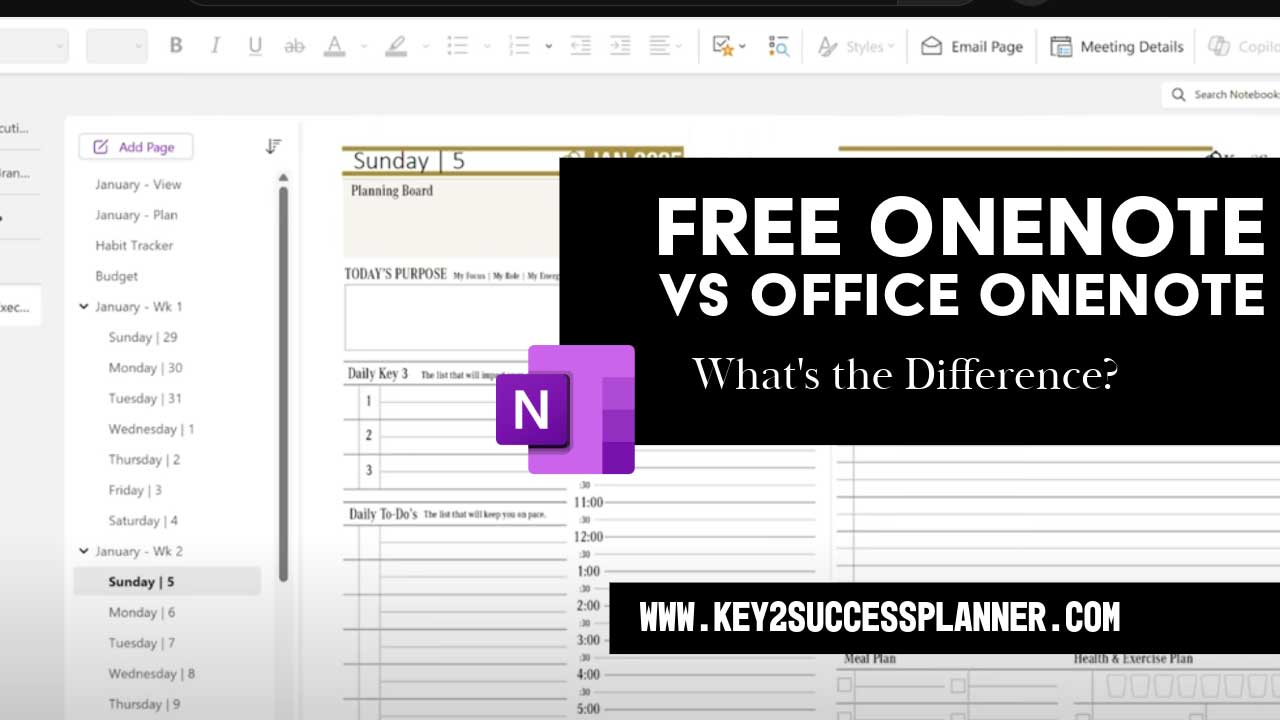
If you are searching for clarity on the free OneNote app from the Microsoft Store and how it compares to the version included with Microsoft Office, the answer is straightforward. They are now the same application.
As of late 2025, Microsoft has unified its Windows versions of OneNote into a single modern desktop app. Whether you install OneNote from the Microsoft Store or receive it through Microsoft Office or Microsoft 365, the experience is identical.
The Evolution of OneNote on Windows
For several years, Windows users had two separate OneNote apps, which created confusion.
The Two Versions That Previously Existed
- OneNote for Windows 10: A simplified, touch focused UWP app that came preinstalled on many Windows 10 devices.
- OneNote desktop app (formerly OneNote 2016): The full featured version included with Microsoft Office.
Microsoft’s Unification Strategy
Microsoft gradually merged features from both apps into one. The older Windows 10 app was officially retired in October 2025 and no longer receives updates.

What the OneNote App Is Today
The free OneNote app available in the Microsoft Store is now the full desktop version. It is the same app included with Office 2019, 2021, 2024, and Microsoft 365.
- One unified OneNote app for Windows
- Same features and interface regardless of install method
- Free to use with a Microsoft account for syncing
Microsoft Store OneNote vs Office OneNote
Functionality
There are no functional differences. Both versions include:
- Full ribbon interface
- Handwriting and drawing tools
- Audio notes
- OneDrive syncing
- Support for add ins
If you have a Microsoft 365 subscription, premium features work the same regardless of how OneNote was installed.
Installation Differences
- Microsoft Store version: Installed as a standalone app and updated through the Store
- Office version: Installed with Word, Excel, and PowerPoint and updated through Office
What Happened to OneNote for Windows 10?
OneNote for Windows 10 reached end of support in October 2025. It may still open notebooks if already installed, but it no longer receives updates or new features.
Microsoft recommends migrating all notebooks to the unified OneNote app.
Which OneNote Should You Use?
- Use the Microsoft Store version if you want a free standalone install
- Use the Office version if you already have Microsoft Office installed
Both options provide the same modern OneNote experience.

Frequently Asked Questions
Is OneNote from the Microsoft Store the same as Office OneNote?
Yes. As of 2025, both are the same full desktop application.
Is OneNote still free?
Yes. OneNote is free for basic note taking. A Microsoft account is required for syncing.
Does OneNote for Windows 10 still work?
It may still open existing notebooks, but it is no longer supported or updated.
Which OneNote version should I install?
Install the current OneNote app from the Microsoft Store or use the version included with Microsoft Office.
Do I need Microsoft 365 to use OneNote?
No. Microsoft 365 is optional and adds extra storage and integrations.
Final Recommendation
Microsoft has simplified OneNote on Windows into a single unified app. If you are using an older version, switching to the current OneNote ensures full features, updates, and long term support.
Is OneNote a Good App for Digital Planning?
Yes, OneNote is a good app for digital planning, especially for users who want flexibility, customization, and a freeform layout. It works well for planners, bullet journals, and goal tracking, though it is not a traditional calendar or task manager.
Why OneNote Works Well for Digital Planning
Customizable Pages
OneNote allows you to create notebooks, sections, and pages that match your personal planning style. You are not locked into fixed templates unless you choose to use them.
Freeform Layout
You can click anywhere on the page to type, draw, or insert images. This makes OneNote ideal for weekly spreads, habit trackers, and creative planner layouts.
Handwriting and Stylus Support
On touch enabled devices, OneNote supports handwriting, drawing, highlighting, and shape tools. This is useful for digital planners who prefer writing with a pen.
Sync Across Devices
OneNote syncs notebooks through OneDrive, allowing access to your planner on phones, tablets, and computers.
Strong Organization
Planners can be organized using notebooks, sections, pages, and subpages. This helps separate tasks, goals, projects, and reference material.
Planning Features in OneNote
- Checkbox lists for tasks
- Tags for priority and follow ups
- Search across handwritten and typed notes
- Image, PDF, and file embedding
- Reusable page templates
Limitations of Using OneNote for Planning
No Built In Calendar or Reminders
OneNote does not include automatic reminders or scheduling alerts. Tasks must be tracked manually or paired with another app.
No Automatic Habit Tracking
Habit trackers can be created visually, but progress tracking is manual.
Initial Setup Required
OneNote does not look like a planner by default. Users must design or import layouts to turn it into a planning system.
Best Use Cases for OneNote Digital Planning
- Bullet journaling
- Weekly and monthly planning
- Goal and vision planning
- Student planners
- Creative and visual planners
Tips for Using OneNote as a Digital Planner
- Create consistent weekly and monthly templates
- Use tags to highlight important tasks
- Use checkboxes for daily to do lists
- Organize sections by life or work areas
Frequently Asked Questions
Is OneNote good for digital planning?
Yes. OneNote is well suited for digital planning when flexibility and customization are more important than automation.
Can OneNote replace a planner app?
It can replace a planner for notes and layouts, but it does not replace apps that rely on reminders and scheduling alerts.
Is OneNote free for digital planning?
Yes. OneNote is free to use. A Microsoft account is required for syncing across devices.
Final Verdict
OneNote is a strong digital planning app for users who enjoy designing their own systems. It works best when paired with a calendar or task manager for reminders, but on its own it offers flexibility, creativity, and cross device access.