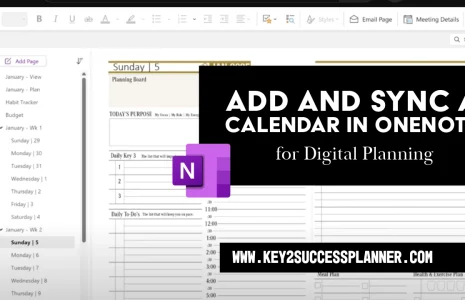
OneNote for Windows 10 End of Support on October 14, 2025: Essential Guide for Key2Success Planner Users
If you’re a Key2Success Planner user managing your goals, projects, and daily tasks in OneNote for Windows 10, you may have seen this alert: “This version of OneNote will reach end of support on October 14, 2025, and become read-only. Switch to the new OneNote app to keep editing and get the latest features.” This message signals a critical change for your digital planning workflow. After the deadline, your ability to edit your Key2Success Planner—complete with its goal trackers, calendars, and custom sections—will be locked unless you act now. Don’t worry, though: transitioning is simple, and your planner will stay fully functional. This SEO-optimized guide explains what’s happening, why it matters, and how to migrate seamlessly to keep your productivity on track.
What Does the End of Support Message Mean for Key2Success Users?
Microsoft is phasing out OneNote for Windows 10, the Universal Windows Platform (UWP) version pre-installed on many devices. As of October 14, 2025, this app will:
- Switch to Read-Only Mode: You’ll be able to view your Key2Success Planner notebooks but won’t be able to edit, add pages, or update sections like daily plans or habit trackers.
- Lose Security Updates: No further patches will be issued, leaving your data vulnerable to potential security risks.
- Stop Receiving Support: Microsoft will no longer provide technical assistance for this version.
This aligns with Microsoft’s broader strategy to consolidate its apps and end Windows 10 support on the same date, pushing users toward Windows 11 and the unified OneNote app. (Microsoft Support) For Key2Success Planner users, who rely on OneNote’s cloud-based notebooks for cross-device access (Windows, iOS, Android), the good news is that your planner’s structure—custom tabs, hyperlinks, and digital stickers—is stored in OneDrive and can transfer easily. (Key2Success Import Guide)
Why Key2Success Planner Users Need to Act Now
Your Key2Success Planner, whether it’s the Personal, Business, or Executive edition, is a powerful OneNote-based tool with pre-designed templates for goal setting, project management, and content planning. (Key2Success) These notebooks sync across devices via OneDrive, ensuring your weekly reviews, quarterly goals, and inked notes are always accessible. If you ignore the end-of-support warning, you risk:

- Losing Editing Capabilities: You won’t be able to update tasks, add notes, or tweak your planner’s layouts after October 14, 2025.
- Data Sync Issues: Unsynced changes (e.g., local notes not backed up to OneDrive) could be lost during the transition.
- Security Risks: Without updates, sensitive planner data (like business plans or personal goals) could be exposed.
Switching to the new OneNote app ensures you can continue using your Key2Success Planner seamlessly, with added perks like improved stylus support and AI-powered features.
How to Switch to the New OneNote App: Step-by-Step for Key2Success Users
Microsoft’s new OneNote app (simply called “OneNote”) is free, works on both Windows 10 and 11, and fully supports your Key2Success Planner. (Microsoft OneNote Support) Follow these steps to migrate before the October 14, 2025, deadline and keep your planner fully functional. The process takes about 15-30 minutes.
1. Back Up and Sync Your Key2Success Planner
- Open OneNote for Windows 10 (the app showing the end-of-support message).
- Ensure you’re signed in with the Microsoft account tied to your Key2Success Planner.
- Right-click your planner notebook in the left pane and select Sync This Notebook Now to back up all sections—goals, calendars, trackers—to OneDrive.
- Check for misplaced sections: Go to View > Misplaced Sections and move any stray pages back to your planner notebook.
- Key2Success Tip: Double-check custom elements like embedded PDFs, hyperlinks to Outlook, or digital stickers. Syncing ensures these transfer correctly.
2. Install the New OneNote App
- Visit the Microsoft Store and search for “OneNote” (or use this link: OneNote on Windows).
- Download and install the app—it’s free and quick.
- Verify you’re on the new version: Open the app and look for a File menu in the top-left corner. If it’s present, you’re using the new OneNote; if not, you’re still on the old app. (Microsoft OneNote Support)
3. Access Your Key2Success Planner in the New App
- Launch the new OneNote and sign in with the same Microsoft account.
- Your synced Key2Success Planner notebook should appear automatically in the left pane.
- Open the notebook and browse sections (e.g., Monthly Overview, Project Tracker) to confirm all content, including inked notes and templates, is intact.
- Test functionality: Add a sample task or note to your daily planner section to ensure editing and syncing work.
4. Resolve Any Missing Data
- If sections don’t appear: In the old OneNote, go to File > Options > Save & Backup to locate your backup folder. Copy .one files (section files) and import them into the new app by creating a new section and pasting content.
- For unsynced changes: Export affected pages as PDFs (File > Export) from the old app and re-import them manually into the new one.
- Key2Success Tip: If your planner’s custom layouts (e.g., vision boards) don’t render correctly, re-import the notebook using Key2Success’s import guide (Import Guide).
5. Remove the Old OneNote App (Optional)
- Once your planner is fully migrated, uninstall OneNote for Windows 10 to avoid confusion: Go to Settings > Apps > Installed Apps, find “OneNote for Windows 10,” and uninstall.
- Use only the new OneNote app for all future planning to ensure compatibility and updates.
6. Explore New Features for Your Planner
- The new OneNote supports advanced features like Copilot AI for summarizing notes or generating task lists, which can enhance your Key2Success workflows.
- Test stylus input for inking daily plans or annotating templates—perfect for tablet users.
- Integrate with Microsoft 365 tools (e.g., embedding Excel trackers) to supercharge your planner’s functionality.
Visit the OneNote Planner Shop