
From Planner to Calendar in One Sentence: How Siri on iPhone Duo Syncs Your Digital Planning
Siri calendar sync for digital planning on iPhone Duo lets you speak a task once and Siri creates the calendar event or Reminders entry for you. It doesn’t read your handwritten planner on its own. The real workflow: plan your week by hand first, then use one Siri prompt per key commitment to push it into iCal.
Watch: Apple Pencil on iPhone Duo, Hands-On
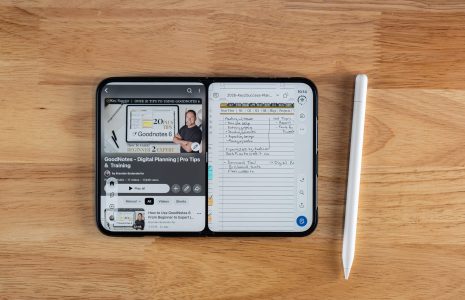
Want the handwritten half of this workflow? Here’s my first-impressions video of Apple Pencil on iPhone Duo, including my Key2Success daily page in GoodNotes. Read the full transcript, setup steps, and FAQ on the video page.
Most people treat their calendar and their planner as two separate systems that never talk to each other, and they end up keeping both updated by hand, twice. Siri calendar sync for digital planning on iPhone Duo closes that gap. But it only works if your planning session produces clear, sayable commitments in the first place, and that’s exactly what a structured weekly planning page is for.

iPhone Duo runs iOS 27, and the Siri that comes with it is context-aware in a way the old Siri never was. Say “add my 3pm client call to my calendar” and it builds the event. No unlocking your phone, no opening the Calendar app, no typing. That part is real, and Apple confirmed it at the iPhone Duo announcement on September 9, 2026. What it doesn’t do is scan your handwritten Key2Success pages and sync them on its own. Nobody’s built that yet, on any device.
This piece walks through what iOS 27’s Siri actually does, the weekly planning workflow I run that feeds it, and five prompts you can copy right now and try on whatever iPhone is in your pocket today. iPhone Duo doesn’t have to be the phone you’re holding for any of this to work.
One Prompt Per Commitment
Speak each task on its own during your planning session, not the whole week at once. You get cleaner results and fewer follow-up questions from Siri.
Planner Stays the Thinking Tool
Your weekly Key2Success spread still does the sorting. Siri only pushes what you’ve already decided, nothing more.
Works Today, No Duo Required
This entire workflow runs on any iPhone with iOS 27. iPhone Duo’s bigger screen is a bonus, not a requirement.
What Siri Calendar Sync Actually Does for Digital Planning on iOS 27
iOS 27’s Siri creates calendar events and Reminders entries from a single spoken sentence. It does not scan handwritten or digital planner pages and sync them automatically. You still have to say the commitment out loud, one at a time.
Apple built the iOS 27 version of Siri to understand plain spoken language tied to what’s already active on your device. Say a full sentence with a task, a day, and a time, and Siri fills in a calendar event without you touching a keyboard. In a lot of cases it can also see what’s on your screen, which means you’re not copying a task out of one app just to paste it into another.
Siri doesn’t read your planner. It listens to you. That distinction matters, because it’s the difference between a feature that exists and a feature people assume exists after seeing a launch keynote. Coverage of the iPhone Duo launch has been careful about this too, and so should any article writing about it.
What Siri can do well: turn “add my dentist appointment to my calendar for Thursday at 2” into a real event, add a task to Reminders with a single sentence, and answer a direct question about what’s already on your schedule. What it can’t do: look at a photo of your handwritten weekly page and figure out which of the six things on it belong on a calendar. That gap is exactly why the next section matters more than the Siri feature itself.
The Weekly Key2Success Workflow That Feeds Siri
Here’s the actual process I run every week. It works the same on paper or in a GoodNotes spread on an iPad, so use whatever surface you already plan on.
- Start with the weekly planning page. Get every project, appointment, and stray task out of your head and onto the page before you sort any of it.
- Run it through an Eisenhower sort. What’s urgent and important gets scheduled first. What’s important but not urgent gets a slot later in the week. What’s neither gets delegated or dropped.
- Pull three key tasks for each day. Not ten. Three. Those are the ones that actually move the week forward.
- At the end of the planning session, say one Siri prompt per key commitment. That’s the step most people skip, and it’s the one that keeps the calendar and the planner in sync without a single minute of typing.
A calendar only works if someone feeds it, and for most people that someone is doing double data entry by hand. Four steps, one Siri prompt per line, and the sync happens without you thinking about it twice. This is also where the habit science backs up the workflow rather than just the feeling of it: turning a vague intention into a specific, sayable plan is what implementation intention research has shown improves follow-through, and a Siri prompt forces exactly that kind of specificity because the sentence has to include a task, a day, and a time before Siri will act on it.
5 Siri Prompts to Copy and Try Today
Try these word for word the next time you’re wrapping up a planning session. Swap the bracketed part for your actual task, day, and time.
- “Hey Siri, add [task] to my calendar for [day] at [time].”
- “Hey Siri, remind me to [task] tomorrow morning.”
- “Hey Siri, what do I have on my calendar this afternoon?”
- “Hey Siri, add [task] to my Reminders list.”
- “Hey Siri, move my [event name] to [new day or time].”
None of these need iPhone Duo’s fold to work. They run on the iPhone in your pocket right now, as long as it’s on iOS 27.
Where iPhone Duo and Apple Pencil Fit Into This
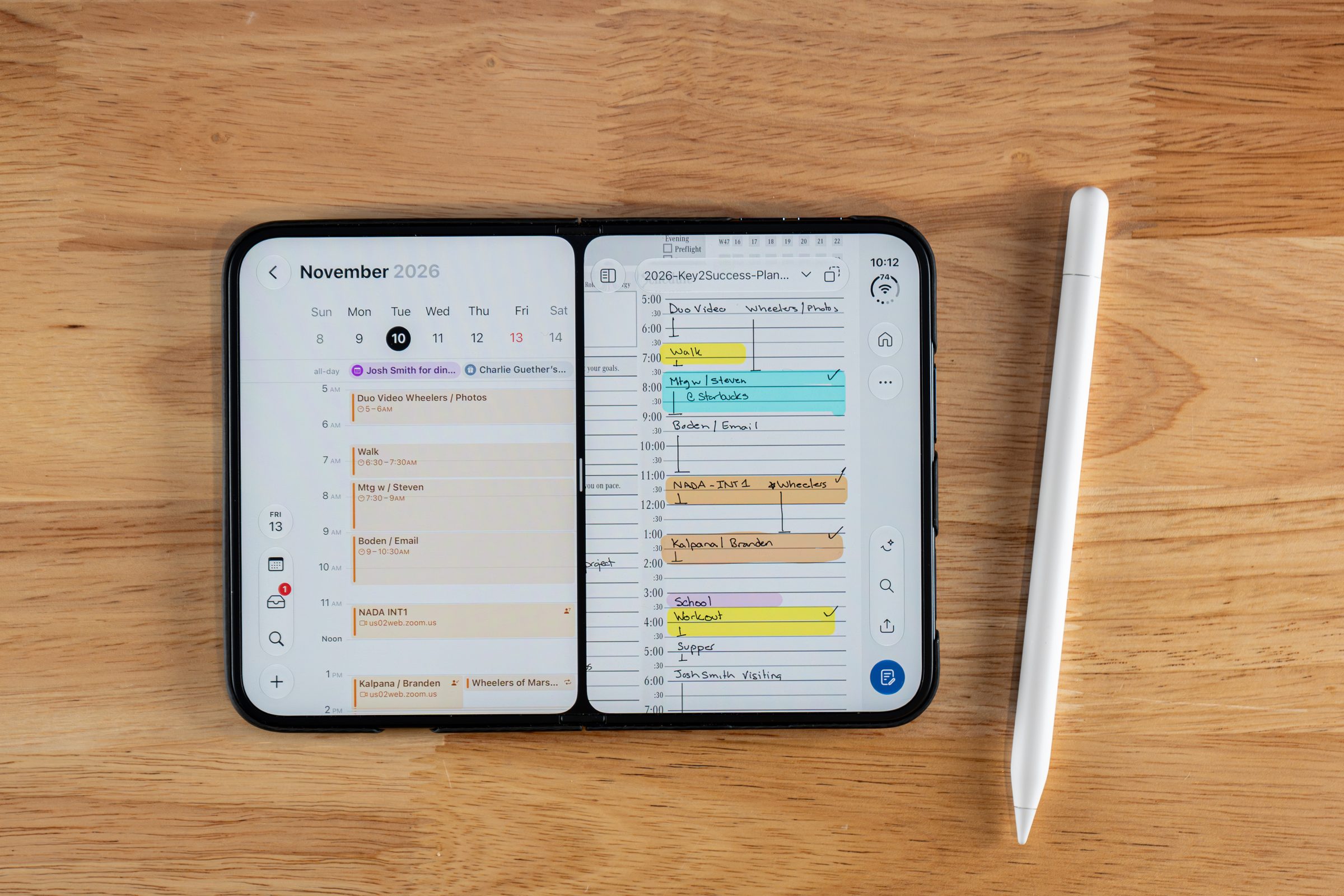
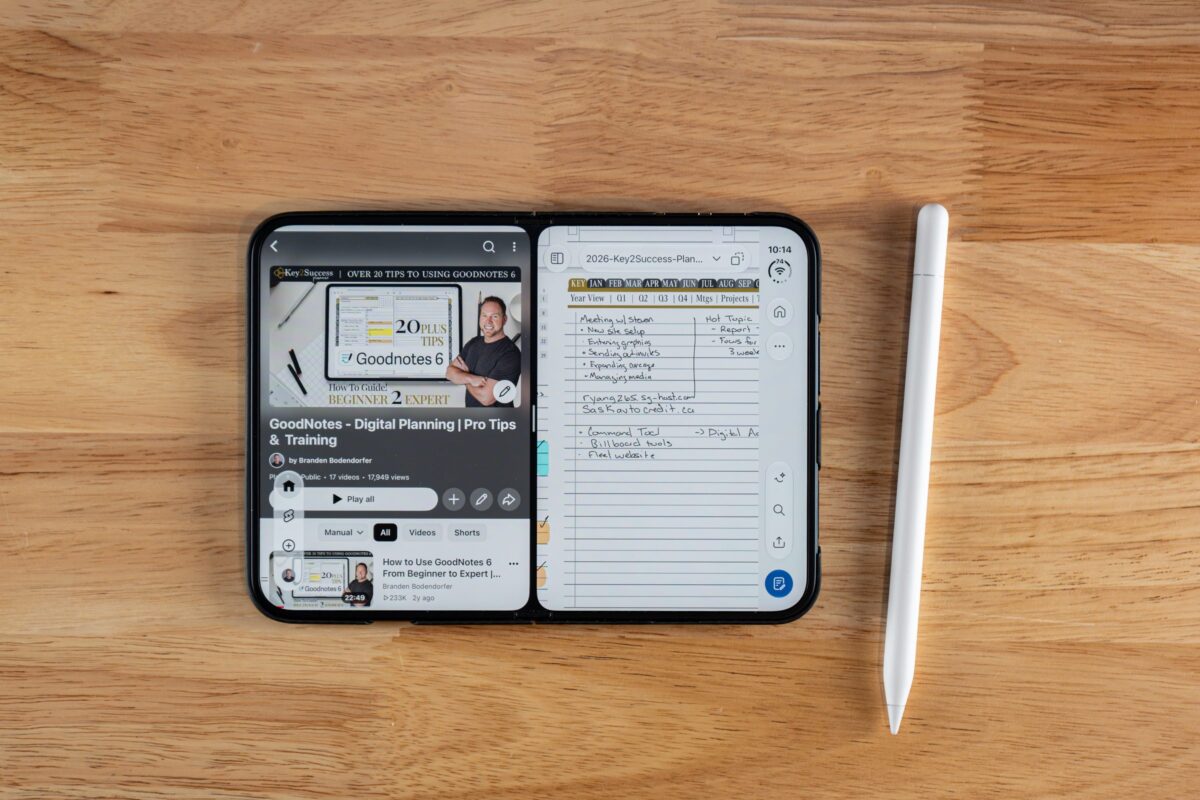
iPhone Duo is Apple’s first foldable iPhone, and Apple Pencil support has arrived on an iPhone for the first time ever. That’s what makes this workflow interesting. With Pencil support live, the 7.6-inch unfolded inner display is a real surface for writing a weekly plan by hand, the same way you’d do it today on an iPad.
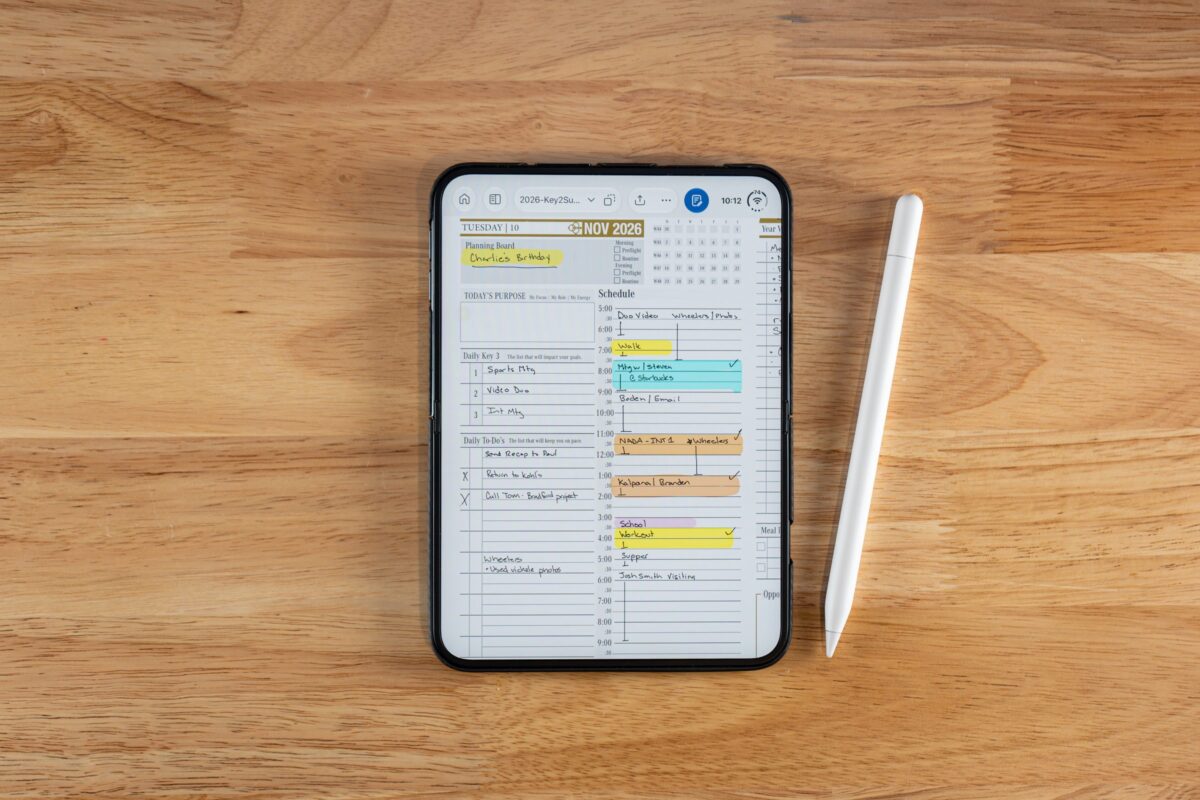
It’s live now. iOS 27.2, released October 26, 2026, turned on Apple Pencil support, and only the Apple Pencil (USB-C) works, not the Apple Pencil Pro. I write my daily page by hand in GoodNotes on the Duo, then close the session with Siri prompts the same way I would on any iPhone. My view hasn’t changed: write the idea by hand first, then let the tools build on it.
“I currently just started to work with Siri in iOS 27. The fact that I can create calendar events and see what I’m missing from my daily planning just by talking to it is amazing. It can see what’s on my screen, I don’t have to copy and paste or split-screen. I’m able to have a conversation with Siri in my daily planner to make sure both my iCal and my daily planner are in sync. Being able to push those to-dos into the Reminders app helps make sure the most critical things get done.”Branden Bodendorfer, Creator of Key2Success Planner
Why Your Planner and Calendar Never Talk to Each Other
Most people treat their calendar and their planner as two separate systems that never talk to each other, and they end up keeping both updated by hand, twice. That’s the real cost here, not the ten seconds it takes to say a Siri prompt.
Here’s the counterintuitive part. The fix isn’t a smarter app. It’s a better planning session. Siri can only push a commitment into your calendar if you’ve already turned it into one clear, sayable sentence. If your weekly plan is still a pile of sticky notes and half-finished thoughts, Siri has nothing to work with. A structured weekly page, sorted through something like the Eisenhower method, is what turns a vague intention into the kind of clean commitment Siri can actually act on.
The planner does the thinking. The calendar does the reminding. Siri is just the messenger between them.
Keep Your Weekly Planning Session Tight
If the weekly sort described above is new to you, start with the Key2Success Planner overview to see how the weekly page, Eisenhower sort, and daily three-task pull fit together. If you’re planning on an iPad or iPhone in GoodNotes, the GoodNotes digital planner shop has editions built for exactly that setup. And if you want to see every format Key2Success comes in, paper included, the full Key2Success shop is the place to start.
See the full weekly-to-daily system this Siri workflow is built on.
Editions built for iPad and iPhone planning sessions.
Every format and edition, digital and paper.
FAQ
Does Siri on iPhone Duo automatically sync my handwritten planner to my calendar?
No. iOS 27’s Siri creates calendar events from a spoken prompt, but it doesn’t scan or read handwritten or digital planner pages and sync them on its own. You still say each commitment out loud for Siri calendar sync to work on iPhone Duo or any other iPhone.
What iOS version do I need for Siri to create calendar events from a spoken prompt?
You need iOS 27, which is the version iPhone Duo runs. Older iOS versions have a more limited Siri that doesn’t handle the same natural-language, context-aware requests.
Can I use Siri to add tasks to the Reminders app instead of my calendar?
Yes. Saying “add [task] to my Reminders list” routes it straight into Reminders, which works well for smaller to-dos you don’t need a specific calendar slot for.
Do I need iPhone Duo to use this Siri planning workflow?
No. Every prompt in this article works on any iPhone running iOS 27. iPhone Duo’s larger unfolded screen is a nice-to-have for viewing your calendar, not a requirement for Siri calendar sync itself.
Is Apple Pencil support live on iPhone Duo?
Yes. It arrived in iOS 27.2 on October 26, 2026, and only the Apple Pencil (USB-C) is supported, not the Apple Pencil Pro. The Siri side of this workflow still runs entirely through spoken prompts, no Pencil required.
Quick Answers
No, it works on any iPhone running iOS 27 with Siri enabled.
Roughly one to two minutes total once your weekly plan is already sorted.
No, Siri responds to spoken prompts, not handwriting, on any current iPhone.
Yes, a prompt like “add to my Reminders list” routes directly into Reminders.
Siri will usually ask a follow-up question for the missing day or time.
No, the planner still does the sorting; Siri only pushes commitments you’ve already decided on.
Yes, since iOS 27.2. Only the USB-C Apple Pencil works.
You can try, but one task per prompt gets more reliable results than a long list.
No, creating calendar events with Siri needs an internet or cellular connection.
Siri usually confirms out loud and on-screen, but a quick glance the first few times is worth it.
Yes, if Google Calendar is set up as a syncing account on your iPhone, Siri can add events there too.
No, it’s built into iOS 27 at no additional cost.
Yes, the same one-prompt-per-commitment method works whether your weekly plan lives on paper or in a digital spread.
Siri Planning Prompts Cheat Sheet
Copy this straight into your notes app or print it and tape it inside your planner cover. Say these at the end of your weekly or daily planning session, swapping in the bracketed details.
Calendar Events
- “Hey Siri, add [task] to my calendar for [day] at [time].”
- “Hey Siri, schedule [task] on [day] from [start time] to [end time].”
- “Hey Siri, move my [event name] to [new day or time].”
Reminders
- “Hey Siri, remind me to [task] tomorrow morning.”
- “Hey Siri, add [task] to my Reminders list.”
- “Hey Siri, remind me to [task] when I leave work.”
Checking Your Day
- “Hey Siri, what do I have on my calendar this afternoon?”
- “Hey Siri, what’s on my schedule tomorrow?”
The Takeaway
Most people treat their calendar and their planner as two separate systems that never talk to each other, and they end up keeping both updated by hand, twice. Siri calendar sync closes that gap, but only if your planning session already produced clear, sayable commitments, which is exactly what a structured weekly planning page is for.
The fix isn’t a smarter app. It’s a better planning session. Run your weekly page, sort it through an Eisenhower pass, pull your three key tasks a day, and close the session with one Siri prompt per commitment. Do that on any iPhone today. On iPhone Duo with Apple Pencil, the same workflow just moves onto a bigger, foldable screen.