How to Use the Key2Success Planner on the Onyx Boox Note Air 5c
In This Article
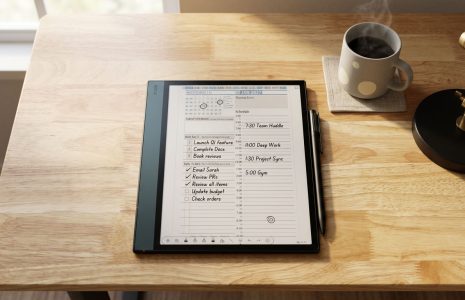
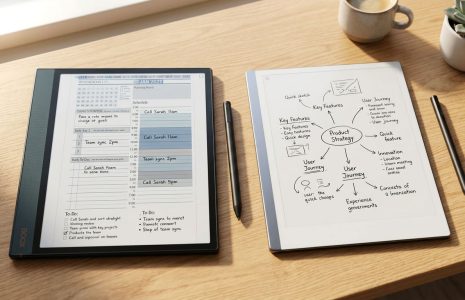
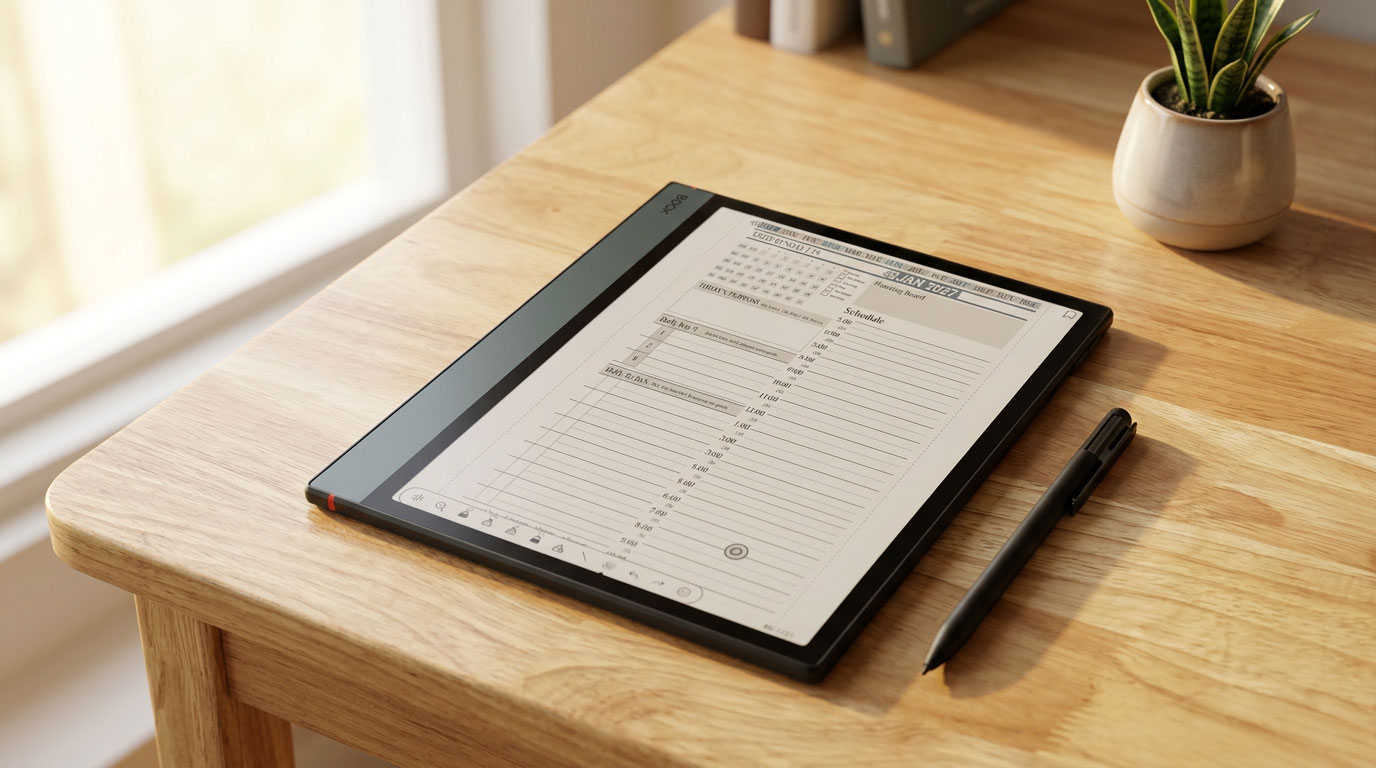
The Key2Success Planner on the Onyx Boox Note Air 5c is one of the most capable digital planning setups available right now. The Boox 5c brings an open Android ecosystem, a responsive color e-ink display, and an improved stylus — and the K2S planner is built to take full advantage of those features. PDF hyperlinks, color-coded scheduling, handwritten daily priorities, and cross-device sync all work together on this device in a way that feels genuinely natural.
This guide walks you through the complete setup — from loading the planner file onto the device all the way to syncing your handwritten notes to OneNote so they follow you to your desktop, your phone, and your next meeting. Whether you just picked up a Boox 5c or you are an existing Key2Success planner user looking to maximize a new device, this is the setup guide you need.
Everything covered here comes directly from hands-on experience using the K2S system on the Boox 5c — the actual tools, the actual workflow, the real behavior of the device.

Why the Boox 5c Works for the Key2Success Planner
Not every e-ink device is built the same way. Some, like the reMarkable, operate in a closed ecosystem that limits which apps and file types you can bring in. The Onyx Boox 5c takes the opposite approach — it runs full Android 15 with Google Play Store access, which means you can use it exactly the way you want to.
For K2S planner users, that openness matters for three specific reasons. First, the planner is a hyperlinked PDF — and PDF annotation on the Boox 5c is fully supported with a complete writing toolbar and color tools. Second, the color e-ink display means you can actually see your color-coded schedule in color, not just grayscale. If you have built a time-blocking system around colors — blue for meetings, green for personal time, yellow for focus blocks — you can see that visually on the Boox 5c exactly as designed. Third, the Android ecosystem lets you layer in apps like OneNote for cross-device planning without workarounds or file conversions.
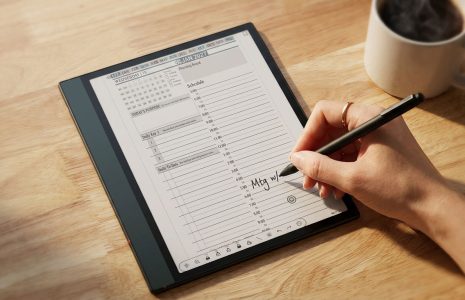
Add in the improved stylus with built-in nib storage and reduced screen refresh lag on the 5c — and you have a device that keeps up with the way serious planners actually write.
Step 1: Loading the Key2Success Planner onto Your Boox 5c
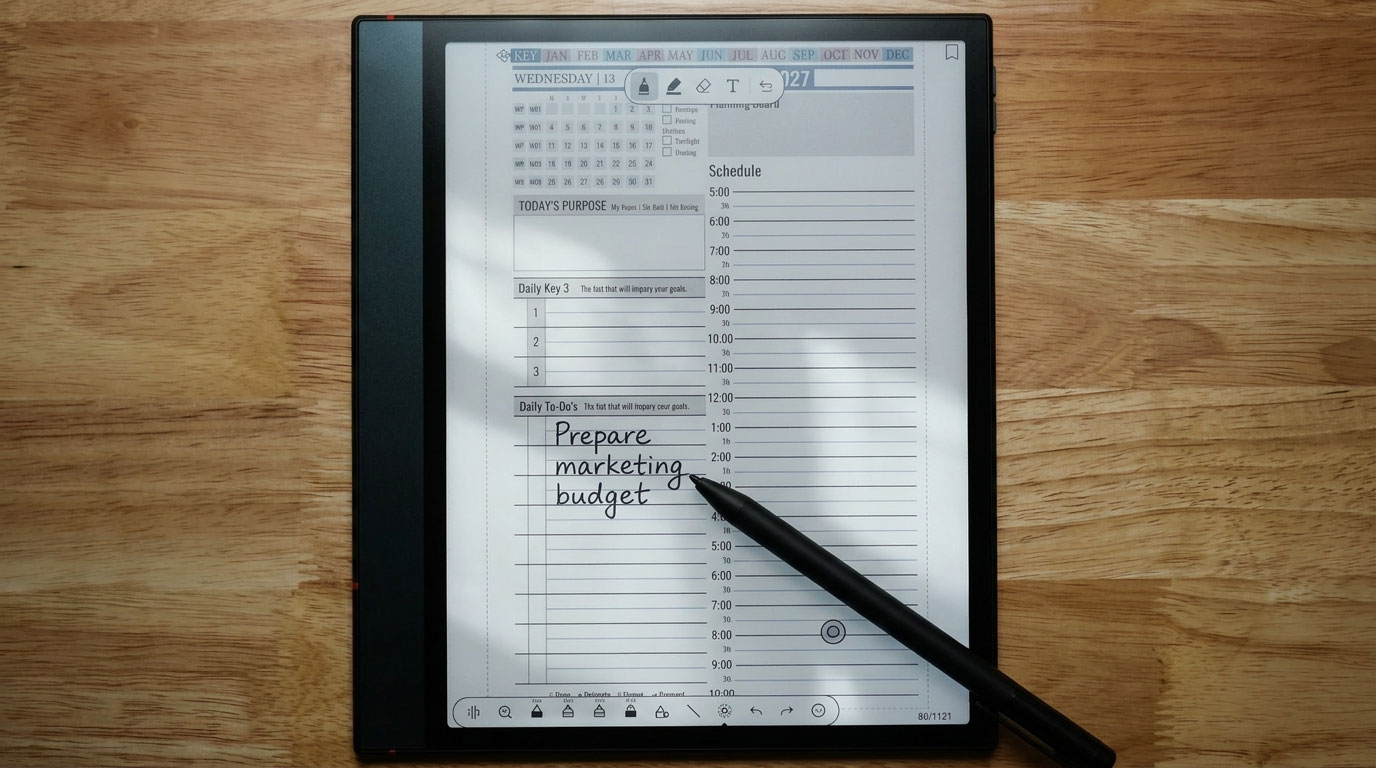
The K2S planner comes as a downloadable PDF after purchase. Getting it onto your Boox 5c is straightforward using Boox Drop — the device's built-in wireless file transfer tool.
The K2S planner includes hyperlinked navigation throughout — tap any month, week, or section header to jump directly there. This works on the Boox 5c exactly as designed, no additional setup required.
Step 2: Mastering the Writing Toolbar
The writing toolbar is where most of your daily interaction with the planner happens. Tap the writing tool icon and it appears across the top of your screen. Here is what is available and how to configure it for planning use.
Pen Types
You can choose from a ballpoint pen, brush marker, pencil, and a highlighting tool. For daily planning and note-taking, the ballpoint pen is the workhorse — clean lines, consistent width, exactly what you want for tasks, priorities, and schedule entries. The pencil gives a softer, more textured feel if you prefer that. Use the brush marker for headers or visual emphasis.
Thickness and Color
Each pen type has adjustable line thickness you can dial in precisely. For fine daily handwriting, around 0.9mm is the right balance between visibility and detail. For headers or section labels, go thicker. Color selection is full-spectrum — tap the color picker and choose any tone. For planning purposes, keep it practical: black or dark blue for writing, then use highlighters for color coding your schedule.
Building Your Personal Toolbar
The toolbar saves multiple tool presets so you are not constantly switching settings. Build a set that matches your planning system — a fine black ballpoint for writing, a medium blue for general highlights, and a yellow or orange for priority items. Position the toolbar wherever it works for you: bottom of screen, top corner, or mid-screen. It is repositionable any time by tapping and dragging it to a new location.
Step 3: Color Coding Your Schedule with Highlighters
One of the clearest advantages of a color e-ink device like the Boox 5c over standard black-and-white e-ink is the ability to use color as an actual planning tool — not just decoration. The K2S daily and weekly pages have schedule and time-block areas built for this.
A simple color system that works well in practice:
- Blue highlighter — meetings, calls, scheduled commitments
- Green highlighter — personal time, health, family
- Yellow highlighter — focused work blocks, deep work sessions
- Orange highlighter — flex time, buffer blocks, travel
To apply: select your highlighter preset from the toolbar, then draw across the time block on your schedule. The color fills immediately. For clean block boundaries, use the straight-line drawing tool first to mark start and end points, then fill the space with your highlighter. The result is a visual schedule you can scan in seconds rather than read line by line.
The highlight color appears after a brief screen refresh on the Boox 5c — tap the screen to trigger it. This is normal e-ink behavior. Once refreshed, the color is crisp and stays visible without draining battery.
Step 4: Power Moves — Lasso, Copy/Paste, and Scribble to Erase
These three tools separate a basic annotation workflow from a genuinely efficient planning system. Once you use them regularly, going back to a device without them feels limiting.
Lasso — Move To-Dos Between Days
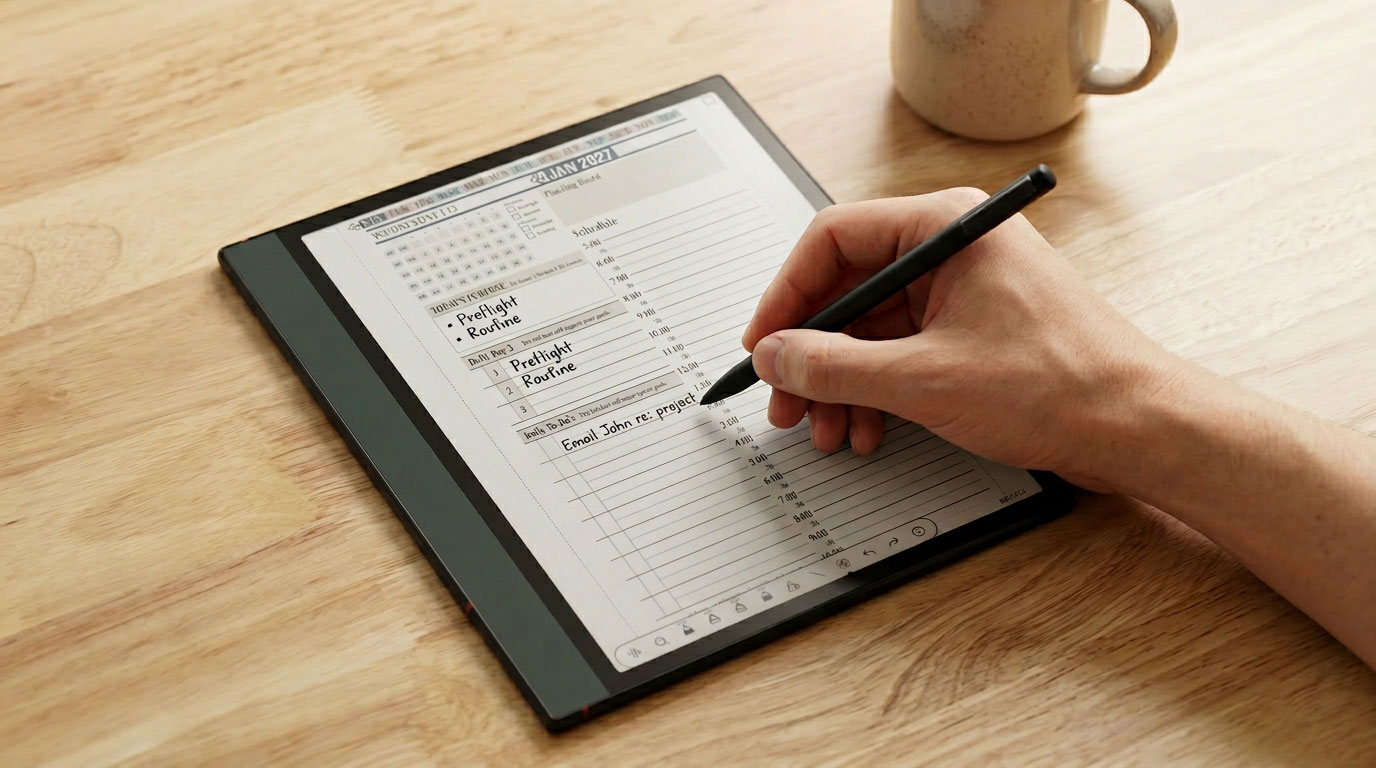
Select the lasso tool and draw a free-form selection around any handwritten content. Once selected, copy it and paste it anywhere — including a completely different page. In practice: end of your day, three to-dos did not get done. Circle those items, tap copy, navigate to tomorrow's daily page, tap paste. The tasks carry over exactly — same handwriting, same layout. Takes less than 30 seconds once you have done it a few times, and it is one of the most useful planning features on the device.
Scribble to Erase
Enable scribble-to-erase from the text button in the toolbar. With this active, scribble over any handwritten content and it disappears — no tool switching required. Fast, intuitive, and keeps you in writing mode. Especially useful mid-planning session when thoughts change and you need to clear space quickly without breaking your rhythm.
Straight Line Tool
For schedule blocking, the straight line tool is underrated. Draw a clean line across the schedule area to mark a time block boundary, then fill the space with a highlighter. You get structured visual blocks that look intentional — not approximated. Pair this with the K2S weekly or daily schedule pages and your time-blocking becomes genuinely readable at a glance.

Step 5: Syncing Across Devices with OneNote
The K2S planner PDF gives you your core planning pages — daily priorities, weekly schedule, monthly overview, goal tracking. But there are moments where you want your notes to travel beyond the Boox 5c. Meeting notes. Project outlines. Client call action items. This is where Microsoft OneNote becomes a critical companion app.
Because the Boox 5c runs Android 15 with Google Play Store, setup is straightforward:
There is also a professional dimension to writing notes by hand in meetings rather than typing on a laptop. Handwriting signals presence and attention to the person in front of you. Typing on a keyboard can read as distracted — or worse, like you are doing something else entirely. The Boox 5c lets you capture the same content in a way that communicates respect and engagement, while OneNote makes sure those notes are exactly where you need them next.
Explore Key2Success Planners for Your Device
Frequently Asked Questions About the Key2Success Planner on Onyx Boox
Can you use the Key2Success Planner on the Onyx Boox Note Air 5c?
Yes. The Key2Success Planner is a hyperlinked PDF that loads directly onto the Onyx Boox 5c via Boox Drop. Once loaded, you can annotate it with the stylus using the built-in writing toolbar — pen types, thickness, and full color palette. It supports landscape and portrait modes, color-coded highlighting for time blocking, lasso copy/paste for moving to-dos between days, and scribble-to-erase for quick corrections.
How do I load a PDF planner onto the Onyx Boox 5c?
Use Boox Drop to transfer PDF files wirelessly to your Onyx Boox 5c. Open the Boox Drop app on the device, connect from your computer or phone on the same Wi-Fi network, and drag your Key2Success Planner PDF into the transfer window. The file appears in your Boox library ready to open and annotate immediately.
What annotation tools does the Onyx Boox 5c have for digital planning?
The Onyx Boox 5c includes a full annotation toolbar with multiple pen types (ballpoint, brush marker, pencil), adjustable line thickness, a full color palette, multiple highlighter slots for color-coded scheduling, an adjustable eraser, a lasso selection tool for moving or copying content, a straight-line drawing tool, scribble-to-erase for quick deletions, and handwriting-to-text conversion.
Does OneNote work on the Onyx Boox 5c?
Yes. The Onyx Boox 5c runs Android 15 with full Google Play Store access, so you can install Microsoft OneNote directly on the device. Notes written by hand on the Boox 5c sync automatically across Windows, Apple, and Android devices — ideal for meeting notes that need to be accessible from your laptop or phone immediately after the meeting.
What is the Daily Key3 in the Key2Success Planner?
The Daily Key3 is a core feature of the Key2Success planning system — three high-impact actions identified each day that will move the needle most toward your goals. Based on Stephen Covey's principle of putting first things first and James Clear's concept of 1% daily improvement, the Key3 keeps you focused on what matters most rather than getting lost in a long to-do list. It works across all four planner editions: Personal, Professional, Business, and Executive.
My Take: The Right Device and the Right System
I have been building and refining digital planning systems since 2013. In that time I have used almost every major device and app combination available. What I keep coming back to is a simple truth: the system only works when the hardware gets out of the way. The Boox 5c gets out of the way.
The K2S planner is designed around the idea that your planning system should serve your goals — not manage your apps. The Daily Key3, the weekly schedule, the goal tracking pages — those are built around what James Clear calls compounding small daily wins and what Stephen Covey called putting first things first. The Boox 5c gives you a device that supports that focus without the distraction noise of a full tablet.
The OneNote sync layer makes the whole setup practical for people with real professional lives — meetings, projects, clients, travel. Write on the Boox, access everywhere. That is the workflow. Simple, because it should be.
Start with the planner. Pick the edition that fits where you are — see all editions here. The Boox 5c is a strong choice for the device. But the planning habit is what actually moves the needle.
About the Author
Branden Bodendorfer is an entrepreneur, coach, and creator of the Key2Success Planner — a digital planning and productivity system used by professionals in 52 countries. With deep roots in Central Wisconsin, Branden has been building planning systems and helping individuals and organizations reach their goals since founding his first business in 2004.
His entrepreneurial journey spans co-founding Premier Printing in 2004, launching TriMedia in 2010 — a marketing and communications firm that grew multiple regional media brands reaching over 100,000 people per month — and developing the Key2Success Digital Planner beginning in 2013. He currently serves as Director of Marketing for Wheelers Family Auto Group , a six-rooftop Chevrolet and GMC dealer group in Central Wisconsin.
Branden is a passionate photographer, videographer, and drone pilot whose aerial and nature work has been featured on ABC World News, ESPN Monday Night Football, CNN, the NBC Today Show, and Disney platforms. He has been nominated for SBA Entrepreneur of the Year and recognized with Small Business of the Year awards. His coaching programs focus on entrepreneurship, leadership, marketing, and personal development.
Everything Branden publishes about productivity and planning comes from direct experience — systems he has built, tested, and used daily to manage a complex professional and entrepreneurial life.
Full Bio | brandenbodendorfer.com | Key2Success Planner | LinkedIn