Onyx Boox Note Air 5c Stylus: Everything You Need to Know for Better Digital Note-Taking

In This Article
- Why the Stylus Is the Most Important Part of Any E-Ink Device
- The Nib Storage Upgrade That Changes Everything
- Pen Types, Thickness, and Color: Building Your Writing Setup
- Eraser, Lasso, and Scribble-to-Erase: The Tools Most People Skip
- Stylus Habits That Save Time Every Week
- Frequently Asked Questions
- My Take
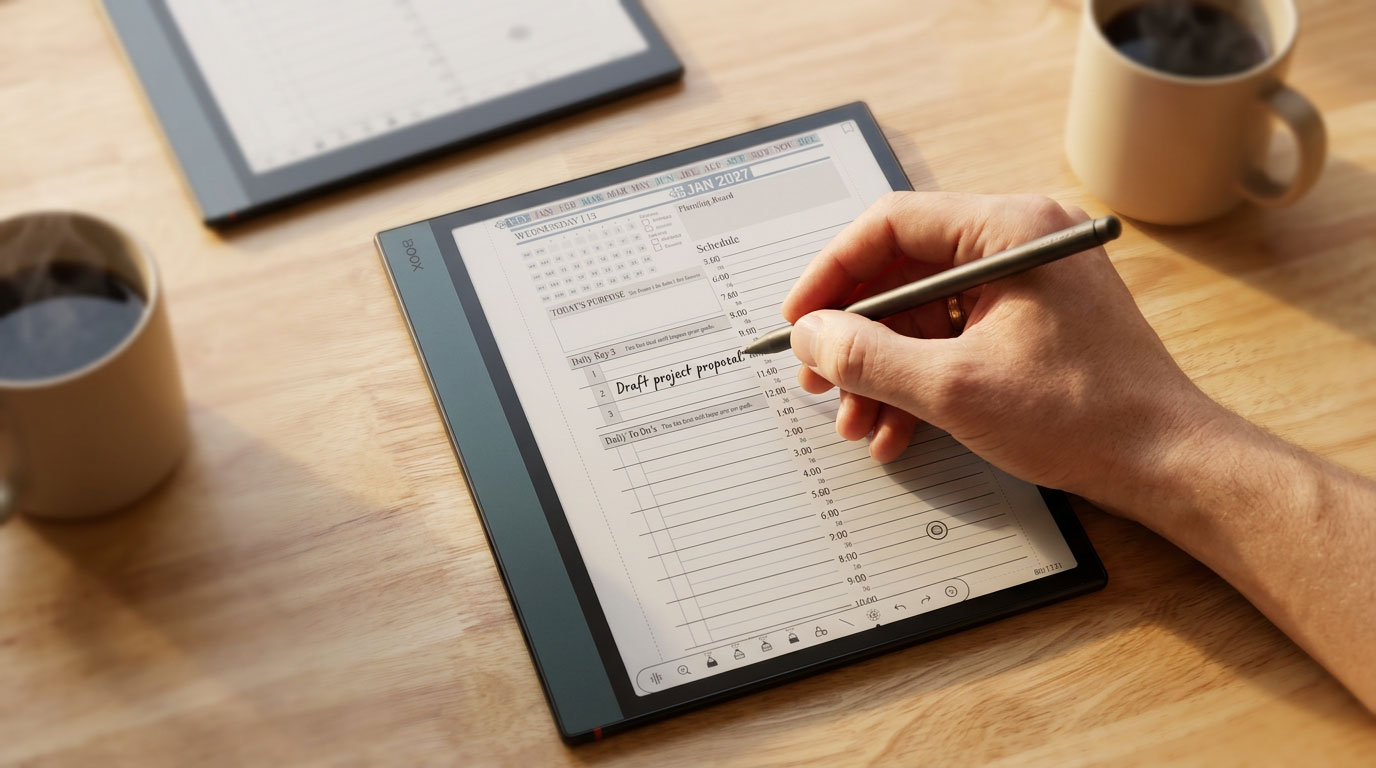
When it comes to e-ink devices, the Onyx Boox Note Air 5c stylus is the single most important piece of the system. The screen is what you see. The stylus is how you interact with everything on it. If the pen feels bad, the whole experience feels bad — regardless of how good the display is or how powerful the Android ecosystem underneath it. Get the stylus experience right, and everything else falls into place.
The 5c makes meaningful improvements to its stylus over the 4c. The redesigned pen with built-in nib storage is the headlining change, but there is more to it than that. Pressure sensitivity, lag reduction, pen type variety, and the annotation tools that work alongside the stylus all contribute to an experience that is noticeably more capable than previous Boox generations for serious note-takers and planners.
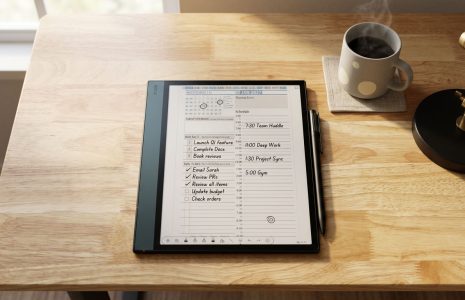
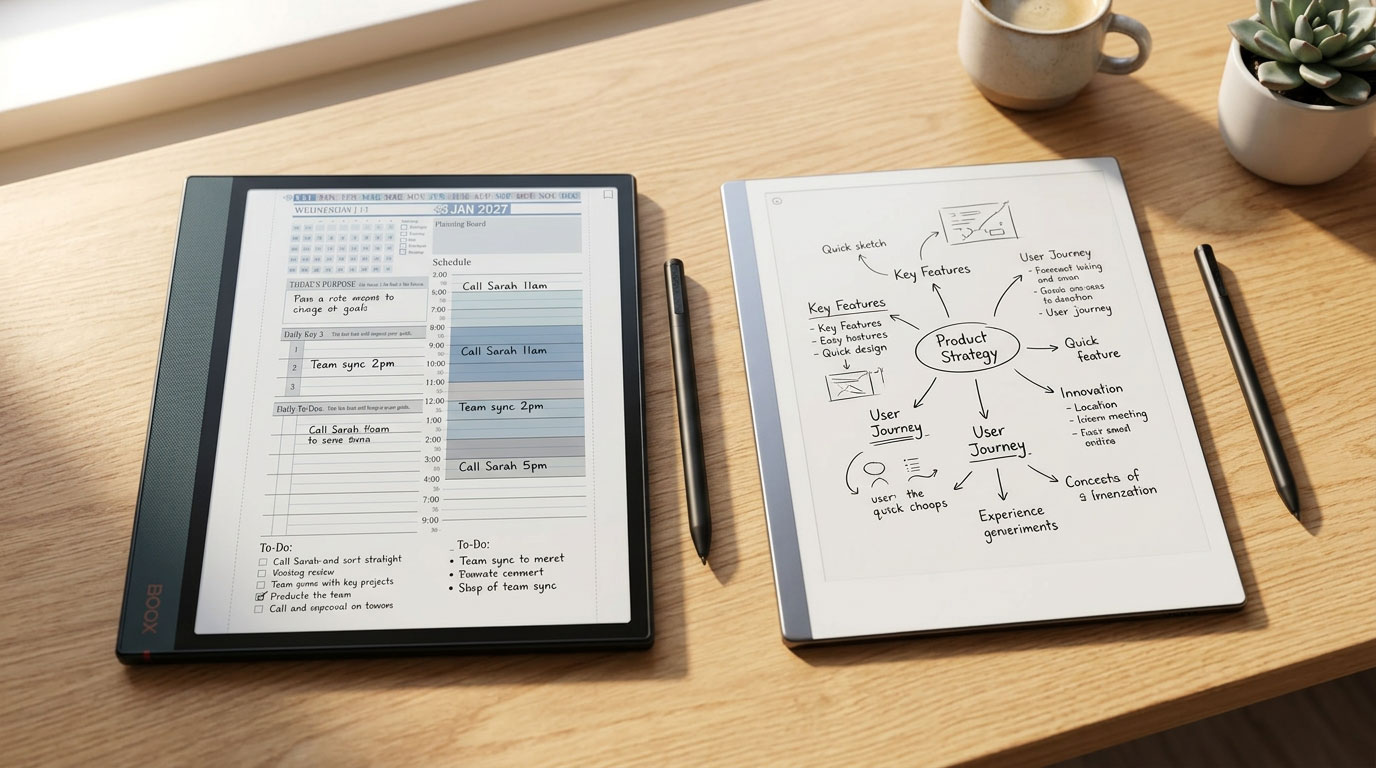
This guide covers every aspect of the 5c stylus — from the hardware redesign to the specific pen settings and annotation tools that make the Key2Success daily planning workflow work smoothly on an e-ink device. Whether you are brand new to the Boox 5c or have been using it and want to get more out of the pen, this is what I use personally every day.

Why the Stylus Is the Most Important Part of Any E-Ink Device
An e-ink tablet without a good stylus is like a notebook with a bad pen. The technology behind the display can be excellent, the software can be capable, the battery life can be impressive — but if writing on the screen feels wrong, you will not use it. And a device you do not use consistently does not improve your planning or productivity by any measurable amount.
This is why the stylus upgrade on the 5c matters more than the spec sheet suggests. Moving from Android 13 to Android 15 is a background improvement — you feel it indirectly through better app compatibility and smoother performance. Moving from the 4c pen to the 5c pen is an immediate, tactile difference you notice the first time you pick up the device and write a sentence.
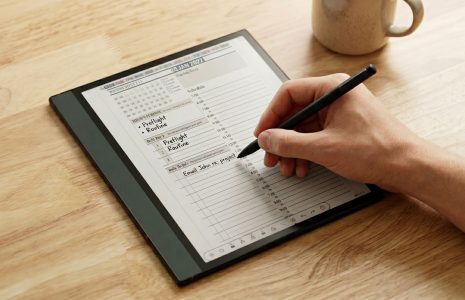
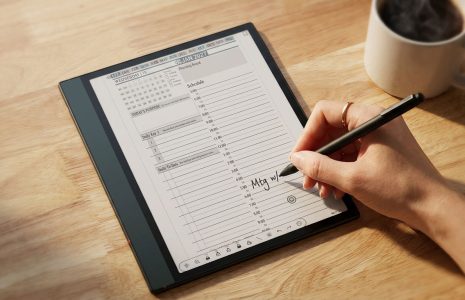
E-ink styluses in general have come a long way. Early devices had significant lag — you would write a word and watch the screen catch up to your hand half a second later. That kills any sense of writing naturally. The 5c has reduced this to the point where, for normal handwriting speeds, the ink appears to follow your stylus in real time. That matters a great deal when you are taking notes in a meeting, filling in your daily Key3 planner page, or quickly marking up a document.
The Nib Storage Upgrade That Changes Everything
Here is the situation that anyone who uses a stylus-based device regularly will recognize: you are heading into the most important meeting of the quarter. A major client presentation, a board review, a sales call you have been preparing for all week. You reach for your stylus to take notes and the nib is gone — snapped off when you dropped it two weeks ago, or worn down from months of daily use. The spare nibs are back at your desk. Or still in the original box the device shipped in.
You now have a capable e-ink device sitting in your bag that you cannot effectively write on. That is the problem the 5c stylus solves.
The new pen design stores spare nibs directly inside the stylus body itself. The mechanism is clean and intuitive — there is a small compartment built into the pen that holds replacement nibs. When your current nib wears out or breaks, you pull a replacement, swap it in, and keep writing. The whole process takes under thirty seconds and requires nothing beyond the pen itself. No desk. No box. No hunting through a laptop bag. Just the pen in your hand and a nib you can replace on the spot.
Other e-ink device makers have started solving the same problem — storing spare nibs in the device case or cover. Onyx chose to put them in the stylus itself on the 5c, which means you always have them regardless of whether you have your case with you. It is the right call.
Pressure Sensitivity and Lag Improvements
The nib storage gets the most attention, but the underlying pen performance has also improved. Pressure sensitivity on the 5c stylus is more refined — lighter touches produce thinner, softer lines, and heavier pressure gives you bolder strokes with a natural transition between them. This is particularly useful when you are using the brush marker or pencil tool for sketching out diagrams, drawing schedule blocks, or adding visual hierarchy to your planner pages.
The lag reduction is equally important. On the 4c and older Boox devices, there was a visible refresh delay — your handwriting would appear slightly behind where the stylus was on the screen. The 5c renders ink in real time at normal writing speeds. You can see this most clearly when taking fast notes in OneNote: words appear character by character as you write them, rather than in batches after a brief pause.
Pen Types, Thickness, and Color: Building Your Writing Setup
The Boox 5c writing toolbar gives you five pen types to work with. Most people pick one and never change it. That is a missed opportunity — each tool has specific use cases in a planning and note-taking workflow, and knowing when to use each one makes your pages cleaner and more readable.
Best for everyday writing. Clean, consistent line weight. Closest to writing with a gel pen on paper. My default for K2S daily pages.
Use for small handwriting, detailed notes, or tight spaces. Drop the thickness to 0.5mm for the cleanest fine writing.
Softer appearance, good for tentative notes or diagrams you plan to refine. Pressure-sensitive — lighter touch gives a lighter line.
Variable line weight based on pressure and speed. Good for headings, labels, or adding visual hierarchy to weekly pages.
Semi-transparent color overlay. Essential for time-block color-coding on K2S schedule pages. Set up multiple colors in your toolbar.
Thickness Settings
Each pen type has an adjustable thickness slider. For daily writing on K2S planner pages, I run the ballpoint at around 0.9mm — fine enough to write neatly in the planner's structured fields without the lines bleeding into each other, but substantial enough to read clearly. If I want a finer line for small notes I bring it down to 0.5mm. For schedule labels and headings I go up to 1.5mm to create visual weight.
Color Selection
The 5c's color e-ink display makes color selection genuinely functional rather than decorative. I use black for body writing, blue for time-sensitive items and deadlines, and the highlighter tools in yellow, blue, and green for the three main schedule block types. Set your preferred colors once and they stay saved in your toolbar — no need to reconfigure each session.
Customizing Your Toolbar
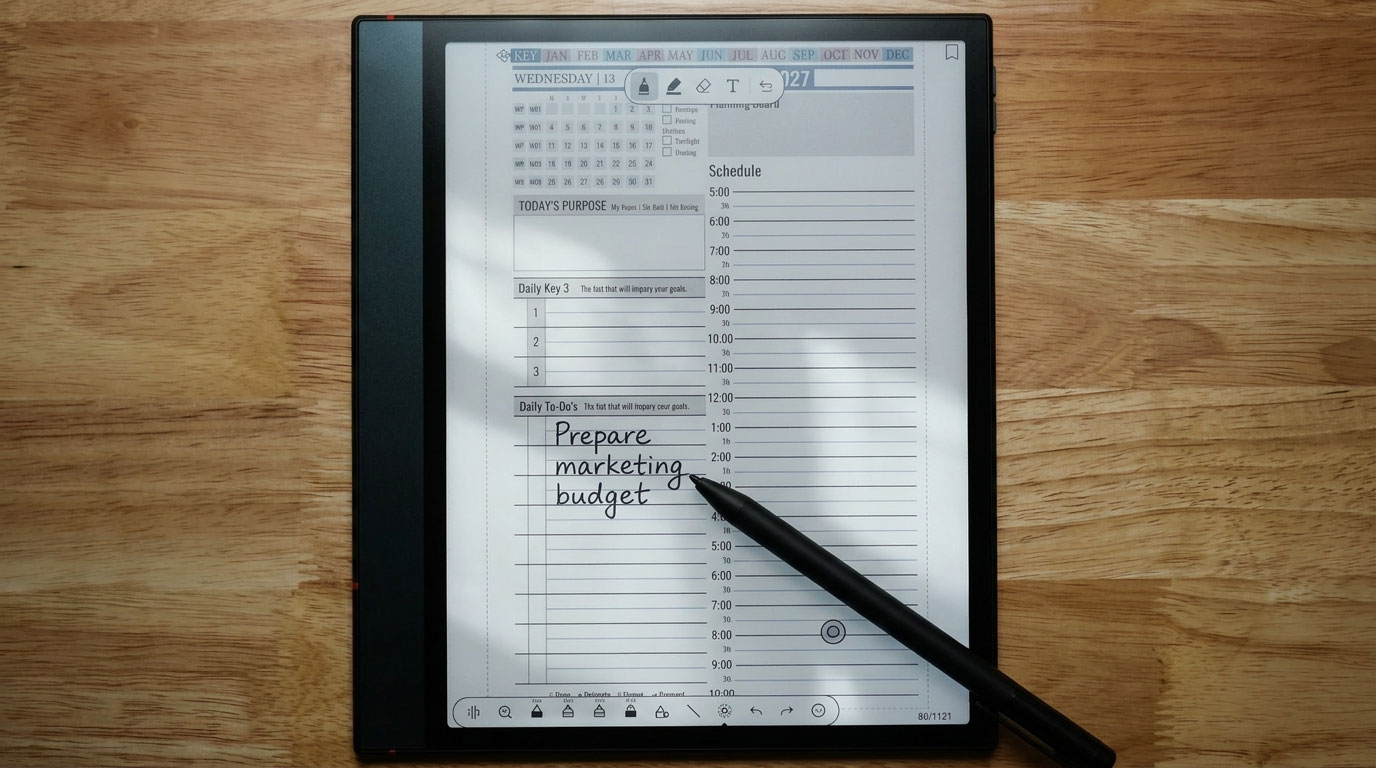
The toolbar is fully configurable. You can add multiple pens at different pre-set thicknesses and colors, which means you can switch between your fine black pen and your thick blue pen with a single tap rather than adjusting settings each time. I keep five tools in my toolbar: fine black ballpoint, medium black ballpoint, blue ballpoint for deadlines, yellow highlighter, and green highlighter. That covers 95% of my daily planning needs without ever opening the full settings panel.
The toolbar can be repositioned to any edge of the screen by tapping and dragging it. I keep mine at the bottom right corner — out of the way of the planner content but immediately accessible without moving my hand far from where I am writing.
Eraser, Lasso, and Scribble-to-Erase: The Tools Most People Skip
Most Boox users spend the majority of their time with a single pen tool and occasionally use the eraser. That covers writing, but it misses three tools that, once you have them in your workflow, you will wonder how you planned without them.
The Eraser — Stroke vs. Area
The standard eraser removes individual strokes when you tap on them — useful for cleaning up single characters or small mistakes. But for larger corrections, switch to lasso erase mode. Draw a selection shape around the area you want to clear and everything inside it erases at once. If you wrote a full row of notes in the wrong field, or you want to clear an entire time block from your schedule, lasso erase removes it in one gesture rather than tapping stroke by stroke.
Scribble-to-Erase
This is the tool I reach for most during live note-taking. Enable it from the text settings menu in the toolbar — once active, you can erase any text simply by scribbling over it with the stylus. No tool switching. No mode changes. Just scribble through the word or line you want to remove and it disappears. When you are writing quickly and need to correct something without breaking your flow, scribble-to-erase is noticeably faster than any other approach.
The Lasso Selection Tool
This is the most powerful tool in the daily planning workflow and the one most people discover by accident rather than intentionally. The lasso selection tool lets you draw a freeform selection around any handwritten content, then copy, move, or delete it.
The most practical use: carrying to-dos forward from one day to the next. At the end of a planning day, draw a lasso around the tasks that did not get completed, tap Copy, navigate to tomorrow's daily page in the K2S planner, and tap Paste. Your handwritten to-dos appear on the new page exactly as written. No rewriting. No transcription. Just a clean carry-forward that keeps your daily list accurate without creating extra work.
The lasso copy-paste workflow works across any pages in the planner PDF — not just consecutive days. You can lasso a task from Monday, paste it to Thursday, or pull a weekly goal onto a daily page. The planner becomes genuinely dynamic rather than static.
The Straight Line Tool
One more tool worth knowing: tap the line drawing icon in the toolbar, drag across the screen, and the 5c renders a perfectly straight line. I use this for drawing clean dividers between time blocks in the daily schedule, or for separating sections on a notes page. Drawing a straight line freehand on a touchscreen is nearly impossible — this tool does it in one stroke and saves you from the visual noise of wobbly lines on an otherwise clean planning page.
Stylus Habits That Save Time Every Week
The tools are only as useful as the habits you build around them. These are the specific stylus practices that make the biggest difference in a daily planning workflow on the Boox 5c.
Set Up Your Toolbar Once, Use It Every Day
The single biggest time-saver is configuring your toolbar fully at the start and never changing it. Choose your pen types, set your thicknesses and colors, position the toolbar where you want it. From that point on, every planning session starts with a tool that is ready to go. The friction of adjusting settings mid-session is small individually but adds up to a real interruption over weeks of daily use.
Use Color for Communication, Not Decoration
Color-coding on the K2S daily page is most effective when every color means something specific and consistent. The moment you start using colors arbitrarily — blue for this, blue for that — the visual system stops working. Pick three to four highlighter colors, assign each one a specific meaning in your schedule, and never deviate. Your eye will learn to read your pages in seconds rather than minutes when the color language is consistent.
End Each Day with the Lasso
Build a daily closing habit: at the end of each planning day, open your Key2Success daily page, lasso any incomplete to-dos, and move them to tomorrow. It takes under two minutes and ensures your next day starts with an accurate list rather than having to reconstruct what carried over from the day before. This is the digital equivalent of the classic planning habit of reviewing your list each evening — the Boox 5c just makes the execution faster.
Replace Your Nib Before It Needs Replacing
The built-in nib storage on the 5c stylus makes this easy. Do not wait until your current nib is worn down or broken — swap it proactively every few months depending on your writing volume. A fresh nib restores pressure sensitivity to its optimal state and keeps the writing experience consistent. With spare nibs always on the pen, there is no reason to delay.
Get the Key2Success Planner for Your Device
Frequently Asked Questions About the Onyx Boox Note Air 5c Stylus
What stylus does the Onyx Boox Note Air 5c use?
The Onyx Boox Note Air 5c ships with a redesigned stylus that features built-in nib storage — spare nibs are housed inside the pen body itself, so you can replace a worn or broken nib without needing access to the original packaging or a separate nib kit. The pen also delivers improved pressure sensitivity and reduced writing lag compared to the stylus that shipped with the Note Air 4c.
How do you replace the nib on the Onyx Boox 5c stylus?
The Boox 5c stylus stores spare nibs in a compartment built into the pen body. To replace the nib, pull the worn nib out of the tip (using the nib removal tool or your fingernails on the sides), then insert a fresh nib from the pen's built-in storage. The process takes under thirty seconds and can be done anywhere — no desk or accessories required.
How do I reduce stylus lag on the Onyx Boox Note Air 5c?
The Boox 5c has significantly reduced stylus lag compared to earlier Boox models, with real-time ink rendering at normal handwriting speeds. If you are still experiencing lag, check that you are using the latest firmware, try reducing the display refresh rate setting to a faster mode in the device display settings, and ensure you are writing in the native NeoReader app or a well-optimized annotation app rather than a browser-based tool.
What are the best pen settings for the Key2Success Planner on Boox 5c?
For daily writing on K2S planner pages, a black ballpoint pen at 0.9mm thickness works best for body text and to-do entries. Use the fine-tip setting at 0.5mm for small note fields. Set up three to four highlighter colors in your toolbar for time-block color coding — one color per schedule type (meetings, focus work, personal time). Pre-configure your toolbar with these tools so every planning session starts ready without adjusting settings.
Can you use the lasso tool to move handwritten notes between pages on Boox 5c?
Yes. The lasso selection tool on the Boox 5c lets you draw a freeform selection around any handwritten content, copy it, navigate to a different page, and paste it. This is particularly useful for carrying incomplete to-dos forward from one daily planner page to the next — select the unfinished tasks, copy them, go to tomorrow's page, and paste. The handwriting appears exactly as written, with no rewriting required.
My Take: The Pen Makes the Device
I have tested a lot of stylus-based devices over the years — iPads, Surface Pros, reMarkables, multiple Boox generations. The consistent pattern is that the device you actually pick up and use every day is the one where writing feels right. Not impressive. Not feature-rich. Right. Natural. Like writing on paper with a good pen rather than dragging a blunt object across glass.
The Boox 5c stylus hits that mark in a way that earlier Boox devices did not quite reach. The real-time rendering, the improved pressure sensitivity, and particularly the nib storage solution collectively move the writing experience from "capable" to "comfortable." That is a meaningful distinction when the whole point is to use this device as your daily planning tool.
The nib storage might seem like a small thing until the moment it saves a critical meeting. Then it becomes one of the most important design decisions Onyx made on this device. I would rather have a tool that solves a real problem reliably than a spec sheet full of improvements I will never notice.
If you are using the Boox 5c for planning, make sure you have the Key2Success Planner loaded on it. The device is the hardware. The planner is the system. You need both to actually move the needle on your goals.
About the Author
Branden Bodendorfer is an entrepreneur, coach, and creator of the Key2Success Planner — a digital planning and productivity system used by professionals in 52 countries. With deep roots in Central Wisconsin, Branden has been building planning systems and helping individuals and organizations reach their goals since founding his first business in 2004.
His entrepreneurial journey spans co-founding Premier Printing in 2004, launching TriMedia in 2010 — a marketing and communications firm that grew multiple regional media brands reaching over 100,000 people per month — and developing the Key2Success Digital Planner beginning in 2013. He currently serves as Director of Marketing for Wheelers Family Auto Group , a six-rooftop Chevrolet and GMC dealer group in Central Wisconsin.
Branden is a passionate photographer, videographer, and drone pilot whose aerial and nature work has been featured on ABC World News, ESPN Monday Night Football, CNN, the NBC Today Show, and Disney platforms. He has been nominated for SBA Entrepreneur of the Year and recognized with Small Business of the Year awards. His coaching programs focus on entrepreneurship, leadership, marketing, and personal development — helping clients unlock their full potential through focused planning and intentional action.
Everything Branden publishes about productivity and planning comes from direct experience — systems he has built, tested, and used daily to manage a complex professional and entrepreneurial life.
Full Bio | brandenbodendorfer.com | Key2Success Planner | LinkedIn