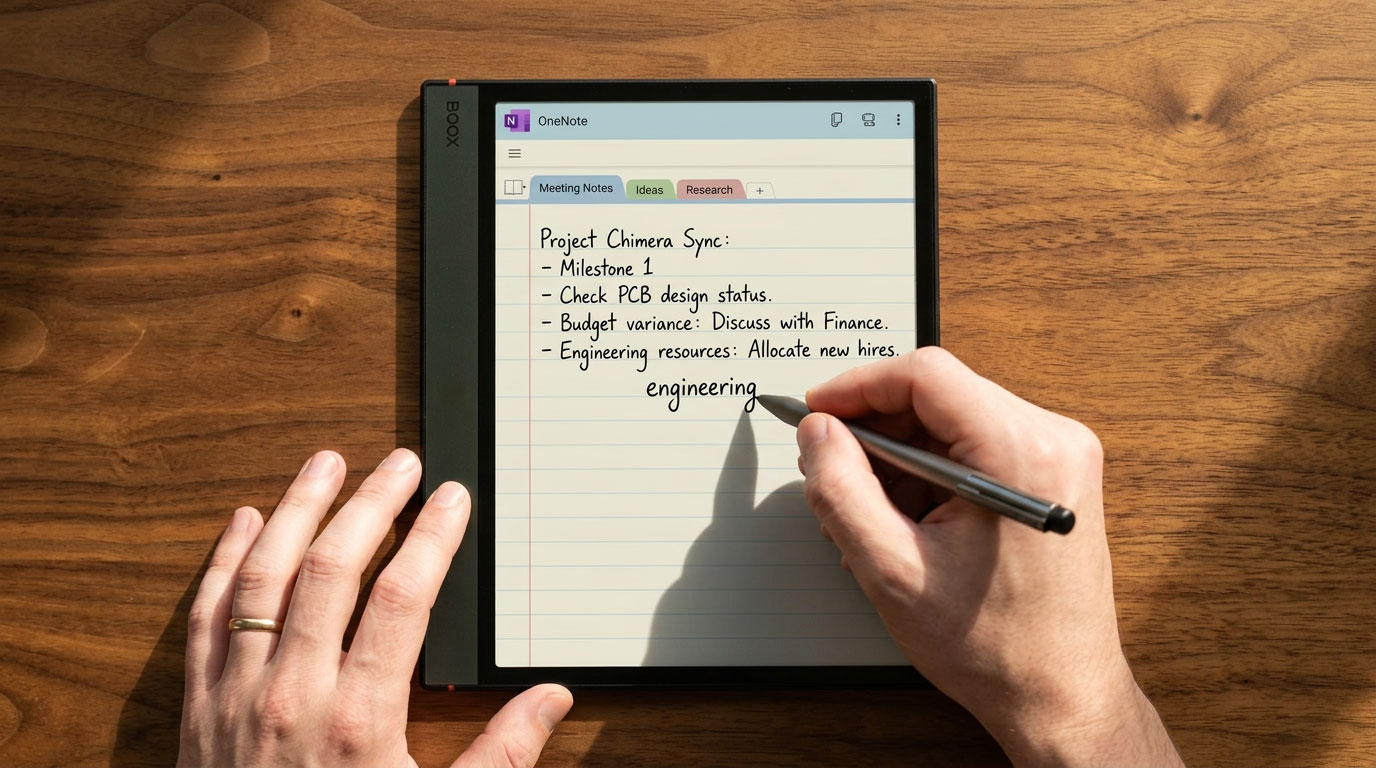
Why I Use OneNote on the Onyx Boox 5c for Meeting Notes (And You Should Too)

In This Article
There is a moment in most professional meetings where someone opens a laptop and starts typing. The keyboard noise fills the room. The screen faces away from the speaker. And everyone else in the room wonders — are they taking notes, or are they checking email? Using OneNote on the Onyx Boox 5c for meeting notes removes that question entirely. You are writing by hand, on a device that looks and feels like a notebook, on a screen that is facing you and only you.
I have been in enough high-stakes meetings — sales calls, board presentations, client reviews — to know that how you take notes matters as much as what you write down. The act of handwriting signals presence. It shows the person in front of you that you are listening, processing, and recording what they say with deliberate attention rather than pounding keys while half-watching a screen.
The Boox 5c and OneNote combination solves the two biggest problems with handwritten meeting notes: the writing feels natural thanks to the e-ink display and improved stylus, and the notes do not stay trapped on the device — they sync automatically to every other device you work on through your Microsoft account. This guide walks through exactly how the workflow operates and why it has become the way I take notes in every meeting that matters.

The Meeting Note-Taking Problem Nobody Talks About
Most productivity advice about meetings focuses on what to capture — action items, decisions, key points. Almost none of it focuses on how the act of note-taking itself affects the room. That gap matters more than most professionals realize.
When you type notes on a laptop in a meeting, several things happen simultaneously. The keyboard creates noise that punctuates the conversation. The screen creates a barrier between you and the other people in the room. And from the speaker's perspective — whether it is a client, a colleague, or a direct report — there is genuine uncertainty about whether you are engaged or distracted. They may think you are playing Candy Crush. That is a direct quote from my own experience, and it is not an exaggeration of what people in meetings actually think when someone is typing.
- Keyboard noise interrupts the conversation
- Screen creates a visual barrier
- Speaker can't tell if you're engaged
- Temptation to check email or notifications
- Signals divided attention
- Silent — no keyboard, no noise
- Open posture, screen faces you only
- Looks and feels like taking notes in a notebook
- No notifications, no distractions by design
- Signals full presence and respect
Handwriting in a meeting is a signal. It says: I am here, I am listening, and what you are saying is worth writing down deliberately. That signal matters in sales calls, in client meetings, in performance reviews, and in any conversation where the relationship in the room is as important as the information being exchanged.
The Boox 5c makes this possible in a way that a paper notebook cannot — because the notes do not stay on the device. They sync. They become searchable. They connect to the rest of your OneNote digital planning system and your Key2Success workflow automatically.
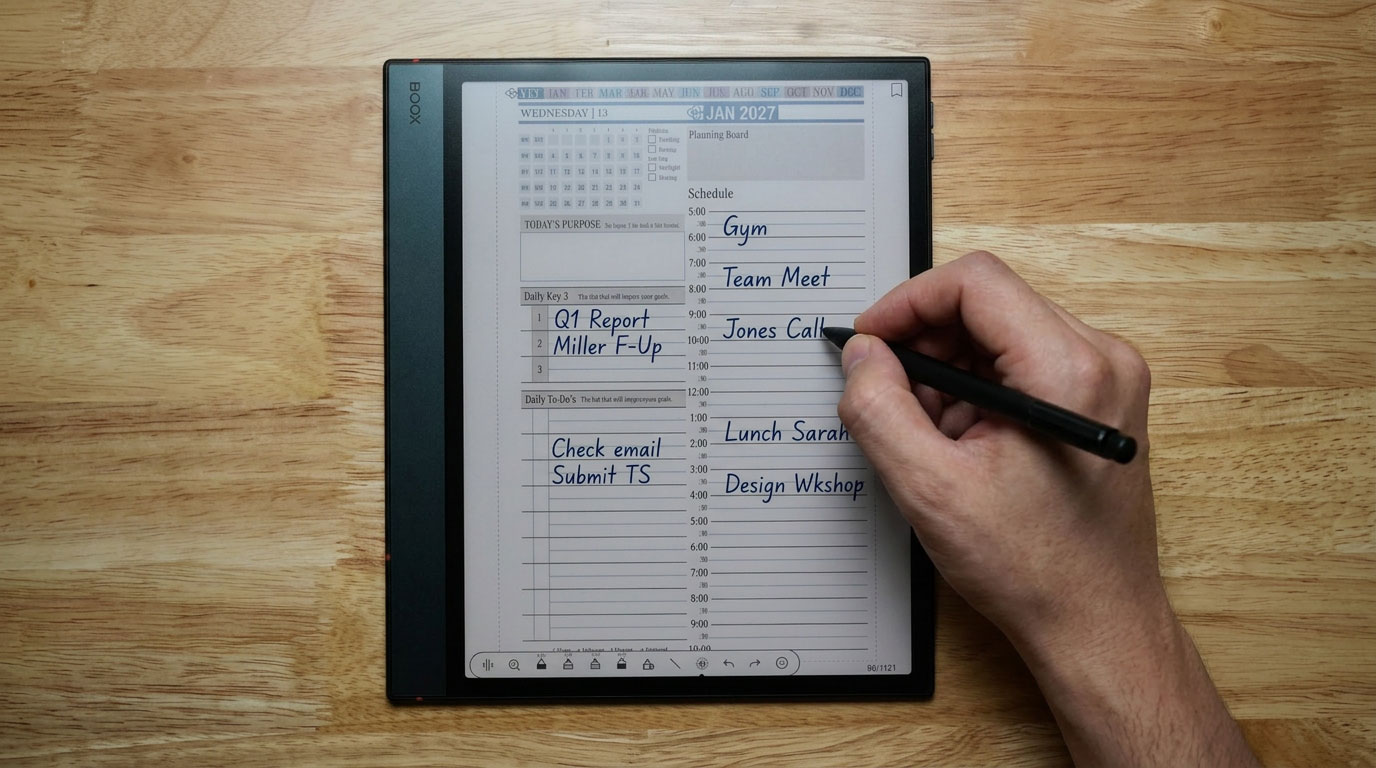
Why OneNote Is the Right App for the Boox 5c
The Boox 5c runs Android 15 with full Google Play Store access. That means you have dozens of note-taking apps to choose from. I use OneNote specifically, and the reasons are practical rather than preferential.
Universal Cross-Device Sync
OneNote is a universal app. It runs on Windows, macOS, iOS, Android, and web. Sign in with your Microsoft account on the Boox 5c, and every note you write syncs automatically to every other device connected to the same account. Notes written by hand in a Monday morning meeting are accessible on your Windows desktop by the time you get back to your office. No export. No transfer. No extra steps.
This is the critical difference between using OneNote on the Boox and using the native NeoReader annotation tools. Native annotations stay in the PDF and on the device. OneNote notes live in the cloud and travel with you. For meeting notes specifically — which need to become action items, drive follow-up emails, and connect to project plans — cloud sync is not optional, it is the whole point.
Structure That Scales
OneNote organizes notes into Notebooks, Sections, and Pages — a hierarchy that maps naturally to how meetings and projects are structured. I keep a Notebook for each major area of my work, sections for ongoing projects or clients, and individual pages for each meeting. That structure means I can find any set of meeting notes in seconds rather than scrolling through a chronological list. The Key2Success Planner for OneNote is built on this same structure — it integrates meeting notes directly into the planning system rather than keeping them separate.
Handwriting Support
OneNote handles handwriting well on the Boox 5c. You can write directly on any page with the stylus, switch between pen and eraser tools, and the handwritten content stays exactly as written. OneNote also has handwriting-to-text conversion built in if you want to convert specific notes to typed text for sharing — but the handwriting itself is searchable in Microsoft 365 accounts, which means your hand-written notes are not invisible to search even before conversion.
Setting Up OneNote on the Onyx Boox 5c
The setup process is straightforward and takes under five minutes.
- Open the Google Play Store on your Boox 5c. Because the device runs Android 15, the Play Store is available natively — no sideloading required.
- Search for Microsoft OneNote and install it. The app is free with a Microsoft account.
- Sign in with your Microsoft account. If you use Microsoft 365 at work, use your work account. If personal, your personal Microsoft account works equally well.
- Create a Notebook for meeting notes or navigate to an existing one. I keep a dedicated notebook called "Meeting Notes" with sections for each major client or project area.
- Open a new page, tap the stylus tool in the OneNote toolbar, and start writing. The Boox 5c's writing toolbar also works alongside OneNote — use whichever pen tools you prefer.
For the best writing experience in OneNote on Boox, set your page background to a light lined or dotted grid. It gives your handwriting a visual anchor and makes the notes easier to read when you review them later on a larger screen.
The 5c's Real-Time Writing Improvement
One of the specific improvements in the Boox 5c that directly benefits the OneNote meeting note workflow is real-time ink rendering. On the 4c and earlier Boox devices, there was a noticeable refresh delay — your stylus would move ahead of the ink appearing on screen, particularly in apps like OneNote that are doing active rendering rather than just marking up a static PDF.
On the 5c, that delay is gone at normal handwriting speeds. You write "taking out trash, call mom, finalize Bradford project" and the words appear character by character as your hand moves. The screen keeps up. That sounds like a minor technical improvement, but when you are in a live meeting, writing quickly to capture what someone is saying, a screen that lags behind your hand is a cognitive distraction — you are subconsciously checking whether the text appeared correctly rather than fully listening to what is being said next.
Real-time rendering removes that distraction. You write, the words appear, and your attention stays on the conversation rather than on the screen performance. In a high-stakes meeting, that is meaningful.
The One Remaining Refresh Behavior
Full transparency on how the e-ink screen behaves: the real-time writing improvement applies to pen-based ink rendering. There is still a brief screen refresh when you use the highlighter tool over existing text — the highlight does not appear until you lift the stylus from the screen. This is a characteristic of e-ink display technology, not a bug specific to the 5c. It is a minor behavioral note rather than a workflow problem — you simply apply highlights after writing rather than during, which is how most people highlight anyway.

Building a Meeting-to-Action Workflow with K2S + OneNote
Taking good meeting notes is only half the work. The other half is turning those notes into action. This is where the OneNote and Key2Success Planner workflow becomes more powerful than either tool on its own.
During the Meeting
Write notes in OneNote on the Boox 5c. Focus on capturing decisions, commitments, and action items — not transcribing every word. Use the Daily Key3 framework from the Key2Success system as your filter: what are the three things from this meeting that are going to have the most impact? Write those prominently and circle them. Everything else is supporting context.
Immediately After the Meeting
By the time you walk back to your desk, your OneNote notes have already synced to your Windows machine via your Microsoft account. Open them on your computer, review the circled items, and transfer them directly to your K2S daily page for that day or the next. The to-dos move from meeting notes to your planning system in one fluid step — no transcription lag, no separate capture system.
The Daily Key3 Connection
Franklin Covey's principle — put first things first — is built into the K2S Daily Key3 structure. Each day, you identify the three action items that will have the most impact. Meeting notes are one of the primary sources that feed those daily keys. When your meeting notes sync from the Boox 5c to OneNote and straight into your planning system, the connection between what was decided and what gets done is direct and traceable.
James Clear's framework from Atomic Habits reinforces the same idea from a different angle: small, consistent daily actions compound into significant results. The meeting-to-action workflow is a system for making that compound effect reliable. You capture in the meeting, you process immediately after, you plan the action the same day, and you execute the next morning with clear priorities already set.
Explore the Key2Success Planning System
Frequently Asked Questions About OneNote on the Onyx Boox Note Air 5c
Can you use OneNote on the Onyx Boox Note Air 5c?
Yes. The Onyx Boox Note Air 5c runs Android 15 with full Google Play Store access, which means you can install Microsoft OneNote directly from the Play Store. Once installed and signed into your Microsoft account, notes written on the Boox 5c sync automatically to OneNote on any Windows, Apple, or Android device connected to the same account.
Does OneNote sync handwritten notes from the Boox 5c to Windows?
Yes. Handwritten notes created in OneNote on the Boox 5c sync to your Microsoft account and appear in OneNote on Windows, Mac, iPhone, and any other connected device. Sync happens automatically when the device is connected to the internet — typically within seconds of finishing a note. You can also manually force a sync by tapping the sync button in the OneNote app.
Is handwriting better than typing for meeting notes?
Research consistently shows that handwriting improves retention and comprehension compared to typing. Beyond the cognitive benefits, handwriting in a meeting setting signals full presence and engagement to the people in the room — it eliminates the visual barrier of a laptop screen and the auditory distraction of keyboard noise. For high-stakes meetings where the relationship matters as much as the information, handwriting sends the right signal.
How do I connect OneNote meeting notes to the Key2Success Planner?
After a meeting, open your synced OneNote notes on your computer and identify the action items. Transfer the top three most impactful items directly to your K2S Daily Key3 for that day or the next. If you use the Key2Success Planner for OneNote, you can keep everything within the same OneNote environment — meeting notes in one section, your daily planner pages in another, with action items moving between them as needed.
What is the best way to organize OneNote for meeting notes on Boox 5c?
Create a dedicated OneNote notebook for meeting notes with sections organized by client, project, or team — whatever matches how your work is structured. Create a new page for each meeting, titled with the date and meeting name. This makes notes easy to find and review. If you use Key2Success for OneNote, you can integrate meeting notes directly into your existing planner notebook structure rather than maintaining a separate system.
My Take: Presence Is a Competitive Advantage
I have been in rooms where the difference between winning a client and losing one came down to how present I was during the conversation. Not how smart my pitch was. Not how polished my slides were. How present. Whether the person in front of me felt heard, valued, and understood — or felt like they were talking to someone who was half-somewhere-else.
The Boox 5c and OneNote combination is a presence tool as much as a productivity tool. The e-ink screen does not glow in a dark conference room. The stylus does not make noise. There are no notifications pulling your attention to the edge of the screen. You are writing, listening, and being fully in the room — and the person across from you can see and feel that difference.
The notes sync later. The action items get captured. The workflow closes the loop from meeting to plan to execution. But those outcomes start with being genuinely present in the meeting in the first place. That is what this setup makes possible.
If you want the planning system that turns those meeting notes into daily action, start with the Key2Success Planner for OneNote. It is built for exactly this workflow.
About the Author
Branden Bodendorfer is an entrepreneur, coach, and creator of the Key2Success Planner — a digital planning and productivity system used by professionals in 52 countries. With deep roots in Central Wisconsin, Branden has been building planning systems and helping individuals and organizations reach their goals since founding his first business in 2004.
His entrepreneurial journey spans co-founding Premier Printing in 2004, launching TriMedia in 2010 — a marketing and communications firm that grew multiple regional media brands reaching over 100,000 people per month — and developing the Key2Success Digital Planner beginning in 2013. He currently serves as Director of Marketing for Wheelers Family Auto Group , a six-rooftop Chevrolet and GMC dealer group in Central Wisconsin.
Branden is a passionate photographer, videographer, and drone pilot whose aerial and nature work has been featured on ABC World News, ESPN Monday Night Football, CNN, the NBC Today Show, and Disney platforms. He has been nominated for SBA Entrepreneur of the Year and recognized with Small Business of the Year awards. His coaching programs focus on entrepreneurship, leadership, marketing, and personal development — helping clients unlock their full potential through focused planning and intentional action.
Everything Branden publishes about productivity and planning comes from direct experience — systems he has built, tested, and used daily to manage a complex professional and entrepreneurial life.
Full Bio | brandenbodendorfer.com | Key2Success Planner | LinkedIn