How to Use OneNote as a Digital Planning App
Staying organized and on top of tasks is crucial. If you’re looking to streamline your planning process, OneNote can be an excellent tool for digital planning, especially when used on your iPad. Whether you’re a seasoned digital planner or a first-time user, this guide will walk you through how to maximize OneNote’s potential, providing you with tips and tricks to make your planning experience smoother and more efficient.
Visit the OneNote Digital Planner Shop
1. Getting Started with OneNote on Your iPad
To begin, you’ll need the OneNote app, which is available on various devices, including iPad, iPad Mini, iPad Air, and Windows computers. One of the great advantages of OneNote is that it syncs across all your devices, making it easy to access your planner wherever you are. The navigation is simple, and whether you’re using OneNote for the first time or transitioning from paper planning, you’ll find it intuitive.
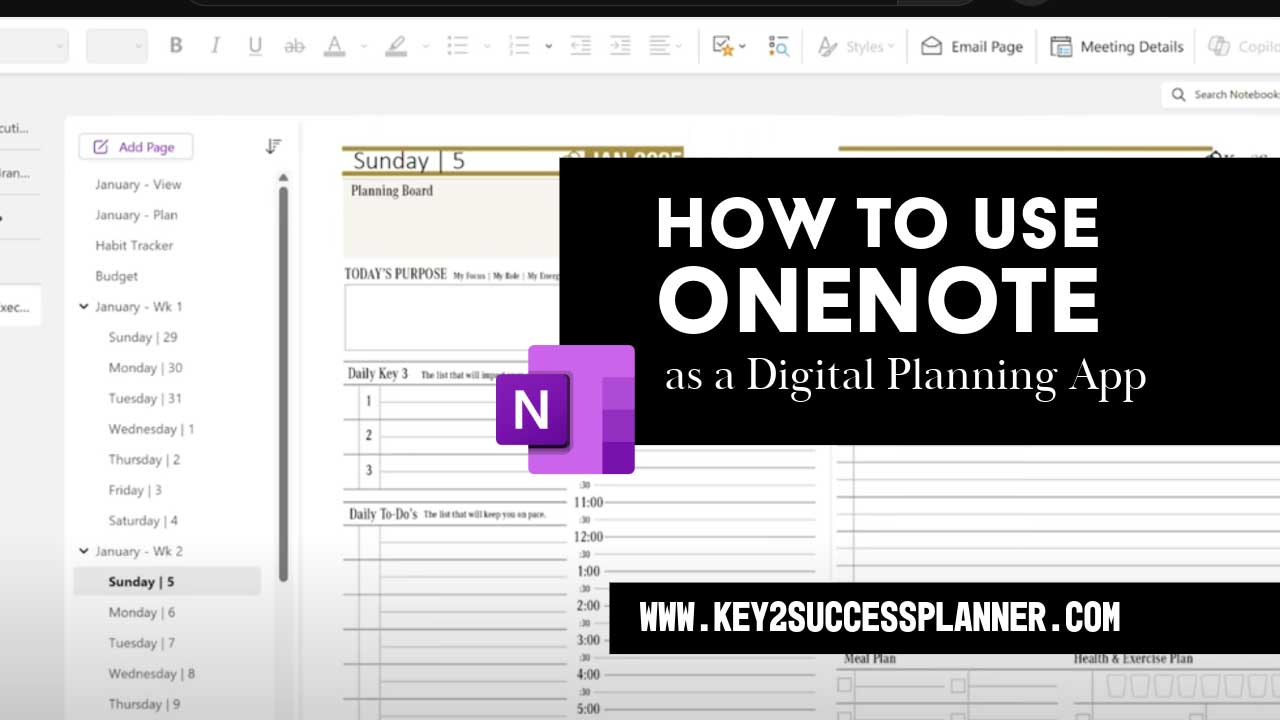
Once you’ve opened the app, you’ll see your notebooks on the left-hand side. Depending on how you use OneNote, you may have a single notebook or several. The beauty of OneNote is its structure. Think of it like a digital binder: you can create sections, tabs, and pages, making it easy to organize your content.

For example, you might have a section for each month or different areas of focus (work, personal, goals). By navigating to different tabs, you can keep your planner neat and well-organized, ready for action.
2. Using Handwriting and Digital Tools
One of the most exciting features of OneNote is its handwriting capability. Using an Apple Pencil or your finger, you can write directly onto your digital planner. The app allows you to choose different tools, such as pens, pencils, highlighters, and even custom colors. The pressure sensitivity of the Apple Pencil adds a realistic touch, giving you that paper-like feel when writing.
You can also adjust the size of your writing tools for different needs. Plus, with a matte screen cover, you can reduce glare and improve the overall tactile experience. You can take notes, highlight important points, or even sketch diagrams — all within your digital planner.
Additionally, the lasso tool lets you easily select and move your handwritten notes. If you need to rearrange tasks or move content from one day to another, the process is seamless. For example, if you’ve completed a task today and need to move it to tomorrow, just use the lasso tool to copy and paste it into the next day’s section.
3. Organizing Your Daily Tasks and Notes
When using OneNote for digital planning, you’ll often find that organizing your tasks is a central part of the experience. The app allows you to create a checklist of tasks for each day and prioritize them as needed. For instance, you might add tasks for personal, work, or other categories and easily check them off as you complete them.
You can also integrate daily and weekly goals, which can be moved from one section to another if you need to adjust your schedule. The drag-and-drop functionality in OneNote makes it incredibly flexible and user-friendly, enabling you to keep your planner up-to-date with minimal effort.
4. Typing and Editing Your Notes
For those who prefer to type, OneNote’s typing tool is a great option. Whether you’re using an on-screen keyboard or a physical keyboard (like a smart keyboard), the typing experience is smooth. You can click anywhere on the screen and start typing, just like a word processor, and OneNote will automatically adjust the text to fit within the container.
Additionally, OneNote lets you resize text boxes, and if the text exceeds the box’s limit, it will automatically jump to the next line. This makes it easy to add long lists or detailed notes without worrying about formatting issues.
Another great feature is the ability to move your typed text around with your finger or Apple Pencil. You can reorganize your text in seconds, whether you’re adjusting a list of priorities or making space for a new task.
5. Adding Shapes and Visual Elements
A lesser-known feature in OneNote is the ability to add shapes. Whether you want to draw a square, circle, or any other shape, this tool can be helpful for organizing or highlighting parts of your planner. For example, you could create a colored box to highlight a particular task or goal, or use shapes to separate different sections within a page.
Once you’ve created your shapes, you can resize, move, and layer them to suit your needs. If you want to get more creative with your planner, you can even use the lasso tool to modify or adjust these shapes easily.
6. Inserting Pages and Templates
OneNote is flexible when it comes to adding more content to your planner. If you need to insert additional pages or templates, you can do so effortlessly. Whether you want a new daily task page or a custom layout, OneNote allows you to duplicate pages, move them around, and organize them as needed.
You can even create templates for recurring tasks, events, or goals. This is a huge time-saver if you want to streamline your planning process and ensure consistency across your planner.
7. Sharing and Printing Your Planner
One of the standout features of OneNote is its sharing capabilities. If you need to share a page or an entire section with someone, you can easily do so by clicking the share button and sending it through email, messaging apps, or even printing it directly from your device.
The ability to share your planner as a PDF makes it easy to collaborate or keep others informed, whether it’s for work projects, family schedules, or team plans. If you prefer physical copies, you can print pages or use AirPrint to wirelessly send documents to your printer.
8. Maximizing OneNote for Success
The key to successful digital planning with OneNote lies in utilizing all its features to meet your specific needs. By creating sections, using handwriting and typing tools, inserting templates, and sharing your planner with others, OneNote offers everything you need to stay on top of your goals.
If you’re already using the Key2Success Planner system, incorporating OneNote into your daily routine can help you maintain clarity and focus as you work toward achieving your goals. The flexibility and ease of use of OneNote will make digital planning not only effective but also enjoyable.
Whether you’re a digital planning veteran or a newbie looking for a fresh start, OneNote can be the ultimate tool for organizing your thoughts, tasks, and goals. With its array of features—from handwriting and note-taking to organizing tasks and sharing your plans—OneNote makes it easy to stay productive and on top of your goals. Start using OneNote today to take your planning to the next level with the Key2Success Planner.
Let me know if you have any questions or need more tips on digital planning — we’d love to help you succeed!