
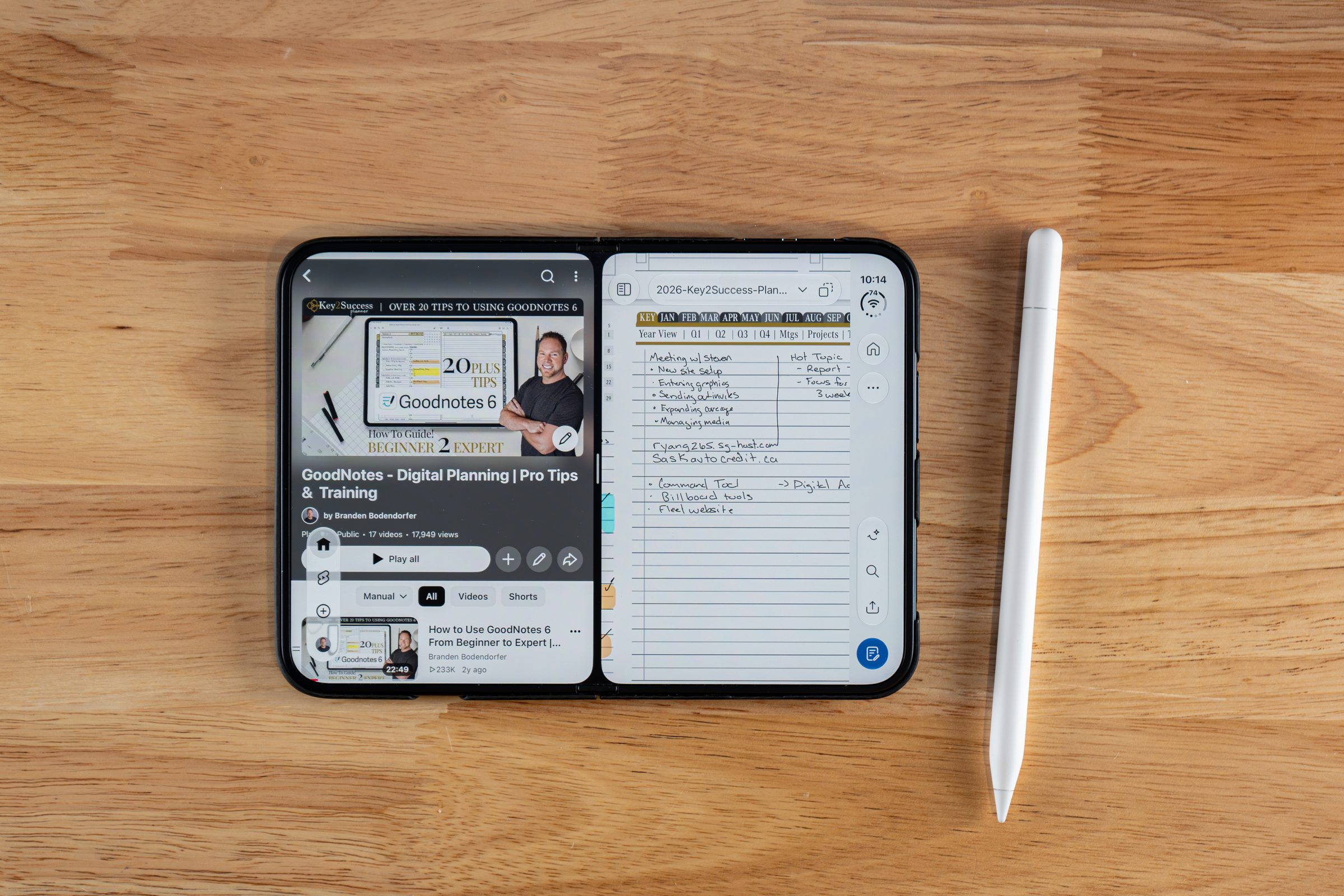
Scribble on iPhone Duo: How to Turn Apple Pencil Handwriting Into Text

Scribble on iPhone Duo is the feature that makes the Apple Pencil useful even when you are not in a notes app. You write with the Pencil, and the phone turns your handwriting into typed text. I use it often since I paired my Pencil, and it is a quick win and a small frustration at the same time.
My view: Scribble is a keyboard replacement, not a note-taking feature. Judge it by how often it lets you skip the keyboard, not by how pretty your handwriting looks on screen. By that measure, it earns its spot on the Duo.

Watch: Scribble and the Apple Pencil Settings on iPhone Duo
I show the Apple Pencil settings, including Scribble, in this video. The video page has the full transcript and setup steps.
Converts Apple Pencil handwriting into typed text in a text field.
Settings, then Apple Pencil, then Scribble.
You must ink in the field where the text will appear.
What Scribble Does on iPhone Duo
Scribble converts your Apple Pencil handwriting into typed text, so you can write a reply, a search, or a web address without opening the keyboard.
Apple describes Scribble on iPad as writing with Apple Pencil in any text field and having it converted to typed text automatically. See Apple's own guide to entering text with Scribble for the original wording. On the iPhone Duo, the behavior I use matches it: write in the field, and typed text appears.
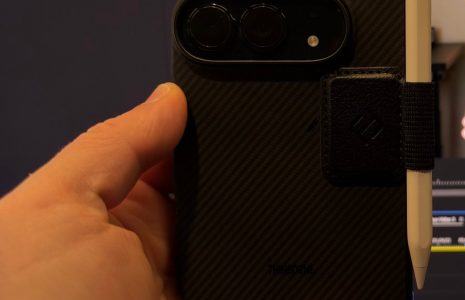
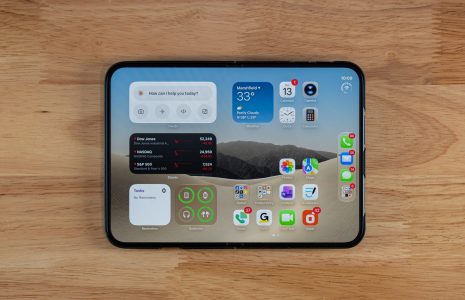
It works because the Duo is the first iPhone with a screen that reads a Pencil. If you want the hardware background and which Pencil to buy, my iPhone Duo Apple Pencil support FAQ covers it. Only the Apple Pencil (USB-C) works.
How to Turn On Scribble on iPhone Duo
Pair your Apple Pencil, open Settings, tap Apple Pencil, and turn on Scribble.
- Pair your Apple Pencil (USB-C) with a USB-C cable. A new Apple Pencil section appears in Settings.
- Open Settings and tap Apple Pencil.
- Turn on Scribble.
- Optional but useful: turn on Only Draw with Apple Pencil, so your finger pans and scrolls and only the Pencil makes marks.
- Use the practice area on that same screen to try the insert, join, and scratch-out gestures.
That practice area is worth two minutes. I recommend it because it teaches the gestures in a safe place, before you try them in a message you actually need to send.
Where I Use Scribble Most
I use Scribble most for quick text replies in Messages and for search boxes while I browse.
A quick reply in Messages is the most common use. I pick up the Pencil, write the answer in the text field, and send it. For a browser, I use the Pencil in the address or search field, and the handwriting turns into text I can search right away. That is the moment it shines: you are already holding the Pencil, and typing would mean switching hands.
For anything that needs to stay in your own handwriting, I use a notes app instead. I cover converting handwriting there in my guide to converting handwriting to text in OneNote on iPad.
Most of my Scribble use is a quick text reply in Messages or a search while I browse. The part I don't like is that I have to ink in the exact field where I want the text to show up. I can't tap one section and ink somewhere else.Branden Bodendorfer, Apple Pencil user on iPhone Duo
The One Thing I Do Not Like About Scribble on the Duo
You have to ink in the field where the text will show up. You cannot tap one spot and write somewhere else.
On the Duo, the handwriting has to land in the field itself. If you tap a field and then try to ink elsewhere, it does not work. Sometimes that means you cannot see exactly what you are inking into, or what you are inking to, because your hand and the Pencil cover the field.
A practical fix is to keep the field visible and unobstructed, use the unfolded screen when a longer message needs room, and switch to typing or a notes app when the text gets long. That is my advice, not an Apple setting, but it keeps Scribble fast instead of frustrating.
Scribble Gestures to Learn First
Learn three gestures first: scratch out to delete, touch and hold to insert, and draw a vertical line to join or separate.
The Apple Pencil settings on the Duo include a practice area for the insert, join, and scratch-out gestures, and Apple's iPad guide lists the same moves. Here is how I would learn them:
- Delete a word: scratch it out with the Pencil.
- Insert text: touch and hold in a text area, then write in the space that opens.
- Join or separate characters: draw a vertical line between them.
Those gestures come from Apple's Scribble guide for iPad, and the practice area on the Duo covers the same ones. Once they are muscle memory, editing a message by hand is faster than reaching for the keyboard. If you are new to digital handwriting overall, start with my guide to getting started with digital planning.
Scribble vs Handwriting in Apple Notes
Scribble turns your writing into typed text. Handwriting in Apple Notes keeps your writing as ink.
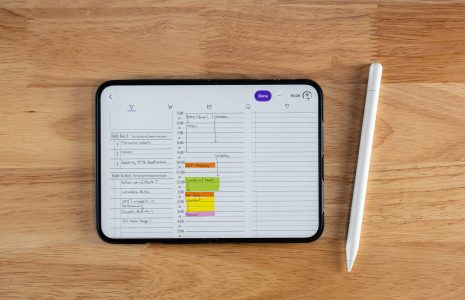
These two get confused. In Apple Notes I tap to place a cursor and use Scribble to type "Hello World" by hand. Then I switch to the pen tool and write in ink, which stays handwritten. Apple Notes also has an Auto Refine handwriting setting under the three dots, and it only gently cleans up your letters. It is a subtle change, not a font swap.
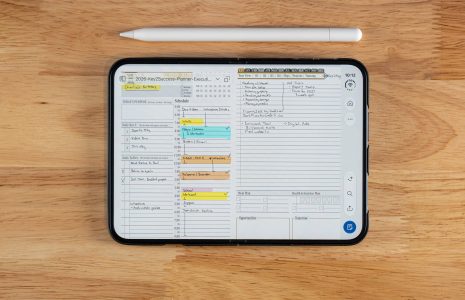
My rule is simple. If the words need to be searched, sent, or pasted, use Scribble. If the words are a plan, a sketch, or a thought you want to see in your own handwriting, use ink. For planning pages with structure, I use my planner, as I show in the Apple Pencil and Key2Success Planner guide.
Keep Your Handwriting Organized
Scribble handles quick text. A planner keeps the handwritten plan organized.
Five-Minute Scribble Practice
Do this once, and the feature stops feeling awkward.
Scribble practice checklist
- Open Settings, then Apple Pencil, and turn on Scribble.
- Use the practice area to try scratch-out, insert, and join.
- Reply to one real message by writing it in the text field with the Pencil.
- Write one search in your browser's search field with the Pencil.
- Try inking outside the field once, so you know where the limit is.
- In Apple Notes, compare typed Scribble text with a line of ink using the pen tool.
FAQ: Scribble on iPhone Duo
Does iPhone Duo support Scribble?
Yes. Scribble is an option in the Apple Pencil settings on the Duo, and I use it for message replies and searches.
How do I turn on Scribble on iPhone Duo?
Open Settings, tap Apple Pencil, and turn on Scribble. The same screen has a practice area for insert, join, and scratch-out gestures.
Why won't my handwriting convert on iPhone Duo?
On the Duo, the handwriting needs to land in the text field itself. Tap a field and write inside it. Also confirm the Pencil is paired and has some charge.
What is the difference between Scribble and Auto Refine?
Scribble converts handwriting into typed text. Auto Refine in Apple Notes keeps your ink and gently cleans up the letters.
Which Apple Pencil do I need for Scribble on iPhone Duo?
You need the Apple Pencil (USB-C), paired with a USB-C cable.
Quick Answers
The Takeaway
Do not judge Scribble by how clean your handwriting looks. Judge it by whether it lets you answer a message or run a search without touching the keyboard. If it does, it is doing its job.
The field limit is real, and I would like Apple to fix it. Until then, use Scribble for short text and a planner or notes app for anything you want to keep in ink.
More iPhone Duo Apple Pencil guides