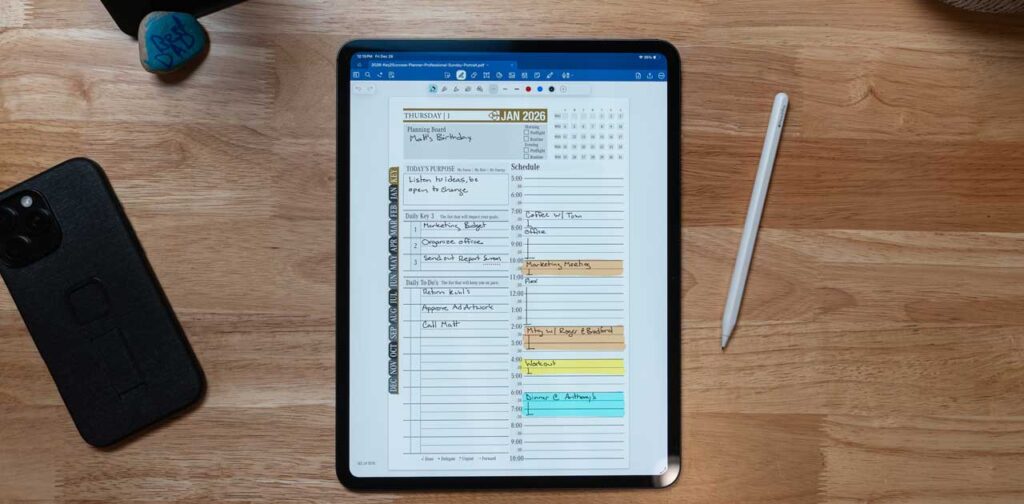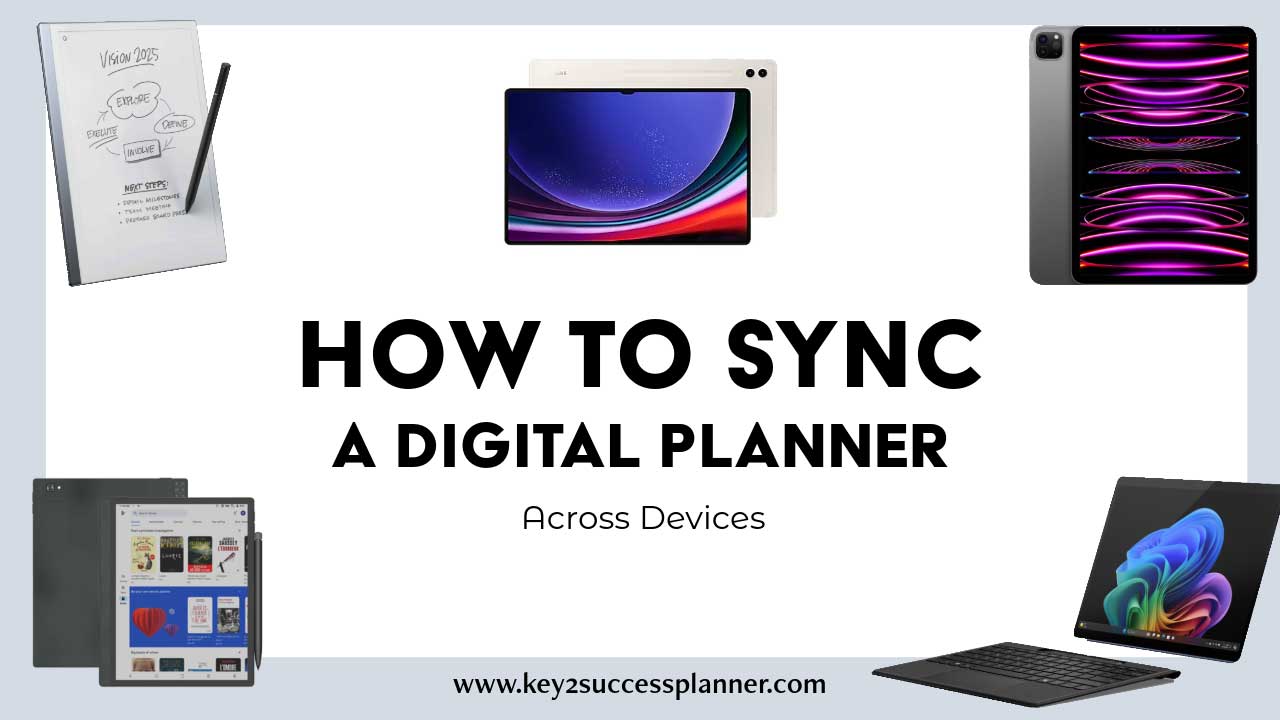
How to sync a digital planner across devices, featuring digital tablets, e-ink devices, and a laptop, emphasizing compatibility and productivity.
Articles Jan 01
By Bodendorfer 0 Comments

How to Sync a Digital Planner Across Multiple Devices

If you are searching for how to sync a digital planner across multiple devices, the key is choosing the right app and understanding which devices truly sync versus which only share files.

With the Key2Success Planner, syncing allows you to plan on a tablet, check tasks on your phone, and review goals on your computer without duplicating work. This guide breaks down how syncing works, which apps support it, and what devices work best.

Key2Success Digital Planner: Syncing Across All Devices


Devices Commonly Used for Digital Planning

Apple Devices

  • iPad
  • iPhone
  • MacBook and iMac

Android Devices

  • Android phones
  • Android tablets
  • Samsung Galaxy Tab series

Windows Devices

  • Windows laptops and desktops
  • Surface tablets

E-Ink Tablets

  • BOOX Note and Tab series
  • reMarkable
  • Supernote

Digital Planner Apps and Syncing Capabilities

OneNote

Best for: True cross platform syncing.

  • Works on: Apple, Android, Windows, Web (limited e-ink support)
  • Sync method: OneDrive

GoodNotes

Best for: Apple-only users who want handwriting features.

Promotional banner for Key2Success planner offering discounts and a money-back guarantee, emphasizing digital planning benefits and a call to action for users on Samsung devices.
  • Works on: iPad, iPhone, Mac
  • Sync method: iCloud

Noteshelf

Best for: Users mixing devices who want flexible cloud options.

  • Works on: iPad, Android tablets, Windows
  • Sync method: Cloud services (varies by device)

Samsung Notes

Best for: Samsung ecosystem users.

  • Works on: Samsung phones/tablets (limited Windows support)
  • Sync method: Samsung Cloud

Notability

Best for: Apple users who prefer a simple interface.

  • Works on: iPad, iPhone, Mac
  • Sync method: iCloud

Freenote

Best for: Lightweight Android planning.

  • Works on: Android phones/tablets
  • Sync method: Manual backup or cloud storage

Penly

Best for: Android digital planner users (including some e-ink devices).

  • Works on: Android phones/tablets, some e-ink devices
  • Sync method: File-based syncing via Google Drive or Dropbox

Sync Compatibility Table

AppAppleAndroidWindowsSamsung DevicesE-Ink TabletsSync Method
OneNoteYesYesYesYesLimitedOneDrive
GoodNotesYesNoNoNoNoiCloud
NoteshelfYesYesYesYesLimitedCloud services (varies)
Samsung NotesNoYesLimitedYesNoSamsung Cloud
NotabilityYesNoNoNoNoiCloud
FreenoteNoYesNoYesLimitedManual or Drive
PenlyNoYesNoYesYesGoogle Drive or Dropbox


Digital planner page in Goodnotes app displaying a schedule for January 2026 with handwritten notes and tasks, alongside an Apple Pencil and a smartphone on a wooden surface.

Using a Digital Planner on E-Ink Tablets

E-ink tablets are ideal for distraction-free handwriting, but most do not support iCloud-based planner apps.

What Works Best on E-Ink

  • PDF planners like Key2Success Planner
  • Google Drive or Dropbox syncing
  • Apps like Penly or built-in PDF readers (depending on the device)

What to Expect

  • No real-time multi-device editing for most setups
  • Syncing usually happens when your file updates in the cloud
  • Best used as a focused planning device

How to Sync a Digital Planner Across Multiple Devices Step by Step

  1. Choose your app based on the devices you use most.
  2. Pick your cloud storage (OneDrive, iCloud, Google Drive, Dropbox).
  3. Install the app on each device and sign in with the same account.
  4. Open your Key2Success Planner and let it finish syncing before closing.
  5. Avoid editing the same planner at the same time on multiple devices.


Best App for Apple Users Who Want to Sync a Digital Planner Across Devices

If you are an Apple user wondering what is the best app to sync a digital planner across multiple devices, the top recommendation is GoodNotes.

GoodNotes offers the smoothest syncing experience for Apple users because it uses iCloud to automatically sync your planner across your iPad, iPhone, and Mac.

Why GoodNotes Is the Best Choice for Apple Users

  • Automatic iCloud syncing across Apple devices
  • Works on iPad, iPhone, and Mac
  • Excellent handwriting support with Apple Pencil
  • Easy navigation for large digital planners
  • No manual exporting required

This makes GoodNotes ideal for using the Key2Success Planner across all your Apple devices without extra setup.

When Another App Might Be a Better Fit

  • Notability if you want audio recording with your notes
  • OneNote if you also use Windows or Android devices
  • Noteshelf if you want more cloud storage flexibility

Quick Comparison for Apple Users

AppSyncs Across Apple DevicesBest Use Case
GoodNotesYesBest overall Apple syncing and handwriting
NotabilityYesAudio notes with planning
OneNoteYesCross platform beyond Apple
NoteshelfYesFlexible cloud options

Bottom Line

For Apple users who want the most reliable way to sync a digital planner across iPad, iPhone, and Mac, GoodNotes is the best choice. It keeps your planner fully updated across devices with minimal effort and works seamlessly with iCloud.

Best App for Android Users Who Want to Sync a Digital Planner Across Devices

If you are an Android user looking for the best app to sync a digital planner across multiple devices, the top recommendation is OneNote.

OneNote is the most reliable option for Android users because it supports true cross-device syncing and works on more platforms than any other planner app.

Why OneNote Is the Best Choice for Android Users

  • Works on Android phones and tablets
  • Also available on Windows, iOS, Mac, and web
  • Automatic syncing through OneDrive
  • Supports handwriting, typing, and annotations
  • No manual exporting required

This makes OneNote ideal for using a digital planner across Android devices and beyond, including laptops and tablets.

Other Good Android-Friendly Planner Apps

Penly

  • Designed specifically for Android digital planning
  • Works well with PDF planners and stylus input
  • Syncs using Google Drive or Dropbox

Xodo

  • Free PDF annotation app
  • Works on Android, Windows, iOS, and web
  • Syncs files stored in Google Drive or Dropbox

Noteshelf

  • Available on Android tablets and other platforms
  • Handwriting focused interface
  • Uses cloud services like Google Drive or OneDrive

Quick Comparison for Android Users

AppWorks on AndroidSyncs Across Other DevicesSync Method
OneNoteYesYes (Windows, iOS, Mac, Web)OneDrive
PenlyYesYes (file-based)Google Drive or Dropbox
XodoYesYes (file-based)Google Drive or Dropbox
NoteshelfYesYesCloud services

Bottom Line

For Android users who want the most reliable way to sync a digital planner across phones, tablets, and even computers, OneNote is the best overall choice. It offers automatic syncing, wide device support, and works well for both handwriting and typed planning.

Final Thoughts

Learning how to sync a digital planner across multiple devices comes down to choosing the right combination of app, cloud storage, and device. Once you set it up, your Key2Success Planner stays updated everywhere you need it.

Tip: If you reach out to us with which devices you use (Apple, Android, Samsung, Windows, or e-ink), we can recommend the best setup for your planning style!

Promotional banner for Key2Success planner offering discounts and a money-back guarantee, emphasizing digital planning benefits and a call to action for users on Samsung devices.

Leave a Comment