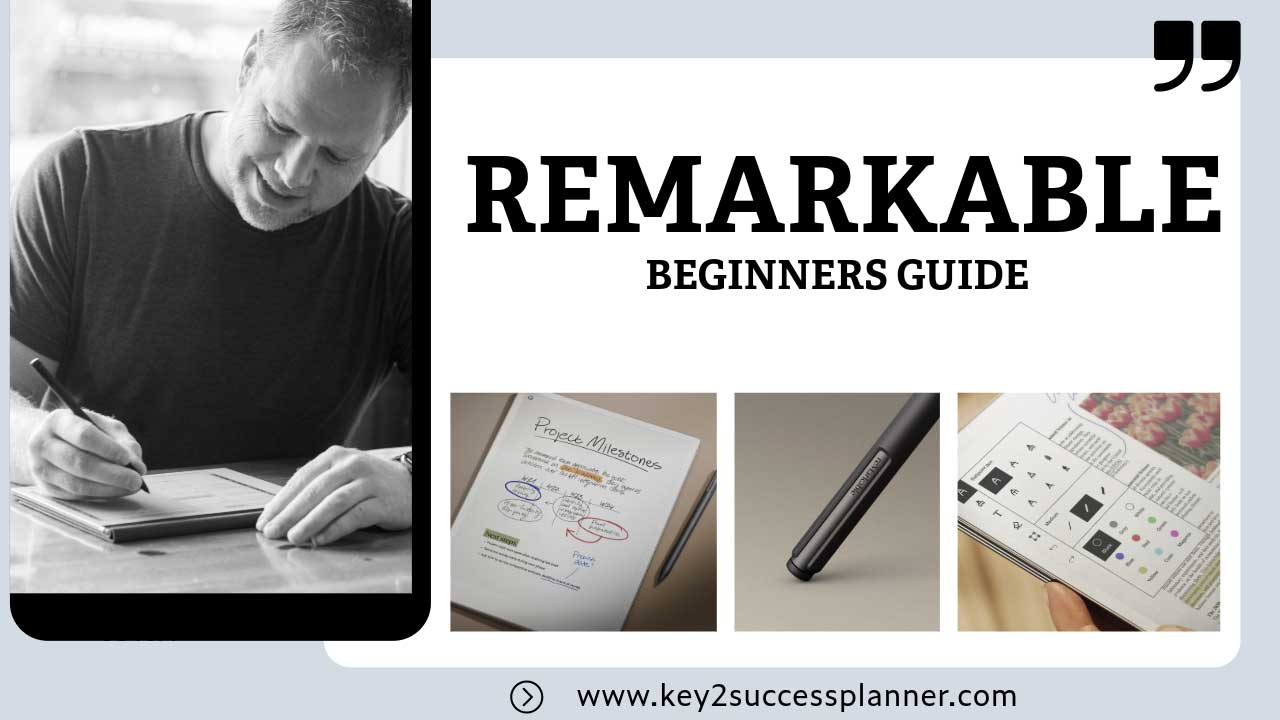
reMarkable for Beginners: Complete Setup and User Guide
The reMarkable tablet has quickly become one of the most popular digital paper devices for people who want a focused writing experience. Unlike traditional tablets, it is designed specifically for handwriting, reading documents, and organizing notes without distractions.
If you recently purchased a reMarkable device, you may be wondering how to set it up, organize your files, and use it effectively for planning and note taking.
This beginner guide will walk you through everything you need to know about getting started with your reMarkable tablet. This reMarkable beginner guide explains how to set up the device, write notes, organize notebooks, and use digital planners effectively.
Quick Start: How to Use a reMarkable Tablet
If you want a quick overview, here are the basic steps for using your reMarkable tablet:
- Turn on the tablet and connect to WiFi
- Create a reMarkable account
- Install the desktop or mobile apps
- Create notebooks for writing and notes
- Upload PDFs or documents to annotate
- Use a digital planner to organize tasks and schedules
Once your device is set up, you can begin replacing paper notebooks with digital notebooks and planners.
What Is the reMarkable Tablet?
The reMarkable tablet is a digital paper device designed to replicate the feeling of writing on real paper. The device uses a textured display and stylus to create a natural writing experience that many users prefer over typing.
Instead of installing apps like a traditional tablet, the device focuses on a few core functions:
- Handwritten note taking
- PDF and document annotation
- Digital notebooks
- Reading ebooks and documents
- Paperless organization
The reMarkable 2 is currently the most popular model and is known for its thin design and highly responsive writing surface.
Who Should Use a reMarkable Tablet?
The reMarkable tablet is especially useful for people who write frequently and want a distraction-free device.
Common users include:
- Students taking handwritten notes
- Professionals reviewing documents
- Writers and researchers
- Entrepreneurs planning projects and goals
- Anyone trying to reduce paper clutter
What Comes With a reMarkable Tablet?
When you purchase a reMarkable tablet, the package typically includes the tablet itself, a Marker stylus, and a USB-C charging cable.
Many users also purchase optional accessories such as folio covers, replacement Marker tips, and digital planners to organize notes and schedules.
Because the device is designed to replace paper notebooks, most people begin by creating notebooks, importing PDFs, or adding a digital planner.
How to Set Up Your reMarkable
Setting up your reMarkable tablet only takes a few minutes.
Step 1: Turn On the Device
Press and hold the power button on the top edge of the tablet until the screen turns on.
Step 2: Connect to Wi-Fi
Select your wireless network and enter your password. This allows the tablet to sync files and connect with your other devices.
Step 3: Create a reMarkable Account
You will need a free account to enable cloud syncing and access the companion apps.
You can download the official apps here:
Download the reMarkable desktop and mobile apps
The apps allow you to upload documents, organize files, and access your notes across devices.
Understanding the reMarkable Interface
The interface is intentionally minimal so that you can focus on writing.
The main sections include:
Notebooks
Notebooks allow you to create handwritten notes just like a traditional paper notebook.
Folders
Folders help organize your notebooks, documents, and planners.
Toolbar
The toolbar provides writing tools such as:
- Pen
- Pencil
- Highlighter
- Eraser
- Lasso selection tool
Tags
Tags allow you to label notes and quickly find them later using search.
How to Write Notes on reMarkable
Writing on the tablet feels very similar to writing on paper.
To start writing:
- Create a new notebook
- Select a pen style from the toolbar
- Begin writing with the Marker stylus
You can also adjust pen thickness, switch tools, erase strokes, and move handwriting using the lasso tool.
Many people use the tablet for meeting notes, journaling, brainstorming ideas, and study notes.
How to Use PDFs on reMarkable
One of the most powerful features of the tablet is the ability to annotate PDFs.
You can upload PDFs using the mobile or desktop apps and then write directly on them.
This is commonly used for:
- Reviewing documents
- Studying textbooks
- Annotating research papers
- Completing worksheets
- Using digital planners
Once uploaded, you can highlight text, write notes, and navigate between pages.
Using Digital Planners on reMarkable
Many users transform their tablet into a powerful productivity system by using a digital planner.
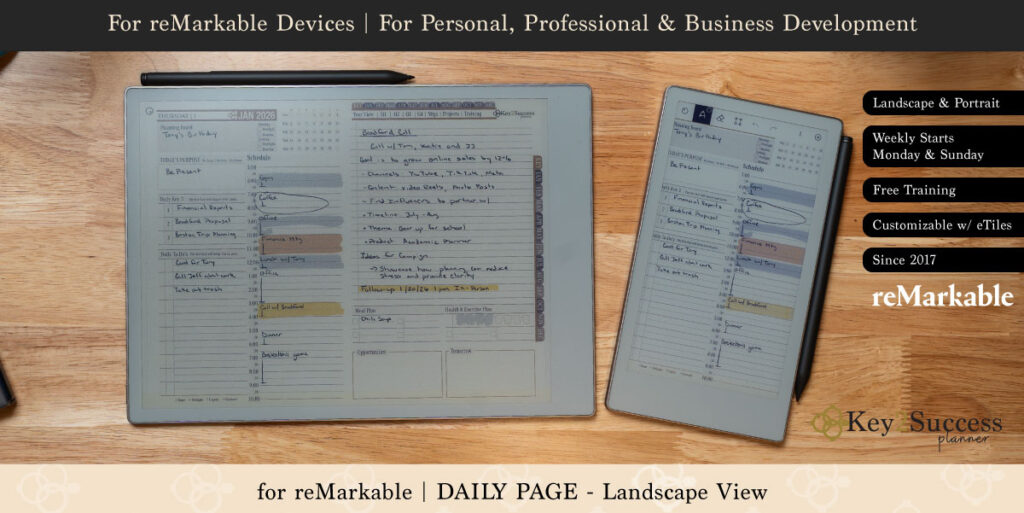
A digital planner is usually a hyperlinked PDF that allows you to quickly navigate between sections such as months, weeks, and daily planning pages.
Most planners include:
- Yearly planning pages
- Monthly calendars
- Weekly layouts
- Daily task lists
- Habit trackers
- Goal planning sections
If you want a planner designed specifically for the tablet, you can browse these:
Once uploaded to the device, planners function like an interactive notebook where you can write directly on each page.
Best Digital Planners for reMarkable
One of the most popular ways to use a reMarkable tablet is as a digital planner. Because the device supports PDF files, many users upload hyperlinked planners that allow them to navigate between months, weeks, and daily pages.
Digital planners are especially useful for people who want to replace paper planners with a paperless planning system.
What Makes a Good reMarkable Planner?
The best planners for reMarkable tablets are designed specifically for the device’s interface and writing experience.
Good planners typically include:
- Yearly overview pages
- Monthly calendar layouts
- Weekly planning pages
- Daily task lists
- Goal planning sections
- Habit trackers
- Hyperlinked navigation
Hyperlinks allow you to quickly jump between sections without scrolling through hundreds of pages.
Why Many Users Switch to Digital Planning
Using a digital planner on a reMarkable tablet has several advantages compared to traditional paper planners.
- No need to carry multiple notebooks
- Thousands of pages stored in one device
- Easier organization and navigation
- Reusable planning layouts
- Less paper clutter
Many people use a combination of notebooks and planners to manage their tasks, schedules, and long-term goals.
Browse Digital Planners Designed for reMarkable
If you want a planner that is already optimized for the tablet, you can browse a collection of planners designed specifically for the device here:
View reMarkable digital planners
These planners are designed as hyperlinked PDFs that work smoothly with the tablet’s writing tools.
If you’re new to digital planning in general, you may also want to read our guide to digital planning for beginners.
Tips Every Beginner Should Know
Create Folders Early
Organizing your files early makes it easier to find notes later.
Many users create folders such as:
- Work
- Personal
- Planning
- Reading
Replace Marker Tips
The stylus tips gradually wear down with use. Replacing them periodically helps maintain a smooth writing experience.
Use Templates
Templates help structure your notes and make writing more organized.
Popular templates include:
- Meeting notes
- Project planning
- Study notes
- Journaling pages
Sync Your Device Regularly
Syncing ensures your notes are backed up and available on your other devices.
How People Use reMarkable Tablets
One of the reasons the reMarkable tablet has grown so popular is that it fits many different workflows. While some people use it primarily for handwritten notes, others use it as a full paperless productivity system.
Common ways people use the tablet include:
- Taking handwritten meeting notes
- Annotating PDFs and research papers
- Reading ebooks and documents
- Replacing paper notebooks
- Planning schedules and tasks with digital planners
- Brainstorming ideas and sketching
Because the device is focused entirely on writing and reading, it provides a distraction-free environment that many professionals and students prefer.
Related reMarkable Resources
If you’re looking to get even more out of your tablet, digital planners are one of the most popular ways to organize tasks and goals.
You can explore planners designed specifically for the device here:
Browse reMarkable digital planners
These planners are designed as hyperlinked PDFs that allow you to quickly jump between yearly, monthly, and weekly planning pages.
Common Mistakes New reMarkable Users Make
When people first start using a reMarkable tablet, it can take some time to develop an efficient workflow. Avoiding a few common beginner mistakes can help you get the most out of your device.
Not Organizing Notes Into Folders
Many new users create notebooks without organizing them into folders. Over time this can make it difficult to find notes quickly.
Creating folders for categories such as Work, Personal, Planning, and Reading will keep your library organized as it grows.
Ignoring Tags
Tags are a powerful feature that allows you to quickly find notes later. By tagging important pages, you can locate information without browsing through dozens of notebooks.
Not Using Templates
Templates help structure your notes and make writing more efficient. For example, meeting note templates, project planning pages, or study layouts can help keep your notes organized.
Not Using a Digital Planner
Many beginners only use notebooks at first, but a digital planner can turn the tablet into a powerful productivity system.
Digital planners allow you to manage schedules, tasks, goals, and habits in one place.
If you want a planner designed specifically for the device, you can browse these options:
Forgetting to Sync the Device
Regularly syncing your tablet ensures your notes are backed up and accessible on your phone or computer. This helps prevent accidental data loss.
reMarkable Beginner FAQ
Is the reMarkable tablet worth it?
The reMarkable tablet is ideal for people who want a distraction free writing experience. It focuses on handwriting, reading, and document organization instead of apps and notifications.
Can you use a planner on reMarkable?
Yes. Many users upload hyperlinked PDF planners that allow navigation between months, weeks, and daily planning pages.
Does reMarkable replace paper notebooks?
For many people it does. The tablet can store thousands of pages of handwritten notes and documents.
Can reMarkable convert handwriting to text?
Yes. The device includes handwriting conversion that can turn handwritten notes into typed text.
Does reMarkable require a subscription?
The tablet works without a subscription, but some cloud syncing and advanced features may require a Connect plan.
If you’re just getting started, take some time to experiment with notebooks, folders, and planners. Once you develop a workflow, the reMarkable tablet can replace stacks of paper notebooks and become a powerful digital organization tool.
Final Thoughts: Getting Started With reMarkable
The reMarkable tablet is one of the best devices available for people who want a distraction-free digital writing experience.
Once you learn how to organize notebooks, annotate PDFs, and use digital planners, the tablet can replace stacks of paper notebooks and planners.
Many users start with simple note taking and then gradually expand their workflow with folders, templates, and planning systems.
If you’re looking for a structured planning system designed specifically for the tablet, you can explore these reMarkable digital planners.