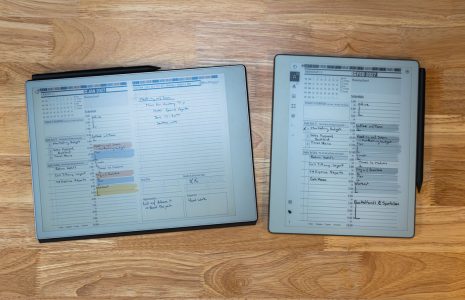
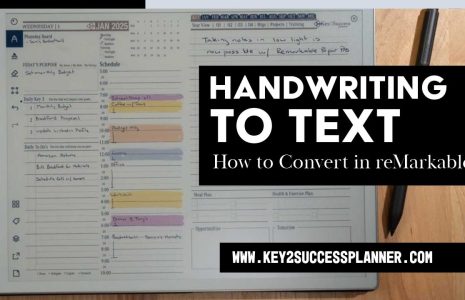
In this guide, Branden Bodendorfer explains how to take handwritten notes inside the planner, convert them to text, and place them wherever you need inside your planning system.
Why Handwriting Still Matters in a Digital Planner
Many users enjoy handwriting because it helps with focus and memory. After a meeting, you may want to send notes to colleagues, attach them to documents, or store them in a format that is easier to search. The reMarkable solves this with built in handwriting conversion that works directly inside the planner.
You can collect ideas on a meeting page, organize them, and build a clean text version without leaving the device.

Selecting and Copying Your Notes
Inside the meeting page, use the select tool to highlight any handwritten notes. Once selected, the notes can be copied with a quick tap. This keeps your original writing while preparing a cleaner version for later use.
Users often start with planning sessions, sales notes, or project ideas. The process stays the same for each one.
Adding a New Quick Sheet
After copying your notes, open the three dot menu and choose the option to add a new page. The new page becomes a quick sheet inside the planner. Quick sheets support many of the features that help you refine written content.
Paste the handwriting onto the new page. The content appears as written, giving you a clear view before converting anything.
Converting Handwriting to Text
With your writing placed on the quick sheet, tap the convert to text button. The reMarkable processes the content and produces a typed version that you can edit.
Once converted, you can:
- Bold or italicize sections
- Add new lines with the keyboard
- Correct names, numbers, or titles
- Insert more ideas without rewriting the original page
This works well when preparing a clean document to share with coworkers or clients.
Moving Between Meeting Pages
If you need to return to the original page, swipe back. Meeting pages inside the Key2Success Planner connect to an index system. You can jump between dates and sessions by tapping the key icon or the meetings icon. Each meeting page has its own index that lets you return to old notes without scrolling.
Adding Drawings and Illustrations
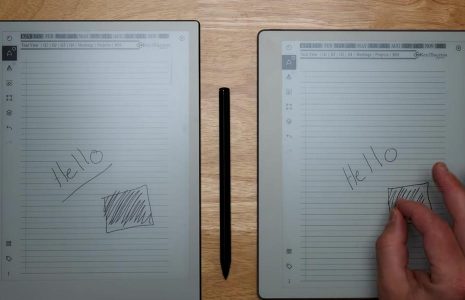
The quick sheet works for sketches or diagrams. You can draw shapes or simple visuals and move them into a daily page or store them inside a project layout. If you create a sketch in the quick sheet, you can select it and place it on any page in the planner.
This helps with design notes, product ideas, and visual explanations.
Using E Tiles for Custom Layouts
If you want more structure, you can insert E Tiles into a new page. The tiles create a background layer that works like a small template. Once the tile is placed, add another layer and continue writing on top of it.
This is helpful for follow up tasks, reminders, or small sections that you want to keep separate from your main notes.
Sharing Your Notes
Quick sheets support exporting, emailing, and presenting your content. After you have the text version prepared, you can send it to anyone who needs it. This gives teams a simple way to share clear notes.
Final Thoughts
The Key2Success Planner and the reMarkable tablet give users a practical way to collect ideas, convert handwriting to text, and move content anywhere in the system. Whether you want to share meeting notes, build reports, or create better daily systems, the process is easy once you learn the steps.
If you have questions about the planner or want help with another workflow, feel free to ask.