
How-To Guides
How to Convert Handwriting to Text on the reMarkable Paper Pure
What OCR does on the Paper Pure
The Paper Pure doesn’t have a built-in AI assistant sitting on the device waiting to chat with you. What it has is MyScript’s handwriting recognition engine, which reads your ink and turns it into typed text you can search, email, or drop into another tool. That’s a narrower job than people expect from “AI,” and it’s worth saying plainly: the Paper Pure converts and organizes your handwriting. It doesn’t generate ideas for you.
That distinction matters for how you’ll use this feature. Convert to Text is the foundation. Everything AI-flavored that people build on top of a reMarkable, summaries, action items, drafted emails, happens after that conversion, usually by feeding the resulting text into a separate tool like ChatGPT.

Step-by-step: convert a page to text
- Open the page you want to convert.
- Tap the three-dot page menu in the top toolbar.
- Select Convert to Text.
- Wait a few seconds while the device sends the page to the cloud for processing. You need an internet connection for this step; it doesn’t happen on-device.
- Review the typed preview. This is your only chance to fix obvious errors before you export, since you can’t edit the converted text later on the device itself.
- Export the result: email it, save it, or send it to a connected app.
Convert to Text works one page at a time. There’s no batch button for converting an entire notebook in one pass, so a 20-page meeting notebook means 20 individual conversions if you want all of it in text form. Plan for that if you’re processing anything long.
Searching your handwritten notes
Typed text isn’t the only thing you can search on a Paper Pure. reMarkable has been rolling out handwriting search to Connect subscribers, which indexes your ink directly, no manual conversion required, so you can find a specific word inside a page you wrote weeks ago without ever running Convert to Text on it.
It’s still a phased rollout as of this writing, and indexing can lag behind your latest sync by a few minutes to a few hours depending on server load. If you searched for something and came up empty, give it time and try again before assuming the page doesn’t exist. This feature requires Connect; without it, searching means relying on your folder structure and memory, or manually converting pages you know you’ll want to find again later.
AI summaries and action items (Connect)
Here’s where expectations and reality split the most. The Paper Pure itself does not summarize a page of notes into a paragraph on-device. If you want that, you’re building a workflow, not just tapping a button.
The workflow that actually works: convert or screenshot your page, then hand the text or image to an outside AI tool like ChatGPT and ask it to summarize, extract action items, or draft a follow-up email. Connect adds a few pieces that make this smoother on reMarkable’s side, specifically the Meeting Notes Tool, AI convert-and-share, and direct sends to Slack or Miro, so your notes route from ink to a shareable, structured format faster. But the actual summarization step happens outside the reMarkable ecosystem, in whatever AI tool you choose to feed it to.
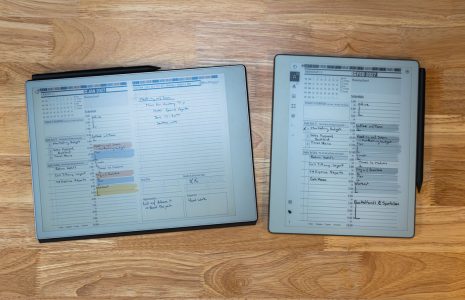
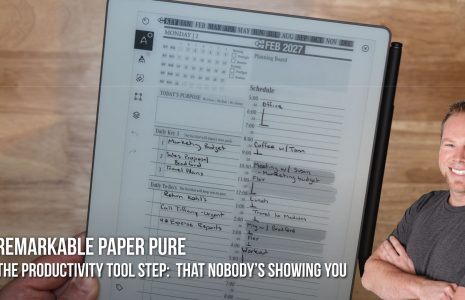
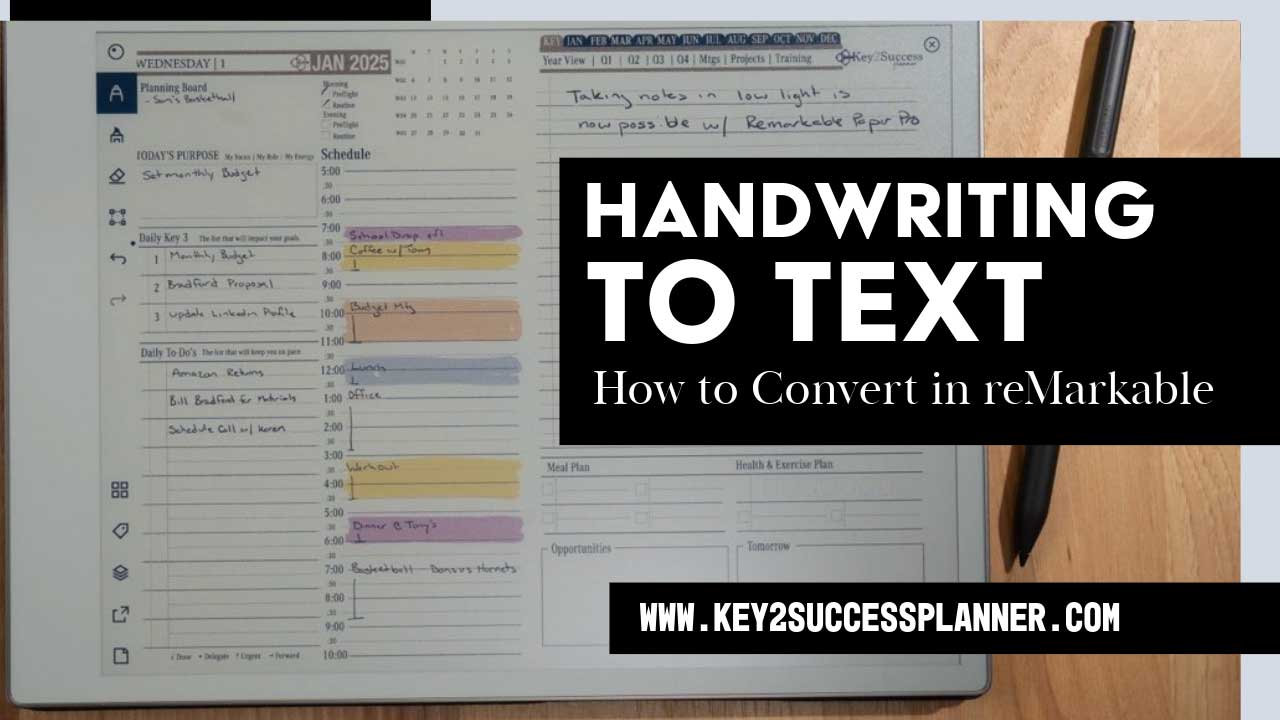
If you’re running the Key2Success Planner on your Paper Pure, this is the exact workflow behind the “screenshot your daily page, drop it into an AI tool” habit worth building. It’s not automatic, but it’s fast once you’ve done it a few times.
Exporting to email and desktop
Once you’ve converted a page, export options open up. Send it by email directly from the device, and the message arrives with the typed text in the body and the original handwritten page attached as a PDF, so you keep both versions without extra steps.
If you have Connect, you can also run conversions from the desktop app instead of the tablet itself, which is faster when you’re processing several pages back to back at a computer instead of tapping through menus on the device screen. Without Connect, Convert to Text still works, you just do it page by page on the tablet.
Accuracy and handwriting tips
Recognition accuracy on neat, clearly separated printing runs close to 95%. Cursive drops that to somewhere around 80%, and dense, overlapping, or heavily stylized handwriting falls below that, sometimes well below it. Your results will vary more with your own handwriting habits than with anything reMarkable controls.
A few things that genuinely improve accuracy: write with some space between words instead of letting them run together, keep letters reasonably upright instead of a heavy slant, and set the recognition language for that specific page if you’re writing in anything other than your device’s default language. reMarkable supports the conversion in more than 60 languages, and the setting is per-page, not global, so a notebook can mix languages across pages and still convert correctly if you set each page right.
If your handwriting runs messy under pressure, like fast meeting notes scribbled in real time, don’t expect a clean conversion on the first pass. Budget a minute to correct the preview before you export, rather than trusting it blindly.
FAQ
Does converting handwriting to text on the Paper Pure require a subscription?
No. Convert to Text is free and works without Connect. Connect adds handwriting search, the Meeting Notes Tool, and AI-assisted sharing to apps like Slack and Miro.
Can I convert an entire notebook at once?
No. Convert to Text works one page at a time. There’s no batch conversion for a full notebook in a single action.
Does the Paper Pure need an internet connection to convert handwriting?
Yes. Conversion happens in the cloud, not on the device, so you need WiFi for it to work.
How accurate is the handwriting conversion?
Around 95% on neat printing, dropping to roughly 80% on cursive, and lower on dense or heavily stylized handwriting.
Can the Paper Pure summarize my notes automatically?
No, not on-device. Summaries come from feeding your converted text or a screenshot into an outside AI tool like ChatGPT.
Can I search my handwriting without converting it to text first?
Yes, with Connect. reMarkable’s handwriting search indexes ink directly, though it’s still a phased rollout and indexing can lag behind your latest sync.
Common questions, answered in one line
- What menu do I use to convert a page? The three-dot page menu in the top toolbar, then Convert to Text.
- Can I edit the converted text on the device? No, review the preview carefully before exporting since on-device editing isn’t available.
- Does exporting by email include the original handwriting? Yes, the typed text goes in the email body with the handwritten PDF attached.
- How many languages does conversion support? More than 60, set per page rather than globally.
- Is desktop conversion faster than on-device? Generally yes, especially for processing several pages in a row, and it requires Connect.
- Does Convert to Text work offline? No, it requires an internet connection since processing happens in the cloud.
- What’s the single biggest accuracy factor? Your own handwriting clarity, especially spacing between words and consistent letter slant.
Final thoughts
Convert to Text does one job well: turning your ink into typed words you can search, email, or hand off to another tool. It’s not the AI assistant some marketing implies, and knowing that upfront saves you from a workflow built on the wrong expectation. Pair it with an outside AI tool for summaries and action items, and the combination covers what most people actually want from “AI notes” on a Paper Pure.
Check the reMarkable Paper Pure hub for the rest of the guides in this series, including the setup guide and Is the Paper Pure worth it? The Key2Success reMarkable shop has planner templates built to work with this exact conversion workflow.