
GoodNotes Pen and Eraser Settings for Planning on iPhone Duo
The best GoodNotes pen settings for planning on iPhone Duo are hold and draw, which snaps to the grid, and Scribble to erase, which removes a word without switching tools. Pair them with the stroke eraser, which deletes a whole line in one touch, and your Key2Success Planner pages stay clean on the smaller screen.

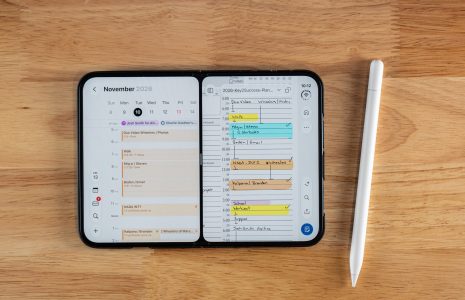
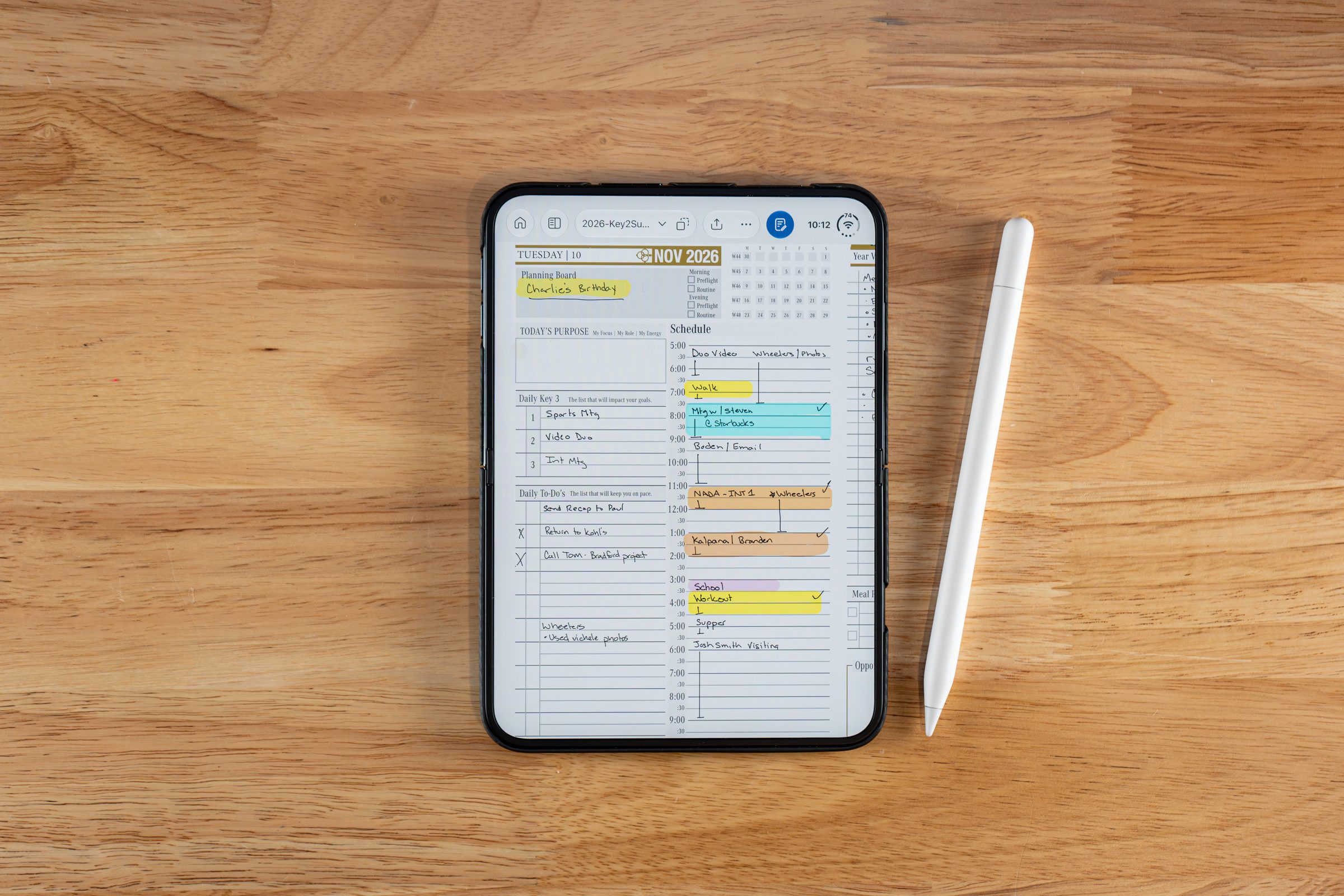
GoodNotes pen settings for planning matter more on a phone than on an iPad, because every extra tap on a smaller screen costs you space. I recorded the video behind this article in November 2026 with the Key2Success Planner open in GoodNotes Pro on my iPhone Duo, and a handful of settings did most of the work.
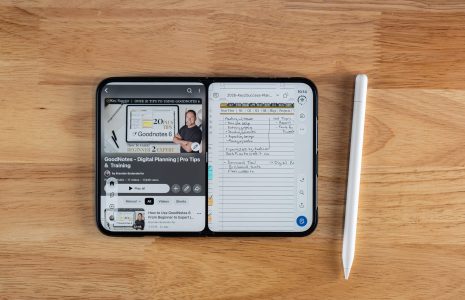
Most people spend their first hour in a new notes app hunting through tools. For planning, you need three things: a pen with hold and draw turned on, Scribble to erase, and the stroke eraser. Everything else can wait. If you want the full hands-on tour, watch GoodNotes on iPhone Duo: Digital Planning in Your Pocket, and for the Pencil side of the story, read how Scribble turns handwriting into text on iPhone Duo.

Three Tools, Not Thirty
A pen with hold and draw, Scribble to erase, and one eraser type cover almost every planning session.
One Touch, One Stroke
The stroke eraser removes a whole line at once, which suits short handwritten planner entries.
Syncs to Your iPad
What you write or erase on the Duo shows up on your iPad, so you can plan at the desk and finish on the phone.
Where the Pen Tools Live in the New GoodNotes Toolbar
On iPhone Duo, GoodNotes uses a two-level toolbar. Tap the reading and writing button at the bottom of the screen to open the pen toolbar, then tap the pen to see your pen choices and settings.
GoodNotes recently updated its app for iPhone Duo users, and the biggest change is the toolbar. The right side of the screen now handles navigation: you can get back to your home button and move between pages. The commonly used settings you already know sit across the top, along with the share menu and copy. Your page sidebar is there too, so you can jump from one page to the next.
The part that matters for writing is a small reading and writing button near the bottom. Tap it and the toolbar for writing appears. From there you pick the pen, choose the pen style you want, and open its settings.
GoodNotes Pen Settings for Planning: Hold and Draw, Scribble to Erase
Open the pen, then open its settings. The one I recommend turning on is hold and draw, because it lets your lines snap to the grid. On a planner page, where boxes and rows are everywhere, a straight line that lands where you meant it to saves you from redrawing.
The second setting is Scribble to erase, and I think it is one of the best small features in GoodNotes. Write a word, scribble over the top of it, and it disappears. You never leave the pen to go hunt for the eraser tool.
Scribble to erase is the fastest correction tool in GoodNotes because you never leave the pen. On a small screen, that matters more than any extra toolbar button.
I plan my day on the iPad, then pull out the Duo between meetings to mark off what I finished. I run the Pro level of GoodNotes, and these are the settings I keep on while I do it.Branden Bodendorfer, Creator of Key2Success Planner
Precision, Standard, or Stroke: Which Eraser to Use
GoodNotes gives you three erasers, and they behave differently.
- Stroke eraser: touch a line and the entire stroke is deleted.
- Standard eraser: erases around the line, like a normal eraser.
- Precision eraser: works more pixel by pixel. In my test it removed a slim piece of a line and left a rounded end.
If you need fine detail, the precision eraser is nice. For planning, I find the stroke eraser works best because one touch deletes the whole stroke.
Move Unfinished Tasks to Tomorrow with the Select Tool
Every planner has a task that did not get done. The select tool lets you grab your handwriting, copy it, jump to the next day, and paste it there. I do this constantly. It keeps the unfinished item on your plan without rewriting it by hand.
You can also type inside the planner. That works even on a current iPhone, so you do not need a Duo to start, and the typing syncs across your other devices.
Watch: GoodNotes on iPhone Duo with the Key2Success Planner
See the pen, eraser, and select tool in action. Read the transcript, chapters, and FAQ on the video page.
Keep Going With Your Duo Planning Setup
The Key2Success Planner overview shows the weekly and daily pages these settings are built for. Running GoodNotes? The GoodNotes digital planner shop has the editions, and the full Key2Success shop lists everything else.
The weekly-to-daily system behind these settings.
Editions built for iPad and iPhone planning.
How the three handwriting apps compare on iPhone Duo.
FAQ: GoodNotes Pen and Eraser Settings
What GoodNotes pen settings should I turn on for planning?
Turn on hold and draw in the pen settings, which lets your lines snap to the grid, and use Scribble to erase so you can scribble over a word to remove it. Both keep planner pages neat without extra taps.
What is the difference between the precision, standard, and stroke eraser in GoodNotes?
The stroke eraser deletes a whole stroke with one touch. The standard eraser erases around a line. The precision eraser works more pixel by pixel and suits detailed edits.
How does Scribble to erase work in GoodNotes?
You write something with the pen, then scribble over the top of it and it disappears. You do not have to switch to the eraser tool first.
How do I move an unfinished task to the next day in a GoodNotes planner?
Use the select tool to grab the text, copy it, jump to the next day in your planner, and paste it there. The task stays on your plan without rewriting it.
Can I use GoodNotes for planning on a regular iPhone?
Yes. You can type inside the planning system on a current iPhone, and it syncs across your other devices. The iPhone Duo adds the unfolded screen and Apple Pencil handwriting.
Quick Answers
Yes, GoodNotes recently updated its app for iPhone Duo users.
Tap the reading and writing button at the bottom, then tap the pen.
Hold and draw, in the pen settings.
Turn on Scribble to erase and scribble over it.
Three: precision, standard, and stroke.
The stroke eraser.
Yes, and the typing syncs across your other devices.
Yes, in my demo a highlight, an erase, and a checked-off task from the Duo showed up on the iPad quickly.
Planner Toolbar Setup Checklist
Set it up once
- [ ] Update GoodNotes and open your planner
- [ ] Tap the reading and writing button to open the pen toolbar
- [ ] Open pen settings and turn on hold and draw
- [ ] Turn on Scribble to erase
- [ ] Pick the stroke eraser as your default
Use it every day
- [ ] Scribble out small mistakes instead of switching tools
- [ ] Use the select tool to copy unfinished tasks to the next day
- [ ] Check off one task on the Duo and confirm it appears on your iPad
My Take
More tools do not make a better planning page. The precision eraser looks impressive, but the stroke eraser is the one I reach for, because planner entries are short and I want a mistake gone in one touch.
Set the toolbar once, leave it alone, and spend your time on the plan instead of the app.