

How to Connect Siri to Your Key2Success Digital Planner in iOS 27
Update to iOS 27, turn on Apple Intelligence and Siri in Settings, then open your Key2Success Planner in OneNote, GoodNotes, or Notability and ask Siri to compare it against your iPhone Calendar or schedule your to-do list into Reminders.
Most people who try Siri with their Key2Success Digital Planner for the first time assume it just works once they update to iOS 27. It doesn't. Apple Intelligence, Siri, and app permissions all have to be switched on in the right order first, and skipping one of them is the most common reason Siri stays silent when you ask it to look at your planner page.
I built this guide from the exact sequence I use in the iOS 27 Siri Syncs Your Digital Planner video, where I ask Siri to check my planner against my calendar and turn my to-do list into Reminders. This walks through the setup itself, the part the video doesn't show on screen, so you can get from a fresh iOS 27 update to a working Siri sync in about ten minutes.

In the video demo, Siri caught a football game and a workout I'd written in my planner but never added to my calendar, plus a vendor meeting that overlapped with something already scheduled. That only works because Siri had already been granted access to both Calendar and Reminders ahead of time. If you skip the permissions step, Siri can still talk to you about your planner page, but it can't act on what it finds.
Before You Start
You need three things in place before Siri can do anything with your planner: a device that supports iOS 27's on-device Apple Intelligence features, the Key2Success Digital Planner open in OneNote, GoodNotes, or Notability, and an active internet or cellular connection, since Siri checks live data in your Calendar and Reminders apps rather than working offline.
How to Turn It On
-
Update to iOS 27 and turn on Apple Intelligence and Siri
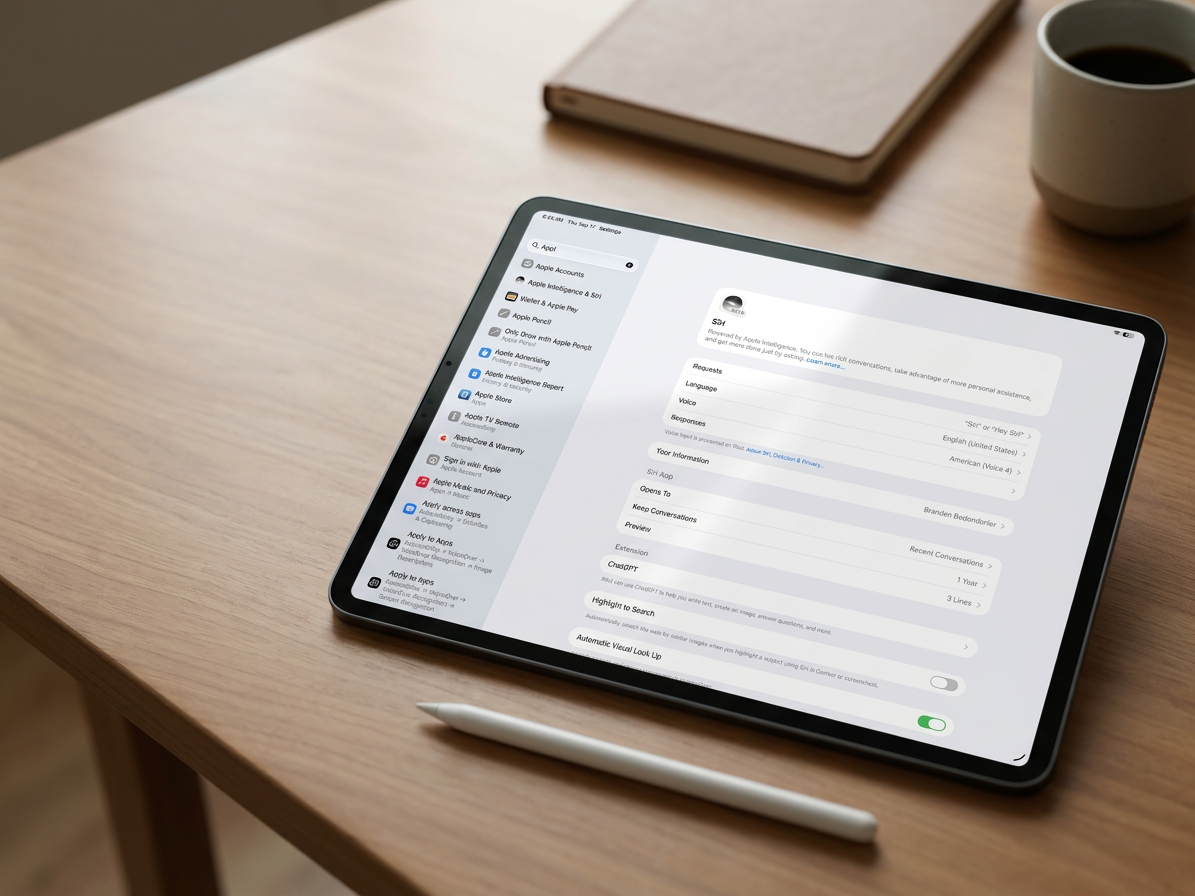
Go to Settings, update to iOS 27 if you haven't already, then go to Settings > Apple Intelligence and Siri and turn it on. This one setting covers both Apple Intelligence and Siri together on iOS 27.
-
Turn on "Listen for Hey Siri" and confirm your activation phrase
In the same Settings > Apple Intelligence and Siri section, turn on "Listen for Hey Siri," and confirm Siri is set to respond in the language and region you plan to use with your planner.
-
Grant App Access to Calendar, Reminders, and your note-taking app
Still under Settings > Apple Intelligence and Siri, open App Access and confirm three things show as allowed: Calendar, Reminders, and whichever note-taking app holds your planner (OneNote, GoodNotes, or Notability). All three need access, not just Calendar and Reminders, since Siri has to read the planner app itself before it can compare anything.
-
Open your planner app and keep the page on screen
Open OneNote, GoodNotes, or Notability, and navigate to the specific day or week page in your Key2Success Planner you want Siri to read. Leave it visible on screen rather than switching apps before you ask Siri your question.
Asking Siri to Sync Your Planner
Once setup is done, the day-to-day use is just a conversation. With your planner page open, ask Siri to compare what's written on the page against your iPhone Calendar for that day or the next one. Siri reads the visible planner content, checks it against your Calendar, and tells you what's missing on either side, then offers to add the gaps for you.
To move your to-do list into Reminders, ask Siri to schedule the day's to-do items, naming anything with a fixed deadline. In the video demo, I asked Siri to schedule my day's to-dos and it set a 3 p.m. reminder automatically for a task with a hard deadline, without me typing anything into the Reminders app myself.
Siri only reads your planner content to compare it against Calendar and Reminders. It adds missing items to those apps with your confirmation. It does not edit or overwrite anything you've written on the planner page itself.
If Siri Isn't Responding to Planner Questions
Three things account for almost every setup failure. First, confirm Apple Intelligence is actually on, not just Siri, since the planner-reading feature depends on both. Second, confirm your device model supports iOS 27's on-device Apple Intelligence features; older hardware can still run the planner itself, just not this Siri sync. Third, confirm the planner page is fully visible on screen and not partially covered by another app window or a scrolled-off section, since Siri reads what's currently displayed.
Frequently Asked Questions
Do I need Apple Intelligence turned on for Siri to read my planner?
Yes. On iOS 27, Apple Intelligence and Siri are a single combined setting in Settings, so turning one on turns both on. This has to be on before any of these steps will work.
Which app do I need my planner open in for Siri to see it?
The Key2Success Digital Planner works in OneNote, GoodNotes, and Notability. Whichever app you use needs App Access granted under Settings > Apple Intelligence and Siri, and the current day or week's page needs to be open and on screen when you ask Siri to compare it to your Calendar.
What do I say to Siri to start the comparison?
Ask a direct question, such as checking your planner against tomorrow's calendar. Siri reads what's on the visible planner page and checks it against your iPhone Calendar app.
Why isn't Siri responding to questions about my planner page?
Confirm Apple Intelligence and Siri are both on, confirm your device supports iOS 27's on-device features, and confirm the planner page is fully visible on screen, not scrolled off or covered by another window.
Does this setup work the same on iPhone and iPad?
The Settings steps are the same on both devices. Most people run their Key2Success Planner on iPad for the larger page view, then use the same Siri setup on iPhone for on-the-go questions.
Quick Answers
- Does setup require an app download?
- No. Everything runs through Settings and Siri on iOS 27. No separate app to install.
- Does it work with a typed planner page, not just handwritten?
- Yes. Siri reads whatever is visible on the page, typed or handwritten.
- Can Siri add items to Calendar without asking me first?
- No. Siri offers to add missing items and adds them on your confirmation.
- Does this drain battery faster?
- On-device Apple Intelligence features typically use more power than Siri alone, so expect some added drain when you're actively asking Siri to compare your planner and calendar.
- Can I turn this off later if I don't want it?
- Yes. Turning off Apple Intelligence and Siri, or revoking App Access for Calendar and Reminders in Settings, stops the sync.
- Does it work with a shared family Calendar?
- The video demo uses a personal calendar. If you run a shared family calendar, confirm Siri has access to the specific calendar you want compared before relying on it.
- Do I need to repeat setup on every device?
- Yes. Settings are per device, so repeat the Apple Intelligence and Siri permissions steps on each iPad or iPhone you plan to use with your planner.
- Does Siri work with past planner pages, not just today's?
- Siri reads whatever page is visible on screen, so you can navigate to a past or future page and ask about that specific date.
Setup Checklist
- iPad and iPhone both updated to iOS 27
- Apple Intelligence and Siri turned on together under Settings > Apple Intelligence and Siri
- "Listen for Hey Siri" turned on and activation phrase confirmed
- Calendar, Reminders, and your note-taking app all showing as allowed under App Access
- Key2Success Planner open in OneNote, GoodNotes, or Notability with today's page visible
- Active internet or cellular connection confirmed
- Key2Success iOS 27 AI Planning Hub — the full buyer's guide to every AI feature in the ecosystem
- iOS 27 Siri Syncs Your Digital Planner — watch the original demo this guide is based on
- How Siri Fills In Your Professional Builder Pages — coming soon
Get the Planner Siri Is Talking To
These steps only matter if you're running the current Key2Success Digital Planner. Grab it to follow along in OneNote, GoodNotes, or Notability.
Shop the Key2Success PlannerSources: Apple iOS overview, iOS 27 Siri Syncs Your Digital Planner video.