Transform Your Organization with GoodNotes Planner Setup
GoodNotes Digital Planner Tutorial: How to Use GoodNotes for Your Digital Planner Effectively
Using GoodNotes for a digital planner means combining a flexible note-taking app with a hyperlinked, searchable planner layout to replace paper without losing handwriting speed or visual organization.
This guide shows professionals and busy organizers how to import a planner, configure GoodNotes for fast navigation, use core tools like pen and lasso effectively, and customize a planner to match workflows.
Many users struggle with getting hyperlinks to work, configuring pen defaults for legible handwriting, and applying modular components across pages; this article solves those pain points with step-by-step instructions and productivity tactics.
You will learn how to import planners, which GoodNotes features matter most, practical customization techniques including Key2Success Tiles and stickers, and prioritized productivity tips that fit executive workflows.

Examples reference compatible planners and practical options for training and installation support so you can go from file to daily habit quickly with GoodNotes productivity and searchable planner layouts.
How Do I Import and Set Up My Digital Planner in GoodNotes?
Importing and setting up a digital planner in GoodNotes begins with obtaining a compatible planner file (usually a PDF) and using GoodNotes’ Import function so hyperlinks and page structure remain intact.
The reason this works is that GoodNotes preserves embedded links and page orientation when a fully-downloaded PDF is imported, enabling Read Mode navigation and handwriting layers for entries.
The benefit is immediate: clickable monthly, weekly, and goal pages function the same as a physical planner but with searchable handwriting and easy duplication.
Below is a compact comparison of common import methods and recommended GoodNotes settings to help you choose the fastest workflow for your device.
Different import methods affect link behavior and sync reliability, so choose the approach that matches your storage habits.
| Method | Typical File Type | Recommended GoodNotes Setting |
|---|---|---|
| Direct PDF import from Files app | PDF (fixed-layout) | Use “+” → Import, enable “Read Mode” for link activation |
| Cloud sync (iCloud/Dropbox) | PDF or zipped package | Fully download the file before opening; enable automatic backup |
| “Open In” from email or web | PDF attachment | Save to Files then import; confirm links in Read Mode |
This comparison shows that importing a fully downloaded PDF from the Files app delivers the most reliable hyperlink behavior and easiest backup workflow. For many users the simplest path is to download the planner PDF, open GoodNotes, choose Import, and confirm navigation links in Read Mode.
What Are the Steps to Download and Import a Digital Planner into GoodNotes?
Follow these concise steps to import a planner file and activate hyperlinks in GoodNotes. The method works with planners designed for GoodNotes and other note apps, but ensures GoodNotes-specific navigation is preserved. This step list is optimized to capture the common workflow so you can get started in minutes.
- Download the planner PDF onto your iPad or into the Files app on iCloud.
- Open GoodNotes and tap the “+” button, then choose “Import” and navigate to the downloaded file.
- Select the PDF and add it to a new or existing notebook so pages match the planner layout.
- Switch to Read Mode to verify hyperlinks and the index are active and navigable.
- If links don’t activate, fully re-download the file in Files or re-import after closing GoodNotes.
- Enable automatic backup in GoodNotes settings to preserve changes and hyperlink integrity.
After importing, perform a quick navigation check across months and weekly pages to ensure every link works; this saves time during daily use and prevents broken navigation when syncing across devices.
How Do I Configure GoodNotes Settings for Optimal Planner Use?
Configuring GoodNotes settings optimizes handwriting, navigation, and backup so the planner behaves like a reliable digital system rather than a static PDF. Start by setting a default pen style and thickness for legibility, enable palm rejection and stabilization if you prefer neater handwriting, and confirm automatic backup to iCloud so pages remain safe across devices. The mechanism is straightforward: appropriate defaults reduce friction during daily entries and consistent backups prevent data loss when switching devices. As a result, you get faster capture, consistent visual layouts, and reliable search through handwriting recognition.
Next, consider page thumbnails and Read Mode preferences to speed jumps between index pages and daily spreads.
Practical recommended settings include a medium-fine pen with palm rejection on, Read Mode toggled for navigation, and a backup schedule that matches your device usage to minimize manual exports.
What Are the Essential GoodNotes Features for Digital Planning?
GoodNotes provides a compact set of features—hyperlinked navigation, pen and highlighter tools, shape recognition, lasso, and handwriting-to-text—that together enable a planner workflow comparable to physical paper but with searchable, movable content.
The reason these features matter is that each maps to a planner-specific task: hyperlinks replace index tabs, the lasso tool moves tasks between dates, and handwriting-to-text makes notes searchable.
The practical benefit for professionals is improved retrieval, rapid reorganization, and cleaner visuals that support decision-making. Below is a mapping of core GoodNotes features to planner use cases so you can match tools to common planning activities.
Introduce the table below to show how individual GoodNotes features apply directly to planning workflows and professional use cases.
| Feature | Use Case | Planner-Specific Benefit |
|---|---|---|
| Hyperlinked navigation | Jump between month/week/goal pages | Fast access to recurring sections without scrolling |
| Pen & highlighter | Daily entries and emphasis | Clear handwriting and visual priority marking |
| Lasso tool | Move tasks/tiles across pages | Flexible rescheduling and template reuse |
| Handwriting-to-text (OCR) | Search and convert notes | Makes handwriting searchable for review |
This mapping clarifies how combining GoodNotes features creates a cohesive digital planning workflow, enabling fast navigation, neat capture, and efficient reorganization for business and personal tasks.
How Does Hyperlinked Navigation Enhance Planner Usability in GoodNotes?
Hyperlinked navigation works by embedding clickable targets in a planner PDF so GoodNotes can jump directly to related pages while in Read Mode, and this saves time compared with manual scrolling.
The mechanism relies on preserving the original PDF links during import and using Read Mode to avoid accidental pen marks on navigation pages. The primary benefit is speed: you can move from a monthly overview to a daily page or a goal tracker in a single tap, keeping context during planning sessions.
Best practices include keeping an index page near the front, testing links after import, and avoiding edits on navigation pages that could alter clickable regions.
Keeping links intact and using Read Mode consistently will maintain reliable navigation and reduce accidental edits to your planner’s index or templates.
How Can the Pen and Lasso Tools Improve Your Planning Workflow?
The pen and lasso tools together let you capture ideas quickly and then rearrange them without retyping, which preserves handwriting context while enabling structural changes.
Pen stabilization and shape tools create neat, legible entries for meeting notes or task lists, while the lasso selects handwriting, stickers, or tiles so you can move them between dates or projects.
The concrete benefit is a hybrid workflow where capture is as fast as handwriting and organization is as flexible as digital text. Combine handwriting-to-text conversion after rearranging so your planner remains searchable and structured for weekly reviews.
Practically, use a preferred pen preset for daily entries and reserve the lasso for rescheduling tasks and copying repeated templates across pages.
How Can I Customize My Digital Planner Within GoodNotes?
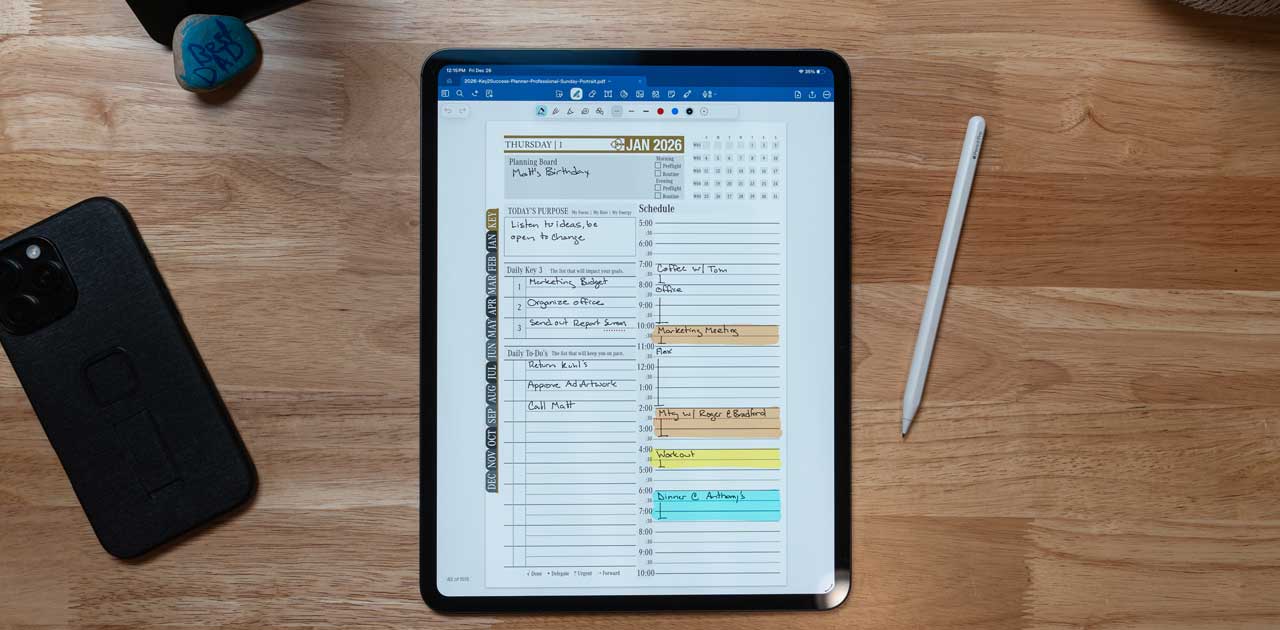
Customizing your planner in GoodNotes involves adding modular elements—tiles, stickers, and custom page templates—so the planner reflects your unique workflows and priorities. The reason customization is effective is that modular components let you replicate repeatable processes (like daily priorities or KPI tracking) without recreating layouts each week.
The advantage is increased focus and reduced friction: once tiles and templates are in place you spend less time formatting and more time executing. Below is a compact comparison of customization options and their practical benefits for productivity and clarity.
Customize intentionally by choosing a small set of modular components and reusing them across weekly and monthly pages to create consistency.
| Component | Customization Option | Benefit |
|---|---|---|
| Tiles | Modular priority/project tiles | Repeatable workflows and quick duplication |
| Stickers | Visual markers (PNG) | Faster visual scanning and status flags |
| Templates | Page templates for meetings/reviews | Consistent capture and faster weekly prep |
This table shows how choosing a few consistent customization elements reduces decision fatigue and speeds recurring planning tasks.
What Are Key2Success Tiles and How Do They Personalize Your Planner?
Key2Success Tiles are modular blocks designed to hold repeatable content like daily priorities, project checkpoints, or metric trackers, enabling a drag-and-drop approach to planning inside GoodNotes.
The mechanism is simple: insert a tile as an image or template, then use the lasso tool to duplicate and move it across pages where the same structure is needed.
The benefit for professionals is consistent KPI tracking and replicable review formats that align with the Key2Success goal-setting framework across self, community, relationship, and career areas.
Key2Success supplies tiles and templates compatible with GoodNotes and offers remote installation support and personalized training with Branden Bodendorfer to help users integrate Tiles into daily systems.
Using Tiles turns recurring planning tasks into reusable components, making weekly reviews and progress tracking smoother and more consistent.
How Do Digital Stickers and Custom Templates Enhance Organization?
Digital stickers and custom templates streamline recurring entries by letting you stamp common elements—meeting notes, priority markers, or review prompts—onto any page without reformatting each time. Import stickers as PNGs and place them with the image tool, then save a page as a template for rapid duplication so routine sessions use consistent layouts.
The mechanism reduces cognitive load by standardizing visual cues and layout across your planner, while the benefit is faster capture and easier scanning during reviews. Keep sticker palettes muted and templates uncluttered to reduce screen fatigue and maintain a clear visual hierarchy for priority items.
Consistent templates and restrained sticker use improve clarity, speed up data entry, and maintain a professional-looking planner that supports decision-oriented reviews.
What Are the Best Productivity Tips for Using GoodNotes with Your Digital Planner?
Prioritized productivity strategies help you turn GoodNotes planning into a repeatable execution system that supports measurable progress.
The core techniques include using handwriting-to-text for faster capture, performing structured weekly reviews mapped to the Key2Success framework, and leveraging split-view or multi-window workflows to plan while referencing documents.
The mechanism behind these tips is reducing friction between capture and action: the faster you can record, reorganize, and review, the more likely goals will be achieved.
Below is a short numbered list of high-impact tips that professionals can adopt immediately for better GoodNotes productivity.
- Use handwriting-to-text and search to make notes and actions discoverable and reviewable.
- Schedule a weekly review session that updates Tiles and KPIs for measurable progress.
- Use split-screen to reference email or documents while scheduling actions in GoodNotes.
- Keep a small set of templates and stickers to reduce decision fatigue during capture.
- Backup automatically and export monthly snapshots to maintain version history.
Applying these prioritized tips increases the signal-to-noise ratio in your planner and makes weekly adjustments actionable rather than aspirational.
For readers ready to accelerate implementation, consider premium planner editions or personalized coaching: Key2Success offers multiple editions and compatibility with GoodNotes, and the Key2Success Digital Planner Complete is available as a premium option. Personalized training with Branden Bodendorfer and remote installation support can speed setup and help adapt the planner to executive workflows.
The successful integration of digital tools like GoodNotes into professional routines is further supported by research emphasizing strategic planning and targeted interventions for optimizing workflow efficiency.
Optimizing Workflow with Digital Office Technologies
This research investigates the integration of digital office technologies to optimize workflow efficiency in organizational settings. Drawing upon theoretical frameworks and empirical evidence, the study identifies key challenges, including financial constraints, data security concerns, and employee resistance to change, hindering successful integration. Through a quantitative survey of 130 participants and regression analysis tested at 0.05 alpha levels, the study reveals a significant relationship between these challenges and the effectiveness of mitigation strategies. Strategies such as conducting workflow analysis, clear communication and training, and strategic alignment are proposed to overcome adoption barriers. The findings underscore the importance of proactive planning and targeted interventions in navigating the complexities of technology integration.
Optimizing Workflow Efficiency Through Integration of Digital Office Technologies, 2024