How to Use Microsoft Word with reMarkable Using Add-In Tool
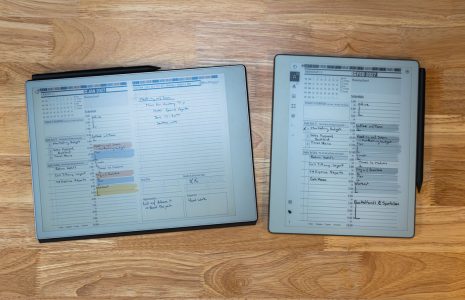
While there is no direct way to use Microsoft Word with reMarakble, the Read on reMarkable add-in makes it easy to move your Key2Success Digital Planner from Word or PowerPoint to your reMarkable device. It sends your file as a PDF directly into your library so you can write, highlight, and plan on your tablet without extra steps. This guide walks you through what it is, how to install it, and how your planner users can take advantage of it.
What the Read on reMarkable Add-in Does
The add-in places a reMarkable button inside Microsoft Word and PowerPoint. When you click it, your file is converted to a PDF and delivered to your device through your reMarkable account. You can open it on your reMarkable, reMarkable Paper Pro, or reMarkable Paper Pro Move and start using your planner right away.
What You Need Before You Start
- A compatible Microsoft 365 version of Word or PowerPoint
- A reMarkable account
- A reMarkable device running software version 2.11 or higher
- An internet connection for sync
How to Install the Add-in
- Open Word or PowerPoint.
- Go to the Add-ins section. It may be in the Insert tab or directly in the ribbon depending on your version.
- Select Store or Office Add-ins.
- In the search box, type Read on reMarkable.
- Click Add.
- The add-in will now appear under My Add-ins and can be accessed from the ribbon.
If you plan to send planners from both Word and PowerPoint, repeat this process in each app.
How to Send Your Planner to reMarkable
- Open your planner file in Word or PowerPoint.
- Click the reMarkable icon in the ribbon.
- Enter the file name that will appear on your device.
- Click Send.
- On your reMarkable, go to My Files. Sorting by Last Updated can help you find the file quickly.
Your planner will appear as a PDF, ready for handwriting and navigation through your linked tabs.

Using the Add-in with Key2Success Planners
Key2Success planners are built for smooth navigation on reMarkable devices. When you send them using the Read on reMarkable add-in:
- Linked tabs and sections remain active inside the PDF.
- You can write naturally on any page with your reMarkable pen.
- You can move pages, highlight, and save notes across desktop, phone, and tablet.
- Updates to your planner in Word or PowerPoint can be resent as fresh PDFs whenever needed.
This is helpful for users who work from their computer during the day and want their planner ready on their tablet without exporting or emailing files.
Troubleshooting Tips
If the add-in button does not appear
- Check under hidden icons in your Home tab.
- Make sure Office is fully updated.
- Confirm the add-in is listed under My Add-ins.
If your file is not arriving on your device
- Confirm you are logged in with the same reMarkable account in both the add-in and on your tablet.
- Check your WiFi connection.
- Verify that your device software is version 2.11 or later.
Final Thoughts
The Read on reMarkable add-in creates a simple path from your computer to your reMarkable library. It supports your Key2Success Digital Planner by making the setup process quick and reliable. Whether your customers use the original reMarkable, the Paper Pro, or the Paper Pro Move, they can move their planner files to the device with only a few clicks.
You can learn more about the Read on reMarkable add-in on the official support page:
Read on reMarkable Word and PowerPoint add-ins.