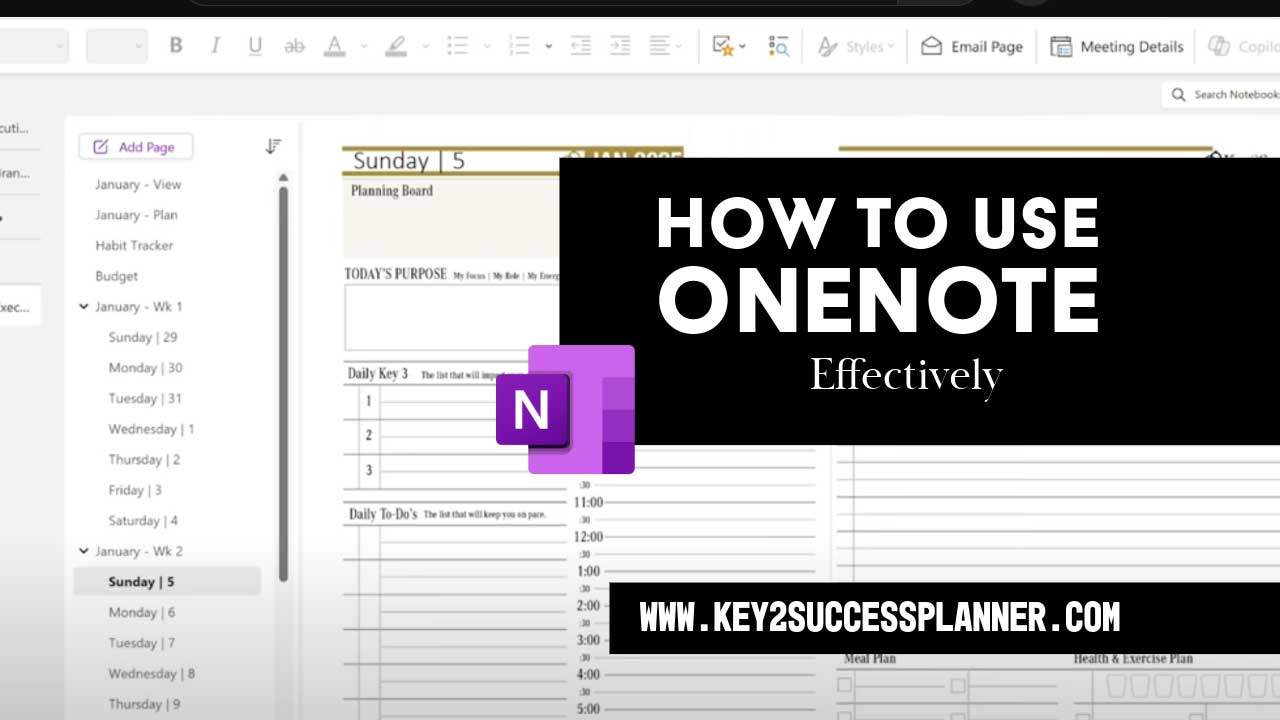
How to Use OneNote Effectively in 2026
Microsoft OneNote continues to evolve as a central hub for digital organization, note taking, planning, and collaboration. With updates across Microsoft 365, stronger cross device syncing, and improvements to tagging and search, OneNote in 2026 is more capable than ever for professionals, students, and hybrid teams.
Whether you use it as a digital notebook, a project management tool, or a companion to your workflow apps, learning how to take advantage of its modern features can make a measurable difference in productivity.
Below are the most effective ways to use OneNote in 2026, along with practical strategies and tools that support a smoother workflow.
1. Structure Your Notebooks Around How You Work
OneNote’s flexibility is a strength, but effective organization starts with a clear structure. In 2026, many users follow a layout that mirrors their real world responsibilities.

Try creating notebooks for:
- Work
- Personal
- Projects
- Learning and development
- Planning and journaling
Inside each notebook, use sections and pages to divide content into manageable pieces. Keeping naming conventions consistent helps OneNote’s improved search and tag filters work more efficiently.
2. Take Advantage of the Updated Tagging Experience
OneNote’s tagging system was redesigned for more consistency across Windows, Mac, web, and mobile. The updated Tags gallery now supports better filtering, custom tags, and multi tag searches.
Use tags to track:
- Tasks
- Decisions
- Key ideas
- Meeting action items
- Research sources
- Follow ups
Tags are now indexed more reliably, which makes end of week and monthly reviews easier.
3. Use Templates to Build Repeatable Workflows
Templates have returned as a key feature for 2026. You can create custom templates or import templates for:
- Meeting notes
- Project dashboards
- Weekly planning
- Journals and reflection
- Study notes
Templates not only save time but also help maintain a consistent format across teams.
Visit the Key2Success shop to get started!
4. Integrate OneNote With Microsoft Planner and To Do
Microsoft continues to support tighter integration between its productivity tools. In 2026, OneNote works smoothly with Planner and To Do, which helps unify task management.
Examples of how to use these together:
- Convert note based tasks into To Do items
- Link Planner boards to project pages
- Track assignments and deadlines directly from notebook entries
This setup creates a complete planning ecosystem without switching apps constantly.
5. Use OneNote as Your Meeting Command Center
With hybrid and remote work still common, OneNote remains a top choice for meeting notes. Integration with Outlook allows you to pull in meeting details automatically.
You can:
- Import agendas
- Add participants
- Attach related documents
- Capture decisions and action items in real time
Sharing the notebook with your team helps maintain transparency and keeps projects aligned.
6. Sync Across Devices for Seamless Capture
OneNote’s sync has improved across iPad, Android tablets, phones, and desktop devices. Notebooks load faster and handle large files more reliably than earlier versions.
Using multiple devices gives you the ability to:
- Capture ideas on the go
- Annotate with a stylus
- Review long notes on a desktop
- Organize and archive from any location
The cross platform experience in 2026 makes OneNote a natural hub for always available notes.
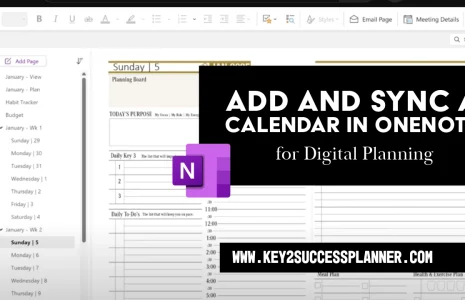
7. Use OneNote for Digital Planning in 2026
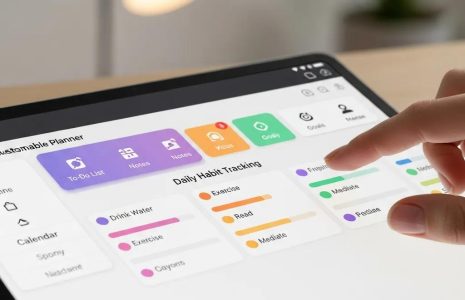
Many users now combine OneNote with digital planners. With the rise of structured planning tools, OneNote offers a flexible companion for goals, reflections, and dashboards.
For users who want a more complete planning system, structured digital planners like Key2Success can complement OneNote by offering pages dedicated to:
- Annual goals
- Weekly reviews
- Action planning
- Decision tracking
OneNote then becomes the workspace where ideas, research, and notes expand on those plans.
8. Explore the Improved Ink and Handwriting Tools
OneNote still leads in digital handwriting among mainstream productivity apps. In 2026, improvements include:
- Smoother ink rendering
- Better handwriting recognition
- More natural drawing tools
- Enhanced conversion from ink to text
If you use a stylus, OneNote can function as both a notebook and sketchpad for planning, brainstorming, and drafting.