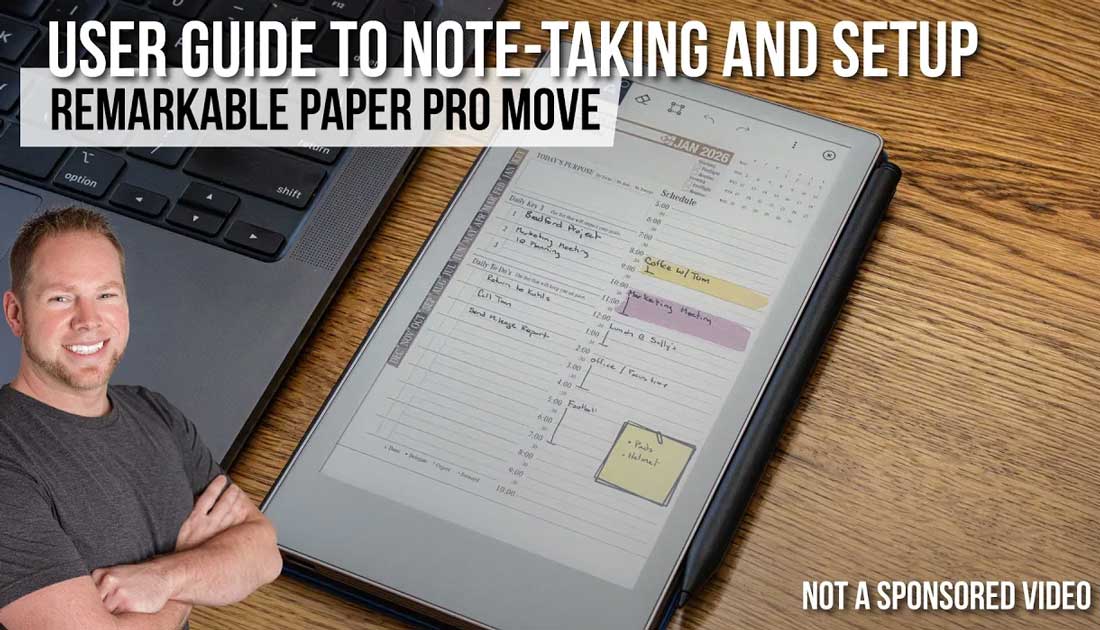
Step 1: Quick Setup (Charging, Pairing, Wi-Fi, Sync)
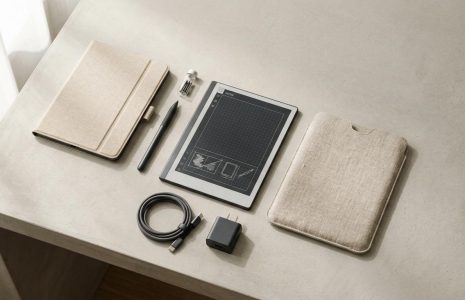
Once your Remarkable Paper Pro Move is out of the box:
- Charge the device fully before first use.
- Pair it with your accessories (stylus, keyboard if applicable).
- Connect to Wi-Fi so you can enable cloud sync.
- Set up sync with Remarkable Connect or your preferred integrations to access files across devices.
These basics ensure your device is secure, backed up, and ready for daily use.

Step 2: Adjust Key Settings
Inside Settings, you can customize your device:
- Enable a password for security.
- Update personal information so your device can be returned if misplaced.
- Set brightness and reading light filters for comfortable use.
- Lock screen rotation (especially useful on the Move, since you’ll often pick it up in different orientations).
- Accessibility tools let you adjust font sizes and choose left- or right-handed modes.
Step 3: File Navigation and Organization
Your Remarkable Paper Pro Move makes it easy to keep files in order:
- Filter by notebooks, PDFs, and eBooks in the main file view.
- Mark favorites for quick access.
- Add tags (great for project management or client notes).
- Use handwriting search (with the Connect package).
- Recover deleted items from the trash when needed.
You can also create folders, notebooks, and quick sheets with the plus (+) button. Many users organize planners by year and store related notes, ideas, and exports inside.
Step 4: Using the Optimized Move Planning System
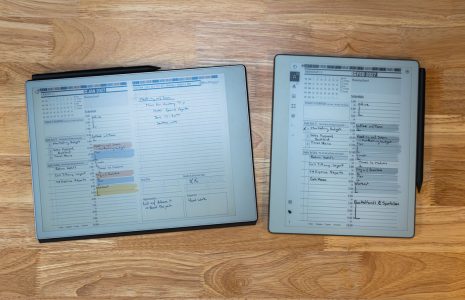
The optimized Move planner includes:
- Above-page navigation and side tabs for quick movement between sections.
- Cross-device sync so edits carry over automatically.
- Landscape and portrait support, depending on your preferred writing view.
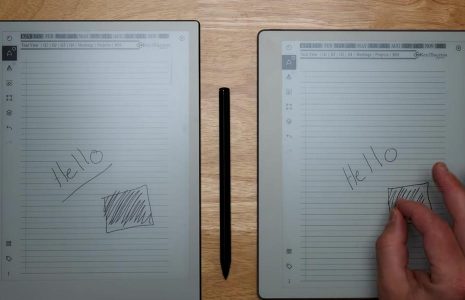
Finger = navigation
Stylus = writing
This distinction makes navigation smoother and prevents accidental markings.
Step 5: Writing and Drawing Tools
The Paper Pro Move offers a wide range of tools:
- Pens: rollerball, fine liner, pencil, highlighter, and more.
- Thickness options: light, medium, thick.
- Colors: perfect for block scheduling (e.g., work tasks in blue, personal in yellow).
- Erasers: pixel erase, area erase, or selection erase.
- Shapes tool: draw circles, rectangles, or blocks that auto-correct into perfect shapes.
Step 6: Productivity Features
To-Do Management
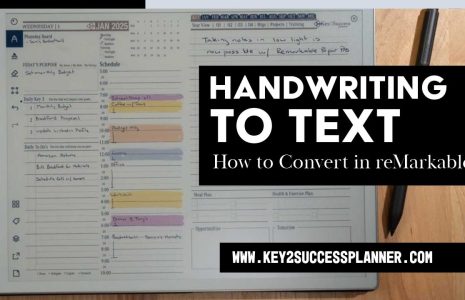
- Use the lasso tool to copy tasks from one day to the next.
- Move templates or journal logs across pages for consistency.
eTiles for Customization
- Add sticky notes, time blocks, 24-hour schedules, or contact logs directly into your planner.
- Rotate, resize, and personalize layouts to fit your workflow.
- Use eTiles as functional stickers—decorative but designed for productivity.
Tags and Search
- Tag notes with keywords like “to-do” or client names.
- Search across all notebooks for both typed and handwritten text.
Step 7: Sharing and Exporting
The Remarkable Paper Pro Move makes it easy to share work:
- Send a copy or export notes as PDFs.
- Change notebook settings like cover page, title, and last-page view.
- Add new pages with eTiles instead of just blank paper, creating custom logs, trackers, or project layouts.