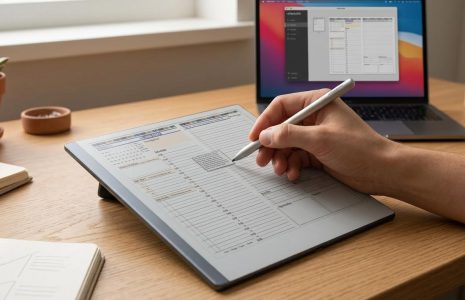

reMarkable Custom Templates vs. Built-In Templates: What Actually Changes
Built-in templates are fixed page backgrounds you pick from a menu when you create a note page, dots, grids, lines, and a handful of others, available instantly with no setup. Custom tiles like Key2Success are PNG images you insert onto a page using reMarkable's image feature. They aren't backgrounds, they're objects you place, resize, and write on top of, which is what lets them go onto an existing PDF page in a way built-in templates never could.
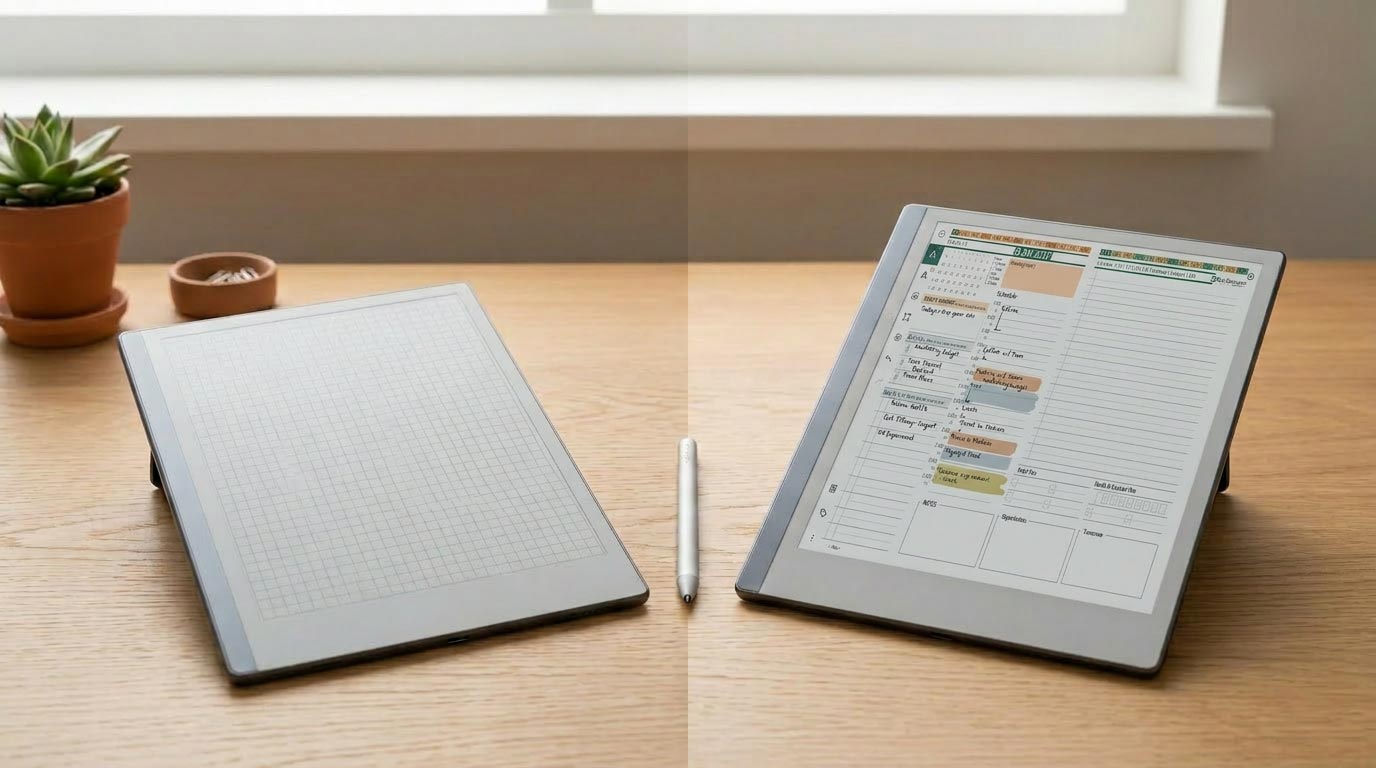
"Custom templates" is the phrase everyone uses, including the video that started this whole series, but it undersells what's actually going on. reMarkable's built-in templates and something like a Key2Success Tile aren't two versions of the same feature. They're two different mechanisms that happen to solve a similar problem: giving a blank page some structure before you start writing. If you haven't read the complete guide to reMarkable custom templates yet, that's the best starting point for the full picture; this article zooms in on one specific question.

What Built-In Templates Actually Are
Built-in templates are page backgrounds reMarkable ships with the device. As of OS 3.16, you get dozens of them, dots, grids, lines, and a handful of more creative layouts, and you pick one from the template menu when you create a new page or insert a blank note page into a document. Once selected, the layout becomes the page itself. There's nothing to import and nothing to position. It's just there.
The tradeoff is that you're picking from what reMarkable decided to include. There's no daily schedule template, no habit tracker, no SWOT sheet. That's the gap third-party tile libraries exist to fill.
What Custom Tiles Actually Are
A Key2Success Tile is a PNG image, not a background. You bring it onto the device using reMarkable's image-insertion feature (added in firmware 3.27) through the desktop app, then place it on the page you want it on. If that page lives inside a PDF, like the Key2Success Planner, you paste the image into a notebook first, then lasso, copy, and paste it onto the actual PDF page. The full walkthrough of that process is in How to Add Custom Templates to Your reMarkable.
Once it's placed, a tile behaves like any inserted image: you can move it, resize it, rotate it, and write directly on top of it. It's not locked to the page the way a built-in template is. That's a real advantage in some situations and a real risk in others, since an image can be nudged out of place if you're not careful with the selection tool.
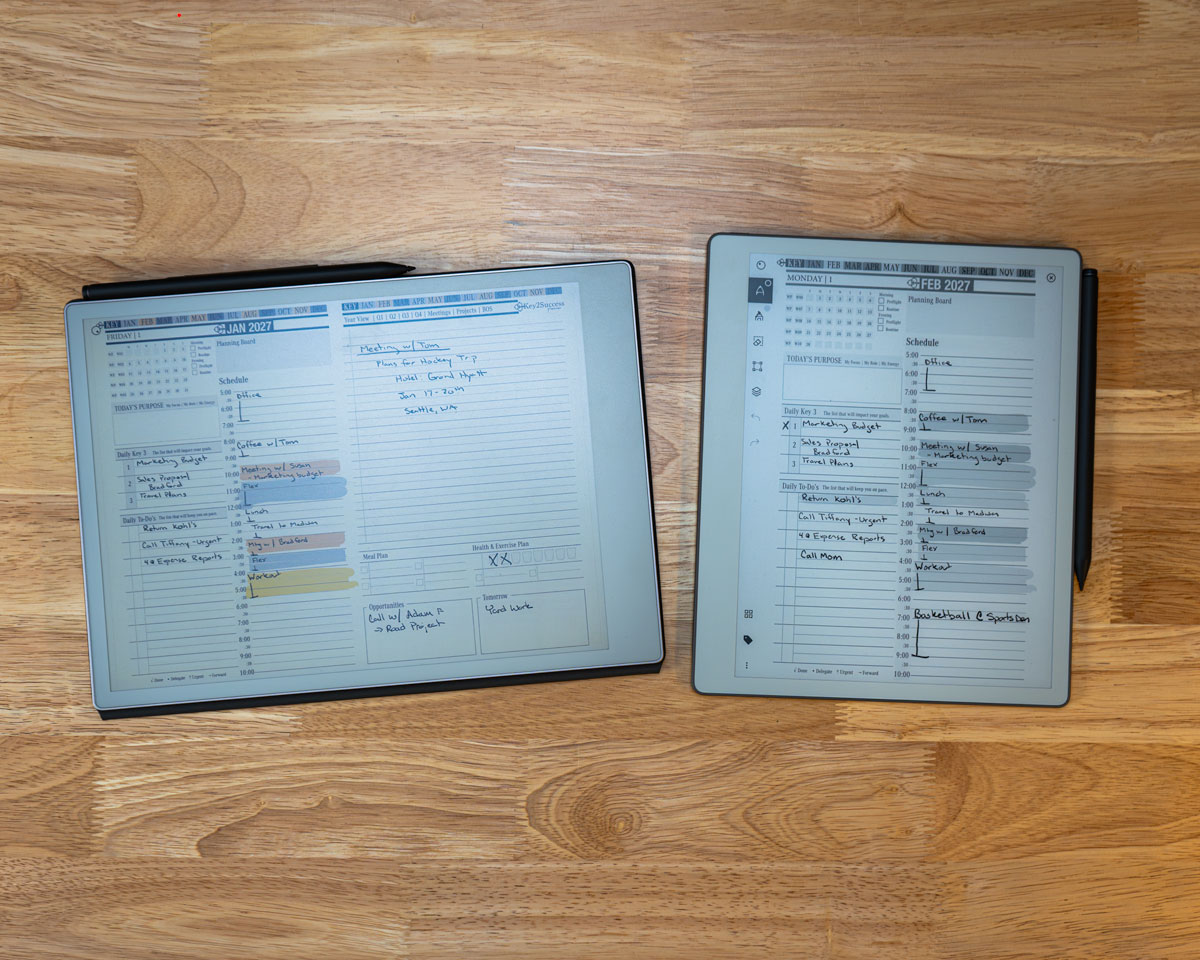
Daily tiles placed on reMarkable Paper Pro and Paper Pure, an example of a custom tile rather than a built-in template.
The Real Difference
| Built-In Templates | Custom Tiles (Key2Success) |
|---|---|
| Fixed background, selected from an on-device menu | Inserted image, placed manually on a page |
| Available instantly, no computer needed | Requires the desktop app to bring the image onto the device |
| Only applies to new/blank notebook pages | Can be placed on an existing PDF page |
| Locked to the page, can't be moved or resized | Movable, resizable, rotatable after placement |
| Limited to what reMarkable includes | Unlimited variety, any tile library or custom design |
How This Plays Out for Me
In practice I still reach for a built-in grid template when I want a blank page fast and don't care what it looks like. Everything I actually plan around, my life balance wheel, my SWOT sheet, the call tracking and habit log elements I've added to my own daily pages, is a tile pasted onto my planner PDF. Different tools for different moments, not a replacement of one by the other.
Where Each One Wins
Built-in templates win on speed
No computer, no download, no copy-paste. If you need a blank grid page right now, the built-in option is faster every time.
Custom tiles win on flexibility and reach
They're the only way to bring a specific, purpose-built layout, a habit tracker, a SWOT sheet, a meeting notes page, onto an existing PDF planner. Built-in templates simply can't do that; they only apply to new notebook pages.
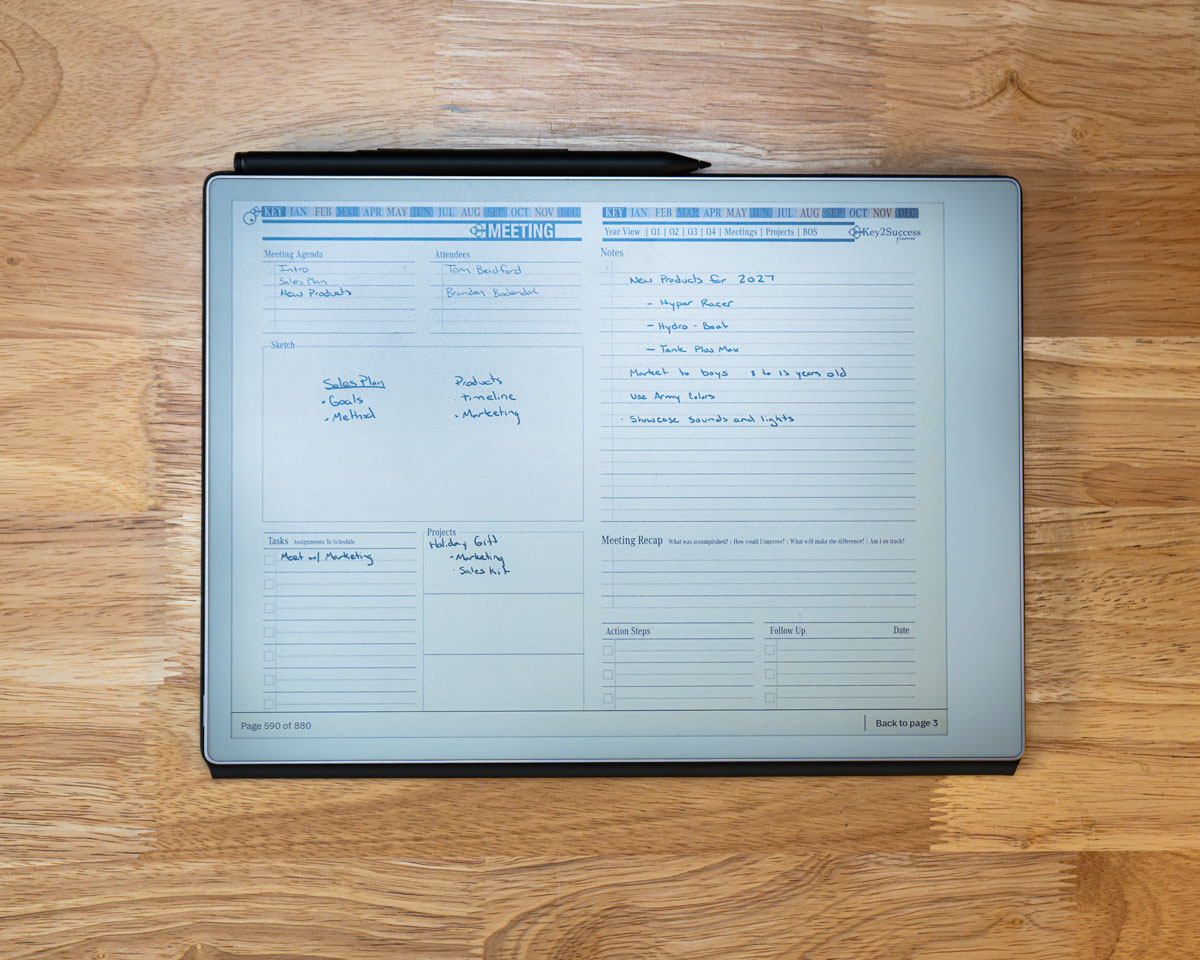
A meeting notes tile placed on a reMarkable Paper Pro page, a layout no built-in template offers.
Using Both Together
Most people end up using both without thinking about it much. A quick capture note gets a built-in grid page. Anything that's part of an actual system, daily planning, a recurring weekly review, gets a tile placed on the PDF planner where it belongs. Neither one replaces the other; they're solving different problems.
See both template types on the actual e-ink screen, side by side.
Get the Key2Success Tiles
Daily, habit, SWOT, and life balance tiles, ready to drop onto your planner.
Browse Key2Success TilesFrequently Asked Questions
Are custom templates and built-in templates the same feature?
No. Built-in templates are fixed page backgrounds selected from a menu, added in reMarkable OS 3.16. Custom tiles are PNG images inserted onto a page using the image feature added in firmware 3.27. They work through completely different mechanisms.
Can I use a built-in template on a PDF page?
No. Built-in templates only apply to new notebook pages or blank note pages inserted into a document. They can't be applied to an existing PDF page the way a custom tile image can.
Can I accidentally move a custom tile after placing it?
Yes. Because a tile is an inserted image rather than a locked background, it can be nudged or resized if the selection tool catches it unintentionally. Built-in templates don't have this risk since they're part of the page itself.
Do built-in templates cost anything?
No, built-in templates are included with every reMarkable device at no extra cost. Custom tiles from third-party libraries like Key2Success are separate purchases.