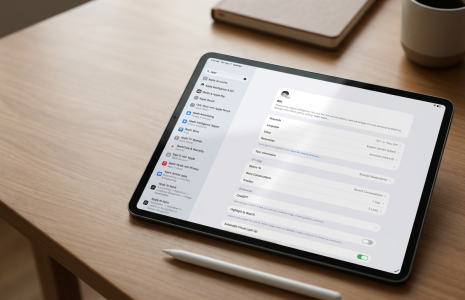

Siri Reminders Sync: Keeping Your Digital Planner and iPhone in Step
Siri reads your Key2Success Planner’s daily to-do list in iOS 27 and schedules matching Reminders on your iPhone, including specific times for deadline items, so your planner page and your phone’s notifications stay in step without you retyping anything into the Reminders app yourself.
Most people treat Siri’s Reminders sync in iOS 27 as a typing shortcut, a way to skip re-entering the planner’s to-do list into the Reminders app by hand. That’s true, but it undersells what’s actually happening. Once Siri reads your Key2Success Planner page and schedules those items into Reminders, your planner and your phone’s notifications are working off the same list for the first time.
Here’s the part that surprised me most in my own first week running it: the feature is only as useful as the discipline behind the list you hand it. Siri will schedule a reminder to repeat every day without blinking. It won’t tell you that a task you’ve carried five days in a row probably isn’t a scheduling problem. That part is still on you.
In my first week running this after the iOS 27 rollout, I saved anywhere from 5 to 10 minutes a day just by not retyping my to-do list into Reminders by hand. The bigger win wasn’t the time. It was the confidence that my schedule actually had every appointment I meant to keep, backed by a notification instead of a page I might not reopen until the next morning.
What Siri Actually Does With Your To-Do List
With your Key2Success Planner page open and Apple Intelligence and Siri turned on, ask Siri to schedule your day’s to-do items, naming anything with a fixed deadline. Siri reads what’s visible on the page, picks out items with a specific time attached, and adds them to Reminders on your confirmation. Anything without a locked time gets scheduled for the day without a fixed hour.
Siri only reads the page to build the list. It doesn’t edit or erase anything you’ve written on the planner itself, and it doesn’t add a reminder without your confirmation first.
What the Sync Caught in My Own Planner
The clearest example I have came straight from my own Friday page. I asked Siri to schedule that day’s to-dos, and it came back with, “I’ve scheduled your reminders for Friday, September 11. I set ‘Return Amazon to Kohl’s’ for 3:00 PM and added ‘Submit Expense Reports’ for that day as well.” One item had a hard time on the page. The other didn’t, and Siri still caught it and scheduled it for the day. That’s the whole feature in one exchange: it reads what’s real, not what it assumes should be there.
I didn’t push Siri past what was actually written on my page that day, and I’d say that’s the honest way to test it. If you want to see how it handles a heavier load, a task with a hard deadline, a recurring task, a task next to a bigger deadline, or several unrelated to-dos in the same request are all worth trying deliberately rather than assuming Siri will handle them the same way.
Does This Work the Same on iPhone and iPad?
Yes. Siri runs on the same underlying model and platform on both devices, so the Reminders sync behaves identically whether you’re asking from your iPhone or your iPad. The setup steps under Settings are the same on each device too, which matters, since permissions are granted per device, not shared automatically across your Apple ecosystem.
Don’t Let a Repeating Reminder Replace a Decision
This is the part I’d tell anyone before they get too comfortable with this feature. If you simply set a reminder and then ask Siri to repeat that notification every day until you finish the task, you’re not actually planning. You’re avoiding the planning process and letting a notification stand in for a decision about priority.
If a task has real intent behind it, you should be closing it out, not carrying it forward. If you’re not making progress on a reminder over a handful of days and it keeps rolling from one day to the next, that’s worth a direct question: is this actually a priority for you, and if so, why isn’t it getting done? Leaving it sitting in your task list isn’t a solution to being unsuccessful with it.
How Much Time This Actually Saves
In my first week using this since the iOS 27 rollout, I saved somewhere between 5 and 10 minutes a day, just on the retyping I no longer had to do. The bigger benefit was confidence, knowing my schedule had every appointment I was actually working toward, with a notification behind it instead of just ink or pixels on a page.
Frequently Asked Questions
What does Siri actually do when I ask it to schedule my to-do list?
Siri reads the to-do items visible on your planner page, identifies which ones have a specific time attached, and adds all of them to Reminders on your iPhone once you confirm.
Does Siri know which of my to-dos have real deadlines?
Siri schedules a locked time when one is written on the page, like 3:00 PM. Items without a specific time still get added to Reminders for that day, just without a fixed hour attached.
Does this work the same on iPhone as it does on iPad?
Yes. Both devices run the same Apple Intelligence and Siri model, and the setup steps under Settings are identical. Permissions are granted per device, so you do need to turn it on separately on each one.
What happens if I keep pushing the same reminder to the next day?
Siri will keep rescheduling it if you ask. That’s a sign the task isn’t actually a priority for you, not a scheduling problem Siri can fix. Address the priority question directly instead of letting the reminder repeat indefinitely.
Does Siri overwrite anything on my actual planner page?
No. Siri reads your to-do list to build the Reminders schedule. It doesn’t edit, erase, or add anything to the planner page itself.
How much time does this actually save?
In my own first week using it after the iOS 27 rollout, I saved roughly 5 to 10 minutes a day on retyping alone, plus the added confidence of a full, notification-backed schedule.
Quick Answers
- Does it work with recurring tasks?
- Yes, but a repeating reminder isn’t a substitute for actually finishing the underlying task.
- Can Siri set a reminder for a task with no specific time?
- Yes. It schedules the task for that day without a locked hour attached.
- Does this require typing anything into Reminders manually?
- No. Siri adds the reminders directly once you confirm.
- Does it work without an internet connection?
- No. Siri checks live data in Calendar and Reminders, so an internet or cellular connection is required.
- Can I ask Siri to schedule just part of my to-do list?
- Yes. Name the specific items you want scheduled instead of the whole page.
- Does this work with any to-do list, or just Key2Success?
- It works with whatever to-do list is visible on the page. This article is based on testing it against the Key2Success Planner specifically.
- Does this drain battery faster?
- On-device Apple Intelligence features typically use more power than Siri alone, so expect some added drain when you’re actively using this.
- Do I need to repeat setup on both iPhone and iPad?
- Yes. Settings are per device, so repeat the Apple Intelligence and Siri permissions on each one you plan to use.
Reminder Types Worth Testing Yourself
- A single task with a hard deadline written on the page (e.g., “3:00 PM”)
- A recurring task tied to a repeating event or habit
- A task sitting next to a bigger deadline several days out
- Several unrelated to-dos scheduled in the same request
I tested this against my own real to-do list in week one and didn’t push it past what was actually on my page. If you try any of the four above and Siri handles it differently than expected, that’s worth knowing, especially before you rely on it for a task that actually matters.
- Key2Success iOS 27 AI Planning Hub: the full buyer’s guide to every AI feature in the ecosystem
- How to Connect Siri to Your Key2Success Digital Planner in iOS 27: the setup steps this article builds on
- How Siri Fills In Your Key2Success Professional Builder Pages: using Siri on a different page in the same planner
Get the Planner Siri Is Talking To
This sync only matters if you’re running the current Key2Success Digital Planner. Grab it to follow along in OneNote, GoodNotes, or Notability.
Sources: Apple iOS overview, Apple Siri support, iOS 27 Siri Syncs Your Digital Planner video.